Desktop: Synchronise client
ℹ️ Info Applies to: primedocs desktop, OneOffixx
Concerns: All
Already know everything about synchronisation? Jump straight to the instructions.
Introduction
A synchronisation with the database or the server is performed regularly at a set time interval. In most customer solutions, primedocs desktop downloads any new data from the server every 15 minutes.
Sometimes, however, you may want to download or upload certain changes immediately. You can therefore also synchronise the client manually with the database. This article explains how.
A manual synchronisation can make sense if you have
- shared your profile
- adjusted shared snippets
- for layouters: adjusted templates, snippets or organizational units
- for administrators: imported a package via the dashboard
For technicians and those interested: in our technical documentation you can learn even more about synchronisation from the client to the server: Desktop Client Synchronisieren.
Instructions
There are two ways to synchronise the client with the database.
First make sure that primedocs desktop is running.
Option 1
- Open primedocs desktop.
- Make sure that you are not in the primedocs tab but on Templates or Organization.
- In the footer of the client at the bottom right, you will see the display "Last update: [Date] [Time]".
- Now perform one of the following actions:
- Option B: Select the key
Ctrland double-click on it. - Option A: Click on it once and select the Synchronise option in the pop-up window that opens.
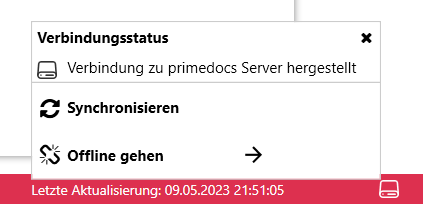
Option 2
- In your Windows taskbar, locate the primedocs symbol in the notification area.
- Right-click on the primedocs symbol.
- Then click on "Synchronise".
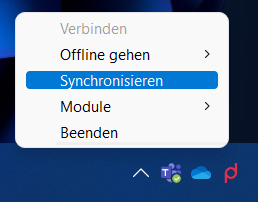
The progress of the synchronisation is now displayed in green to the right of it.