Desktop: Reset Client Cache
ℹ️ Info Applies to: primedocs Desktop, OneOffixx
Target audience: Administrators
Sometimes we ask you to reset the cache of the primedocs client on the user's device. Since the cache can become corrupt in rare cases, this is the simplest way to help users quickly before you open a ticket with us.
Clear Cache, Option 1
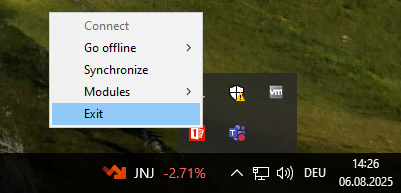
- Make sure primedocs is closed: In the Windows taskbar, right-click the primedocs icon and click "Exit primedocs".
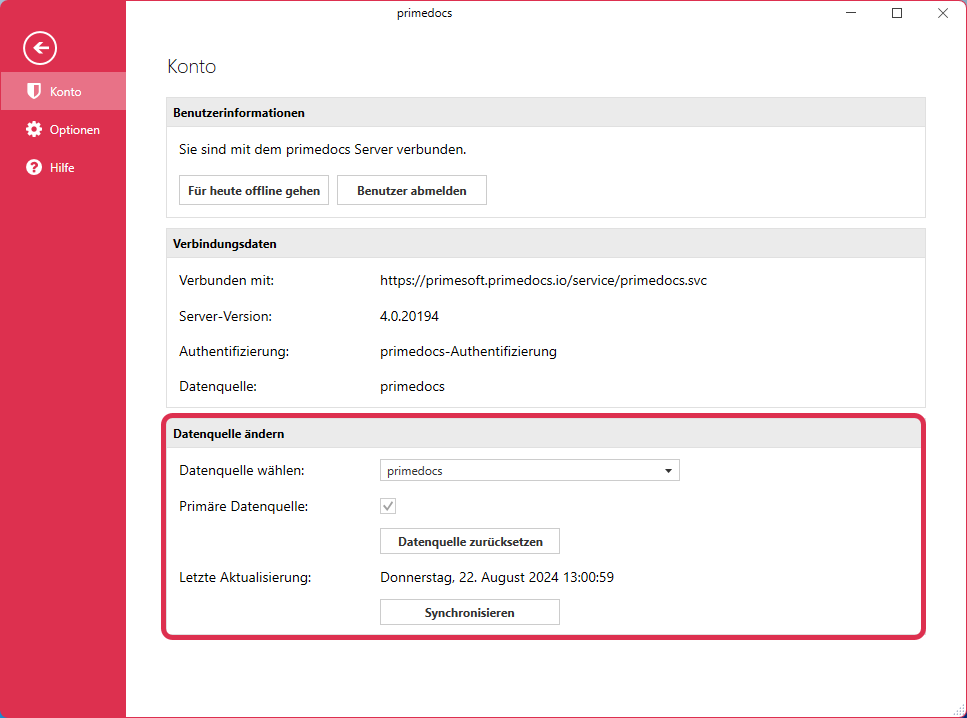
- In the primedocs client, click the primedocs tab (far left)
- Select the Account menu item
- In the account settings, in the Change Data Source group, click the Reset Data Source button.
Clear Cache Properly, Option 2
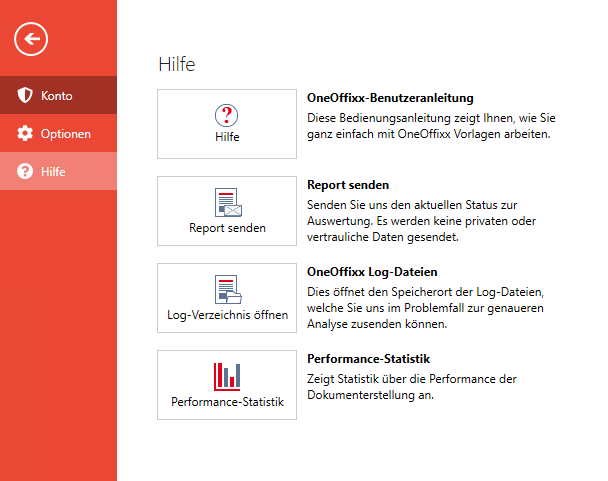
- Click "Help" in the red column on the left. Then "Open Log Directory". This opens File Explorer.
- Before deleting the Logs folder in "primedocs" or "OneOffixx" in File Explorer, please close the OneOffixx or primedocs client properly (Windows taskbar → right-click the "OneOffixx" or "primedocs" icon):
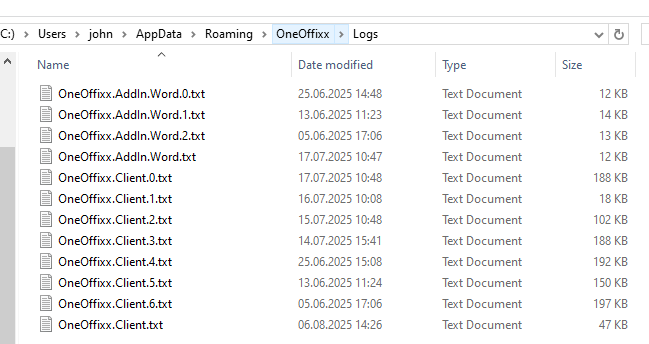
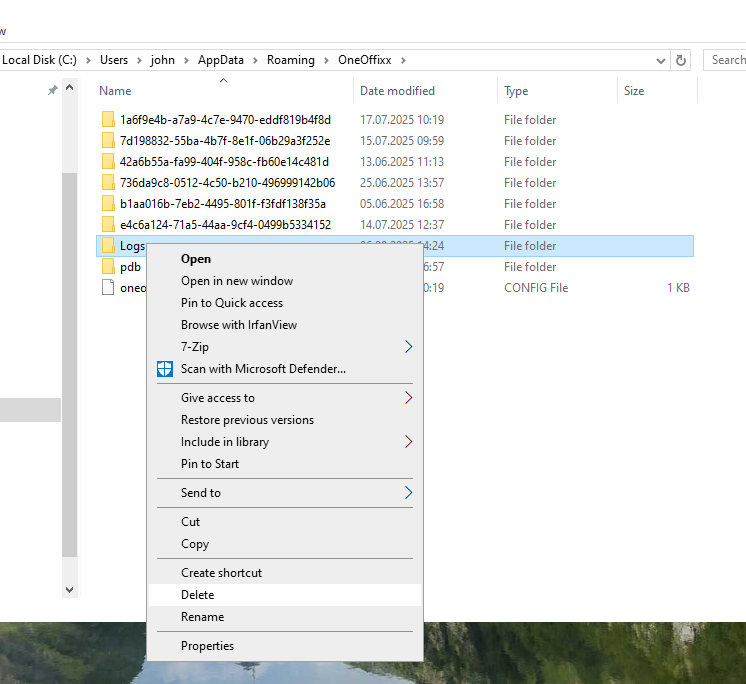
- Now in Explorer, navigate up to the "OneOffixx" (or "primedocs") level and delete the Logs folder.
- Start OneOffixx normally again.
- The primedocs client will restart with the splash screen "primedocs is being initialized...".
- The primedocs client appears in the foreground and the user must sign in to primedocs via Windows login if required.
- The splash screen "primedocs is being prepared for first use..." appears and primedocs fetches all data from the database.
- The client is then ready to use again.
note
NOTE
Step 6 is skipped if an OnPrem without IdS installation has been set up on your server (instead of an OnPrem with IdS installation).