Change logo color mode default for all templates
This page is about classic templates. You can find more information here.
ℹ️ Info Applies to: Layouters, administrators
Refers to: primedocs desktop
This page describes how you can change the logo for your documents from black and white to colour - or vice versa in primedocs desktop.
Please find more information about the Themes document function in the technical documentation.
ℹ️ Info In order to complete the steps below, you must have Administrator permissions, meaning that you must, at least, have template editing rights. You will not be able to complete the steps outlined below if you do not see the “Administration view” button mentioned at the beginning of the Instructions.
Information
Before you begin, it is useful to remind yourself of the document template hierarchy in primedocs desktop. General information about the hierarchy can be found here: Template groups and template handling
Put simply, the highest level is the Style template, which contains basic formatting information (such as styles, themes and the configuration of logos) which is inherited to all Templates below in the hierarchy. So if you want to change the default logo for ALL your templates, then you can make the change described below on the Styles template.
The next level down is the Layout template. Changes you make here apply only to those templates which are based upon this Layout template. So if you wish to modify the logo only for, say, correspondence documents, then this is where you would do this.
The lowest level is the Content template, and you might choose to make this logo change on this level if it applies only to a specific document.
So before you proceed as indicated below, consider on which level you need to change the default logo.
✅
Instructions
Choose the template level you wish to change, according to the thoughts above. In this example, we will change the default logo on the highest level: The Styles template.
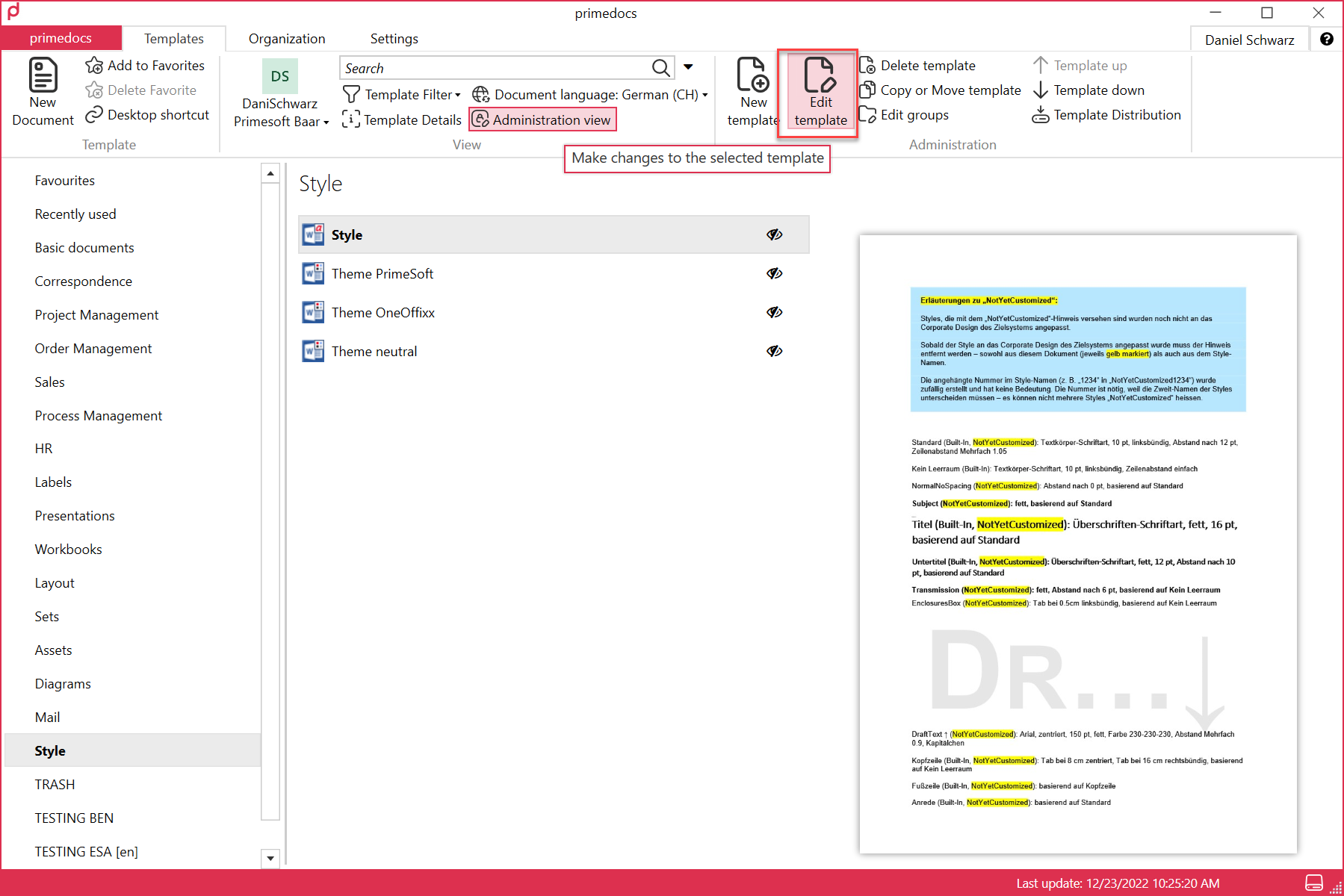
So locate the Styles template, and click on the Edit Template button.
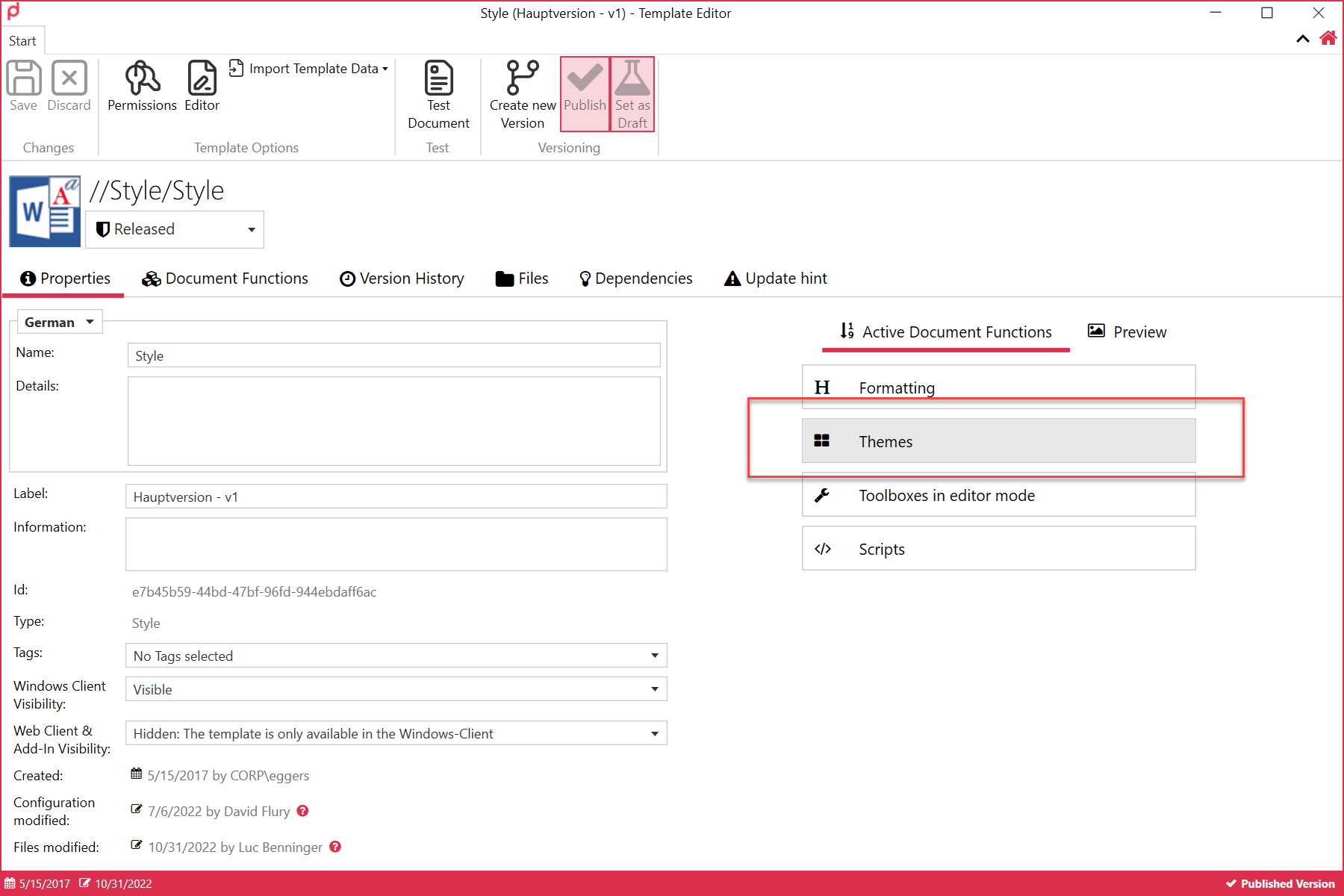
Now double-click on Themes.
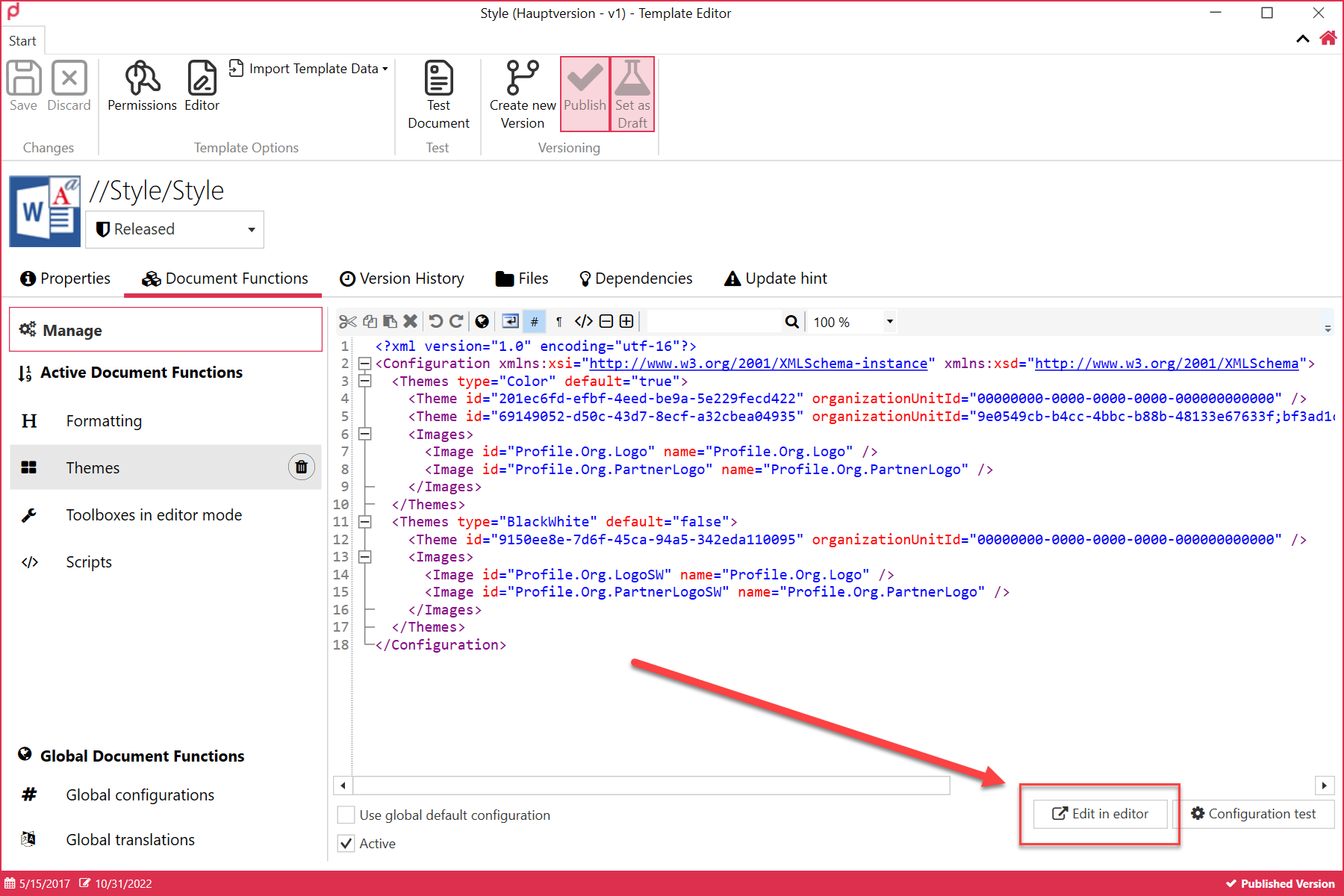
And now click on the Edit in editor button.
This will open the logo configuration panel. Here you can switch from the colour, the grey scale (if available) and the black & white logos. Now simply select “Standard” for the logo you wish to set as default.
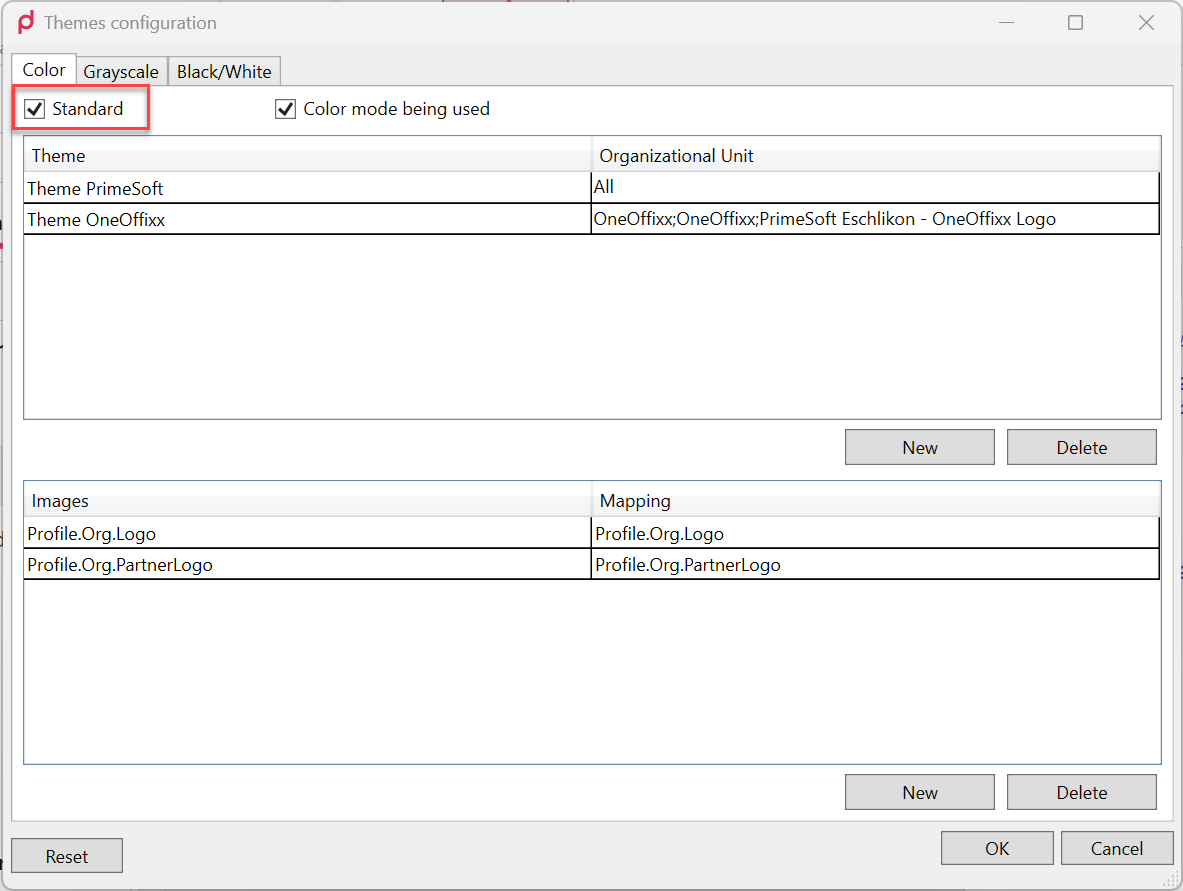
Press OK and remember to save your change. Done!