Word: Template Creation process
The concept behind the creation and construction of web-enabled templates is explained below.
If you have previously built classic templates, we recommend that you read through the main differences between web-enabled and classic template building, as the two types of building are fundamentally different from each other: Templates And Template Types (In German)
Template Creation: Concept
As already described in the template types (Templates And Template Types ), documents are composed of three levels when they are created in primedocs: the style, the layout and the content.
When creating web-enabled Word templates in primedocs, specific document functions are available for each Word template type at the corresponding level. These document functions enable the template to be dynamised. This is done via data input masks (forms) and fields, whereby the latter can insert text, data from connect or select interfaces or entire text sections (text modules). In this way, simple to complex requirements for template structures and use cases can be mapped.
To begin with, here is an overview of all document functions per template type:
| Template type | Available Document Functions | Purpose of the Document Function |
|---|---|---|
| Style | None | Inherits styles when creating a document |
| Layout | PlaceholderDefinition | Define Placeholder |
| Content | PlaceholderMapping | DFill the placeholders stored in the layout with data from other document functions |
| Fields | Processing data from forms, data, global configurations and global translations | |
| Forms | Definition of the data entry form that appears when a document is created | |
| Data | Definition of schemas for a primedocs Connect interface for use in fields. |
Template creation: Process
The following procedure for creating web-enabled templates is recommended:
1) Create layout template
- Create a new template of the type "Layout" in primedocs desktop. The template editor opens.
- Select the appropriate Style Template from the dropdown under "Based on". Ideally, there is exactly one style sheet per primedocs solution.
- Activate the Document Function “Placeholder Definition”
- Consider what dynamic content belongs in the header and footer and create placeholders accordingly in the placeholder definition.
- Open layout template in Word editor
- Place the placeholders created in the placeholder definition in the headers and footers. Placeholder content controls are green.
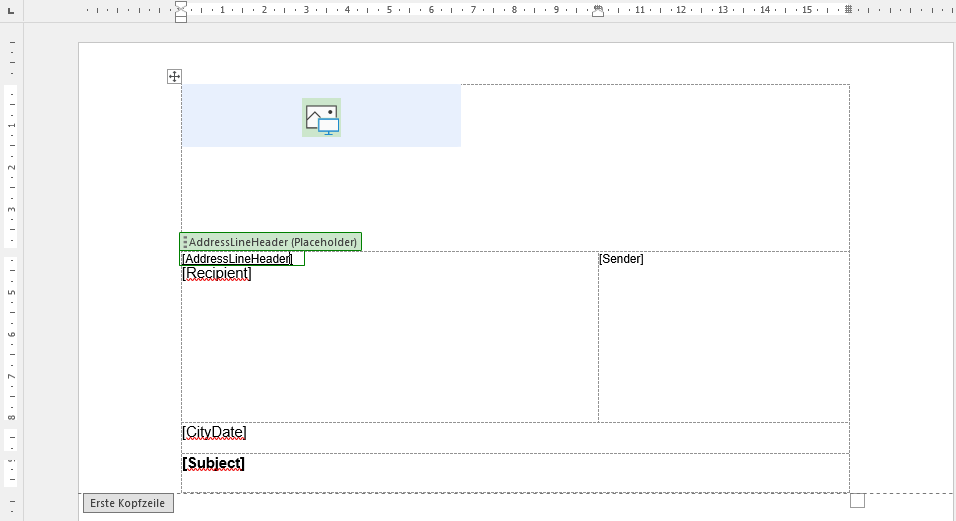
- Apply the correct style to the content controls for the placeholders. This style is ignored if the placeholder in the content template is filled with a field of type FormattedText or WordContent.
2) Create content template
- Create a new template of the type "Content" in primedocs desktop. The template editor opens.
- Select the new layout template under "Based on" in the drop-down menu.
- Activate the Document Functions “Placeholder Mapping”, “Forms”, and “Fields”.
- Create all forms fields (data input fields) and fields relevant to this template. See the Layouter manual for more information: Word Dive Into Fields
- Placeholder mapping: In the content template in the Document Function “Placeholder mapping”, assign the corresponding form field or field with which the placeholder is to be filled to each single placeholder.
- Use "Test document" to check whether the correct data appears in the header and footer.
- Finalise the content template: Create the remaining form fields and fields that are relevant to the content of the content template - and test them continuously.