JavaScript in Fields.
- 1 Quick introduction to JavaScript
- 1.1 General
- 1.2 JavaScript in Fields
- 2 Control structures
- 2.1 if-Statements
- 2.2 switch-case-Statements
- 2.3 Ternary-Operator ?:
- 3 Loops
- 4 CDATA-Tag
- 5 Functions
We can write JavaScript code in the <Code> tag and thus have a very powerful tool for dynamising content in templates.
Everything relating to programming within code is documented here: Code (in German). We recommend that you read this page first.
Quick introduction to JavaScript
General
- To call a function predefined in primedocs,
$.must be written first. Example:$.myFunction('Profile.User.FirstName'), see Code (in German) - A primedocs field is called as follows:
$("Profile.User.FirstName"), SeeCode (in German) - The contents of the brackets in a function call is called a parameter (in the example above, "Profile.User.Name" is the parameter).
- A function call can also contain several parameters. These are separated by commas:
$.myFunction('Profile.User.FirstName', anotherVariable) - A variable that later takes on a different value in your script is defined with
let.
Example:let result = " "; - A variable that never takes on a different value (known as a constant) is defined as
const. Example:const name = $.getText('Profile.User.FirstName'); - A "command" is always concluded with a semicolon:
;. - The code in a
Codetag requires a return value via areturnstatement. The return value must be either implicit or explicit. See the next chapter JavaScript in Fields. Also note Code (in German). - Single-line comments are started using
//. - For multi-line comments, the desired text is written between
/*and*/.
JavaScript in Fields
Two variants for executing code are possible within the tag: Code (In German)
TIP
To make the code clearer, we use the abbreviated call whenever possible.
The fully-formulated call is only used for more complex configurations.
Control structures
A control structure checks whether a condition is fulfilled or not and then outputs the content that was defined.
if-Statements
if-statements are useful if you want to formulate conditions such as "if [condition], then A happens, otherwise if [condition 2], B happens, [...], otherwise Z happens".
<FormattedText Name="EnclosuresBoxTitle">
  <Code>
      function main() {
        // if-Statement
        if($("Forms.Enclosures")) { // if the Enclosures-Forms field is not empty...
          return $.translations.getFormattedText("FormattedTexts.Enclosures"); // get the FormattedText
        } else if($("Forms.CopyTo")) { // otherwise, if the CopyTo-Forms field is not empty...
          return $.translations.getFormattedText("FormattedTexts.CopyTo"); // get the FormattedText
        } else { // otherwise......
          return $.translations.getFormattedText("FormattedTexts.InvisibleLine"); // get the FormattedText
        }
      }
  </Code>
</FormattedText>
switch-case-Statements
If an expression can have several different values that lead to different results, this could be solved with many if-statements (if(myVariable === "someContent")). A better method is switch-case-statements. An expression is specified in the switch, which is checked for a specific value using each case.
Example with direct return value
<Text Name="xHatSatz">
  <Code>
      function main() {
        switch ($('Forms.EmpfaengerTyp')) { // Check the values of the receiver type
          case 'Einzelperson': return $('Forms.Vorname') + " hat "; // In the case of “single person”, return this text.
          case 'Ehepaar': return "Die Ehegattin und der Ehegatte haben ";
          case 'Familie': return "Die Familie hat ";
          default: return " "; // otherwise, the field value is a space
            // default is executed if no case is true.
            // This must be set if the value can also be empty
            // (e.g. the user cannot select anything in a Choice Forms field).
        }
    }
  </Code>
</Text>
Example with breaks
<Text Name="xHatSatz">
  <Code>
      function main() {
        let sentenceA = "";
        switch ($('Forms.EmpfaengerTyp')) { // check the values of the receiver type
          case 'Einzelperson':
            sentenceA = $('Forms.Vorname'); // Return this text.
            break;
          case 'Ehepaar':
            sentenceA = "Das Ehepaar";
            break;
          case 'Familie':
            sentenceA = "Die Familie";
            break;
          default:
            sentenceA = "Die Person"; // otherwise, the field value is an empty string
            break;
          }
          return $.joinNonEmpty(" ", sentenceA, " hat")
        }
    }
  </Code>
</Text>
Ternary-Operator ?:
The ternary operator enables a control structure on a line of code:
[If a condition is true] ? [make a] : [otherwise make the other];
Example
<Text Name="MitteilungTitel">
  <!-- If the profile field is not empty, output one text, otherwise output the other. -->
  <Code>$("Profile.Org.Unit") ? "Mitteilung der " + $("Profile.Org.Unit") : "Mitteilung"</Code>
</Text>
This code means:
- If the unit profile field is not empty,
- enter the text "Message from " followed by Unit,
- otherwise "Message".
Example of nesting
Instructions can also be nested:
<Text Name="MitteilungTitel">
  <Code>$("Profile.Org.Unit") ?
          "Mitteilung " + ($("Profile.Org.Unit") === "Einwohnerdienste" ? "an alle Einwohner" : " der" + $("Profile.Org.Unit"))
          : "Mitteilung"</Code>
</Text>
This code means:
- If the unit profile field is not empty, enter "Message" and then check whether the unit profile field contains exactly "Resident services";
- if yes, enter "to all residents",
- otherwise " the [unit profile field]".
- If the unit profile field is empty, enter "Message".
Loops
Generally
- Loops can be used to repeat commands until a cancellation condition is reached. One of the most common use cases is iterating over an array.
- Arrays or collections have a finite number of elements. This is called "length" and can be retrieved in this way:
myCollection.length. - Procedure:
for(Initialisierung; Test; Aktualisierung){/* Anweisungsblock */ }- Initialisation: The running variable
iis defined first and a start value is assigned (almost always 0). - Test: The result of this expression must be
trueorfalse. A check is made here each time the loop is run as to whether the loop must continue or whether the end value has been reached. - Update: The running variable
iis changed with every iteration of the loop. In most cases, it will be incremented:i++
- Initialisation: The running variable
Classic for-loop
With the classic for loop, you iterate over an array (e.g. an ObjectCollection) and can do something with each element in the array.
Example: for(var i=0; i < myArray.length; i++){/* mach etwas mit i */ }
My array contains four elements: [0], [1], [2], [3]. What exactly is in these elements is irrelevant at this point.
- Initialisation: Initialise running variable
iwith 0. - Test: “As long as
iis smaller than the number of elements in my array” - Update: increment
iafter each loop by +1.
Detailed example for-Loop
In this example, each element in the array is output directly as part of a text:
const fruits = [apple], [grape], [strawberry], [lemon];

for(var i=0; i < fruits.length; i++){
  const fruit = fruits[i]; // get the element at position i
  return "Fruit: " + fruit + " at position: " + i + "\n";
}
Alternatives to the classic for-loop
Berequires at least primedocs version 4.0.20160
Alternatively, use the following easier-to-understand variants of for loops:
Loop with map(), without index
Code
const fruits = ["apple", "grape", "strawberry", "lemon"];

// The parameter “fruit” is the returned value.
return fruits
        .map(fruit => "Fruit: " + fruit)
        .join("\n");
Result
Fruit: apple
Fruit: grape
Fruit: strawberry
Fruit: lemon"
Loop with map(), with index
Code
const fruits = ["apple", "grape", "strawberry", "lemon"];

// The parameter “fruit” is the returned value at position “index”.
return fruits
        .map((fruit, index) => "Fruit: " + fruit + " at position " + index)
        .join("\n");
Result
Fruit: apple at position 0
Fruit: grape at position 1
Fruit: strawberry at position 2
Fruit: lemon at position 3
forEach with list element, without index
Code
const fruits = ["apple", "grape", "strawberry", "lemon"];
let result = "";

// DThe parameter “fruit” is the returned value.
for(let fruit of fruits){
  result += "Fruit: " + fruit + "\n";
};

return result;
Result
Fruit: apple
Fruit: grape
Fruit: strawberry
Fruit: lemon
forEach with list element and with index
Code
const fruits = ["apple", "grape", "strawberry", "lemon"];
let result = "";

// The parameter “fruit” is the returned value at position “index”.
fruits.forEach((fruit, index) => {
  result += "Fruit: " + fruit + " at position: " + index + "\n";
});

return result;
Result
Fruit: apple at position: 0
Fruit: grape at position: 1
Fruit: strawberry at position: 2
Fruit: lemon at position: 3
CDATA-Tag
There are certain special characters in every programming or scripting language. As we are using JavaScript (JS) within XML here, characters from JS could be incorrectly interpreted as special XML characters.
To prevent this, the entire JS can be enclosed with CDATA: <![CDATA[Mein Text]]>. This means that you have to write & without a CDATA tag and with a CDATA tag , you can write & .
See examples and more information in the technical documentation: Code (in German)
Functions
This section explains a few functions in more detail. This chapter serves as a basis: Code (In German)
Function joinNonEmpty()
According to the definition at Code this function concatenates the items one after the other, separating them with the separator.
We use this function wherever we need to string words together, e.g. in headers for stringing together profile data.
The most important feature of this function is that empty parameters are omitted, so that the separator is only output once.
Both parameters, separator and items, are mandatory and must be set in exactly this order. This means that the first parameter is the separator, and all other parameters are the fields to be merged.
Simple example
The function concatenates all elements and separates them with a|.
<Text Name="Example1">
  <!-- Resultat: "Beispielfirma | Beispielabteilung" -->
  <Code>$.joinNonEmpty(" | ", 'Profile.Org.Title', 'Profile.Org.Unit')</Code>
</Text>
More comprehensive example
The function concatenates all elements and separates them with a line break ( \n ).
In this example, the Profile.Org.Unit field does not contain a value.
<Text Name="Example2">
  <Code>$.joinNonEmpty("\n", // soft break
                   $('Profile.Org.Title'),
                   $('Profile.Org.Unit'),
                   $('Profile.Org.Postal.Street'),
                   $('Profile.Org.Postal.Zip') + " " + $('Profile.Org.Postal.City'));
    /* Result:
     Another Company
     Hardstrasse 201
     8005 Zürich
    */
  </Code>
</Text>
More comprehensive example: ‘Recipient list’
<Text Name="Example3">
  <Code>
    function main(){
      let personArray = $("Forms.RecipientCollection").map(person => $.joinNonEmpty(" ", person.FirstName, person.LastName));
      return $.joinNonEmpty("\n", personArray);
    }
    /* Result:
     Max Muster
     Anna Ansicht
     Barbara Beispiel
    */
  </Code>
</Text>
Note how the individual lines are clearly displayed one below the other. This makes the code easier for others to read!
Why use joinNonEmpty()?
Alternatively, the above example could also be constructed without the joinNonEmpty() function (see code below).
In this example, the Profile.Org.Unit field is also empty.
However, this results in the ‘separator’ from the line with Profile.Org.Title (+ ‘\n’ +) also being filled in if Profile.Org.Unit does not contain a value.
This means that a line break is inserted, even though this is not desirable in most cases; see the result in the code.
<Text Name="Example2">
  <Code>$('Profile.Org.Title') + "\n" +
        $('Profile.Org.Unit') + "\n" +
        $('Profile.Org.Postal.Street') + "\n" +
        $('Profile.Org.Postal.Zip') + " " + $('Profile.Org.Postal.City');

    /* Result:
     Another Company

     Hardstrasse 201
     8005 Zürich
    */
  </Code>
</Text>
IMPORTANT
The joinNonEmpty() function is essential for all cases where elements may be empty (e.g. profile fields that do not need to be filled in by the user).
TIP
Using joinNonEmpty() means less writing.
Date functions and calculating with dates
Please note this list: Code
ℹ️ Info Most functions require not only the date via
$(‘Forms.Date’)as a parameter, but also the pure value of the date. The value is retrieved via.Value.
Example:$(‘Forms.Date’).Value
Example: Add 60 days to a date
<Date Name="DatePlus60">
  <Code>
    function main(){
      let result = $("Forms.Date").Value; // access the value: result is then of type Date
      result.setDate(result.getDate() + 60); // calculation
      return result;
    }
  </Code>
</Date>
Example: Output a date in a specific date format
Date format from text
<Text Name="DatePlus60">
  <!-- 1. Parameter date, 2. Parameter: format, Resultat: 2024-07-23 -->
  <Code>$.formatDate($("Forms.Date").Value, "yyyy-MM-dd")</Code>
</Text>
Date format from global translations
<Text Name="DatePlus60">
  <!-- 1. Parameter date, 2. Parameter: format, Resultat: Dienstag, 23. Juli 2024 -->
  <Code>$.formatDate($("Forms.Date").Value,
                     $.translations.getText("Configuration.Date.WrittenOutWithDay"))</Code>
</Text>
ℹ️ Info This list shows the options available for date formats: Custom date and time format strings - Microsoft Learn.
Using ObjectCollections/Objects in Fields
Displaying an element of an ObjectCollection in a field
In this example, we have the following ObjectCollection in Forms and use Fields to create a small overview with the first element of this collection:
Forms configuration
<FormsConfiguration>
  <Elements>
    <ObjectCollection Id="Essen" Label="Essen">
      <Schema>
        <Text Id="Name" Label="Name" />
        <YesNo Id="IsGesund" Label="Ist gesund?" />
        <Date Id="GegessenAm" Format="dd.MM.yyyy" RelativeDate="Today" Label="Gegessen am" />
        <Choice Id="ImKuehlschrank" Label="Ist im Kühlschrank?" SelectedValue="ja">
          <Option Value="ja" Label="Ja" />
          <Option Value="nein" Label="Nein" />
        </Choice>
      </Schema>
    </ObjectCollection>
  </Elements>
</FormsConfiguration>
Result Forms

Fields configuration
<FieldsConfiguration>
  <Fields>

    <Text Name="ItemCollection">
      <Code>
        function main() {
          let firstItem = $("Forms.Essen")[0]; // get the first element
          if(firstItem !== null){
            const isGesund = firstItem.IsGesund ? " ist gesund." : " ist nicht gesund.";
            return $.joinNonEmpty("\n", // soft break
                       "Name: " + firstItem.Name + isGesund,
                       "Zuletzt gegessen am: " + firstItem.GegessenAm.FormattedValue,
                       "Ist im Kühlschrank? " + firstItem.ImKuehlschrank,
                       " ");
            } else {
            return "In dieser Liste hat es keine Einträge.";
          }
        }
      </Code>
    </Text>

  </Fields>
</FieldsConfiguration>
Result Fields
This results in the following objects in the forms in this text in the document:

In computer science, one typically starts with 0 instead of 1. Accordingly, the 0th element is colloquially referred to as the ‘first element’.
But…
Displaying multiple elements of an ObjectCollection
How can we display all elements of the ObjectCollection?
To do this, we need two new concepts:
A loop; first read about this at: JavaScript in primedocs Fields
The CDATA tag; first read about this at: JavaScript in primedocs Fields
Why do we need this in the next example? In the loop, we need special characters on line 16. Using these characters without a CDATA tag would result in invalid code.
Displaying multiple elements of a collection in a field – Solution 1 with map()
<Text Name="ItemsCollectionMap">
  <Code><![CDATA[ // Required for characters in line 12
    function main() {
      let collection = $("Forms.Essen");
      if(collection !== null){ // If an entry exists
        // Each item is converted into the desired description using map().
        // The list of items generates a list of descriptions.

        return collection.map(item => $.joinNonEmpty("\n",
          "Name: " + item.Name + (item.IsGesund ? " ist gesund." : " ist nicht gesund."),
          "Zuletzt gegessen am: " + item.GegessenAm.FormattedValue,
          "Ist im Kühlschrank: " + item.ImKuehlschrank,
          "Muss wieder eingekauft werden? " + ((item.IsGesund || item.GegessenAm < $("Forms.Date")-30) && item.ImKuehlschrank === "nein" ? "Ja" : "Nein")))
        .join("\n\n"); // All descriptions are then combined, with a line break as a separator.

      } else { // If there is no entry
        return "In dieser Liste hat es keine Einträge.";
      }
    }
  ]]></Code>
</Text>
Displaying multiple elements of a collection in a field – Solution 2 with for
<Text Name="ItemsCollection">
  <Code><![CDATA[ // Required for characters in line 16
    function main() {
          let result = "";
          let collection = $("Forms.Essen");
          if(collection !== null){
            for(const item of collection){
              let isGesund = item.IsGesund ? " ist gesund." : " ist nicht gesund."
              result += $.joinNonEmpty("\n", // soft break
                           "Name: " + item.Name + isGesund,
                           "Zuletzt gegessen am: " + item.GegessenAm.FormattedValue,
                           "Ist im Kühlschrank? " + item.ImKuehlschrank,
                           "Muss wieder eingekauft werden? " + ((item.IsGesund || item.GegessenAm < $("Forms.Date")-30) && item.ImKuehlschrank === "nein" ? "Ja" : "Nein"),
                           " ") + "\n";
            }
            return result;
          } else {
            return "In dieser Liste hat es keine Einträge.";
          }
        }
    ]]>
  </Code>
</Text>
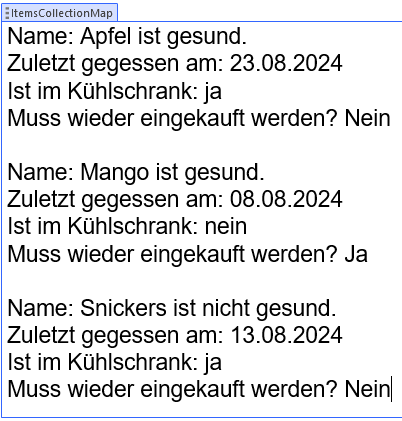
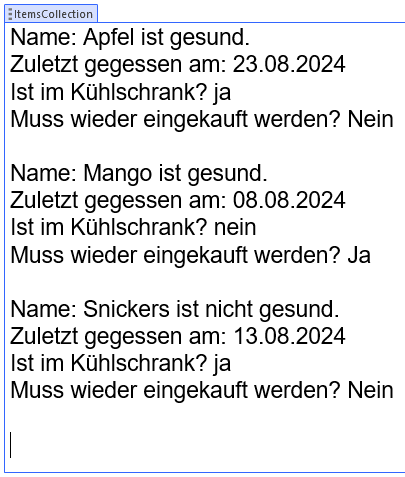
Result Fields
This results in the objects in Forms appearing in the following texts in the document.
Approach 2 inserts one more line break, so we recommend approach 1 if possible.
Field ItemsCollectionMap
Field ItemsCollection
For more information and JavaScript-specific functions, visit Mozilla’s JavaScript Dokumentation.