Access to primedocs fields
There are numerous fields available in primedocs. primedocs fields are text containers that have an Id. The content of these fields is determined by the document functions and/or by a Connect call during generation.
Web-enabled templates
All profile data for the current user is automatically available in web-enabled templates.ng.
- Forms document function: enables user data to be entered.
- Data document function: used for data transfer via the Connect interface.
- Fields document function: used for merging or transforming data.
Depending on the type and application, the document functions are inserted as corresponding content controls. This creates a data binding between primedocs and the document.
primedocs tracks these data bindings in the documents and validates the fields both during generation and during subsequent updates.
Overview of field types by Office application
As a supplement, the following matrix shows which field type can be used directly in which Office applications:
| Word | Outlook (web) | PowerPoint | Excel | |
|---|---|---|---|---|
| Text | ✅ | ✅ | ✅ | ✅ |
| FormattedText | ✅ | ✅ * | ✅ | ✅ |
| WordContent | ✅ | ✅ | ✅ | ✅ |
| InlineWordContent | ✅ | ✅ | ✅ | ✅ |
| WordTableRows | ✅ | ✅ | ✅ | ✅ |
| YesNo | ✅ | ✅ | ✅ | ✅ |
| Picture | ✅ | ✅ | ✅ | ✅ |
| Object | ✅ | ✅ | ✅ | ✅ |
| ObjectCollection | ✅ | ✅ | ✅ | ✅ |
*Outlook e-mails and signatures are only saved in HTML in the web-enabled Outlook version. This means that
Global translations of the FormattedText type can contain any HTML elements via the FormattedText field in Outlook templates and are therefore more flexible than global translations that are inserted in Word or PowerPoint templates.
A list of permitted HTML elements in Word and PowerPoint templates can be found here:
Field types that cannot be used directly (✅
) can be used via Text or FormattedText etc.
Word
primedocs enables fields within Word templates to be linked directly and integrated into text modules. This allows documents to be created dynamically and automatically—without manual post-processing.
Overview of inserted content control per field type
The following table shows which field type is inserted into the template as which content control:
| Field-Typ | Content control |
|---|---|
| Text | PlainText (only text) |
| FormattedText | RichText |
| WordContent | RichText |
| InlineWordContent | RichText |
| WordTableRows | RichText (Only on table row) |
| Date | Date |
| YesNo | Cannot be inserted. |
| Picture | Image |
| Object | Cannot be inserted. |
| ObjectCollection | Cannot be inserted. |
How to insert a Forms field in the template
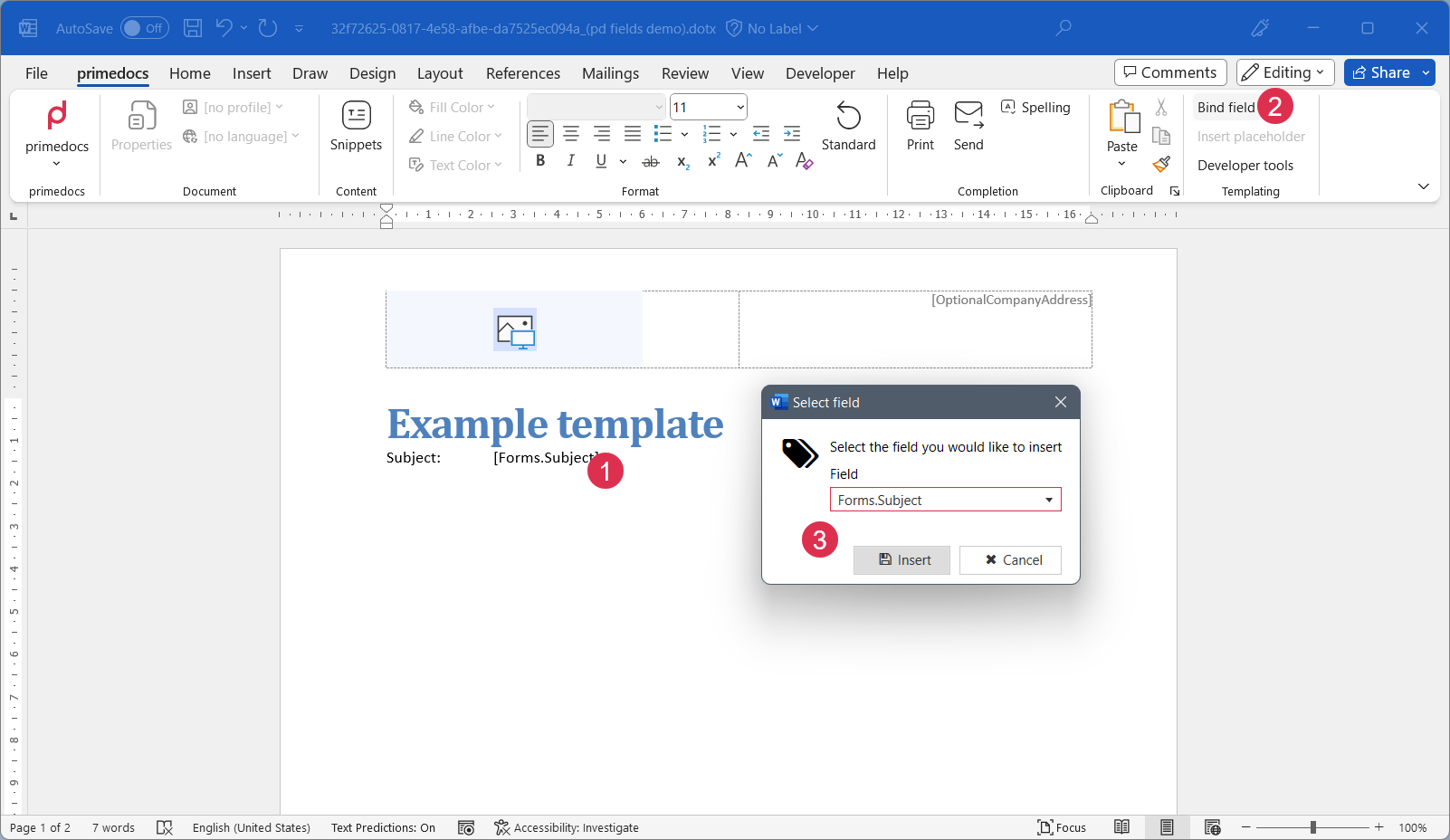
- Create a field in Forms.
- Open the Word template in primedocs.
- Place the cursor in the correct position in the document.
- Click on ‘Bind field’.
- Select the Forms field from the drop-down list in the ‘Select field’ dialogue.
- Confirm the selection by clicking on ‘Insert’.
Placeholders for layout templates
Fields can be stored directly in content templates. Placeholders must be created for layout templates.
Placeholders for snippets
Snippets that are integrated during document generation via the $.snippets...-JavaScript API also require the definition of suitable placeholders. These placeholders serve as links between the dynamic field data and the static text content of the modules.

Snippet Placeholder:- Enables the integration of simple
Textor field references via$.getReference(...). - The formatting of the placeholder is retained and is not overwritten by the inserted content.
- Enables the integration of simple
Snippet Block Placeholder:- Supports embedding of
FormattedTextandWordContent. - The formatting is completely taken over from the inserted content.
- Corresponds to a complete paragraph in Word.
- Supports embedding of
Snippet Inline Placeholder:- Enables the embedding of
InlineWordContent, e.g., formatted text parts within a paragraph. - The content must consist of exactly one paragraph.The formatting comes from the inserted content and may differ from the surrounding text.
- Enables the embedding of
Snippet Table Row Placeholder:- Used for dynamic generation of table rows.
- The placeholder must enclose a complete table row.
- The expected content type is
WordTableRows, which may contain further subtypes (Text,WordContent,FormattedText,InlineWordContent).
Color coding
In Word, content controls are highlighted in color depending on their type and the current mode. This makes it easier to visually distinguish between them when editing and reviewing templates.
Mode-dependent coloring
| Mode | Description |
|---|---|
| Edit mode | Content controls are color-coded to indicate their function. |
| Test mode | Additional highlighting in ⬛ if the content control should not be visible later. |
| After generation | The content controls are either hidden or displayed 🟦. |
Behavior when using: $.getReference(...)
Snippet placeholders can be linked directly to fields using the JavaScript API $.getReference(...). The behavior differs depending on the implementation:
- With field reference: If a placeholder is referenced to a field via
$.getReference(...), the field is inserted directly. The content control remains intact and behaves like a regularly integrated field. - Without field reference: If there is no direct link, static content is inserted. In this case, the original content control is replaced by the inserted content.
| Type | Color of Content Controls |
|---|---|
| Field inserted directly into template (“Bind Field”) | - 🟦 |
Field inserted directly into template (“Bind Field”), which is marked with word-UpdateBehavior="Disable" (only applies to FormattedText, WordContent, InlineWordContent, WordTableRows) | - ⬛ in test mode - Invisible after generation |
Snippet Placeholder | - 🟨 in edit mode - Invisible or 🟦 after generation |
Snippet Block Placeholder | - 🟧 in edit mode - Invisible or 🟦 after generation |
Snippet Inline Placeholder | - 🟩 in edit mode - Invisible or 🟦 after generation |
Snippet Table Row | - 🟪 in edit mode - Invisible or 🟦 after generation |
Placeholder im Layout | - 🟩 in edit mode - 🟦 after generation |
PowerPoint
In PowerPoint, data binding is done using tags that are attached directly to shapes or slide objects. These tags serve as identifiers that can be used to dynamically assign and update content.
Tags
| Tag | Beschreibung |
|---|---|
| primedocs.FormattedText | Display the formatted content from a FormattedText field |
| primedocs.Picture | Display an image |
| primedocs.Placeholder.Picture | Master template: Picture placeholder |
| primedocs.Placeholder.Text | Master template: Text placeholder |
| primedocs.Placeholder.Visibility | Master template: Visibility placeholder |
| primedocs.Text | Display a text |
| primedocs.Visibility | Controls the visibility of an element |
| primedocs.BringToFrontIfOverlapped | Can be activated for elements in the slide layout or master. Ensures that these elements are not covered by an image placeholder and always remain in the foreground. :::note > Available from version 4.0.30114.0 onwards. |
Excel
In Excel, the data is managed via a hidden worksheet. This sheet contains the structured field data, which can be integrated into other areas of the file using formulas or cell references.
“classic” templates
Some typical examples of primedocs fields - in the "classic" template world:
| Id | Possible content | Document function |
|---|---|---|
DocParam.Subject | May contain the subject entered by the user in the document parameter dialog. | DocumentParameter |
Profile.User.Email | May contain the e-mail address of the person who generates the document. | ProfileData |
Contact.Recipient.Selected.Person.FirstName | May contain the first name of the recipient selected in the recipient dialog. | RecipientAddresses |
CustomElements.SenderAddressBlock | May contain the sender's address block created according to certain script rules. | Scripts |
MyExampleApplication.ProjectNo | May contain the project number from the Connect call of a specialist application | CustomInterfaceConnector |
These fields can be accessed from the document functions Scripts and Library for advanced binding (Extended bindings). They are stored in the generated document in the CustomXMLPart named OneOffixxDocumentPart.
Finally, it must be possible to reproduce the contents of the fields in the templates. Below is listed how this content is transferred to the documents in different scenarios.
“Classic” Word
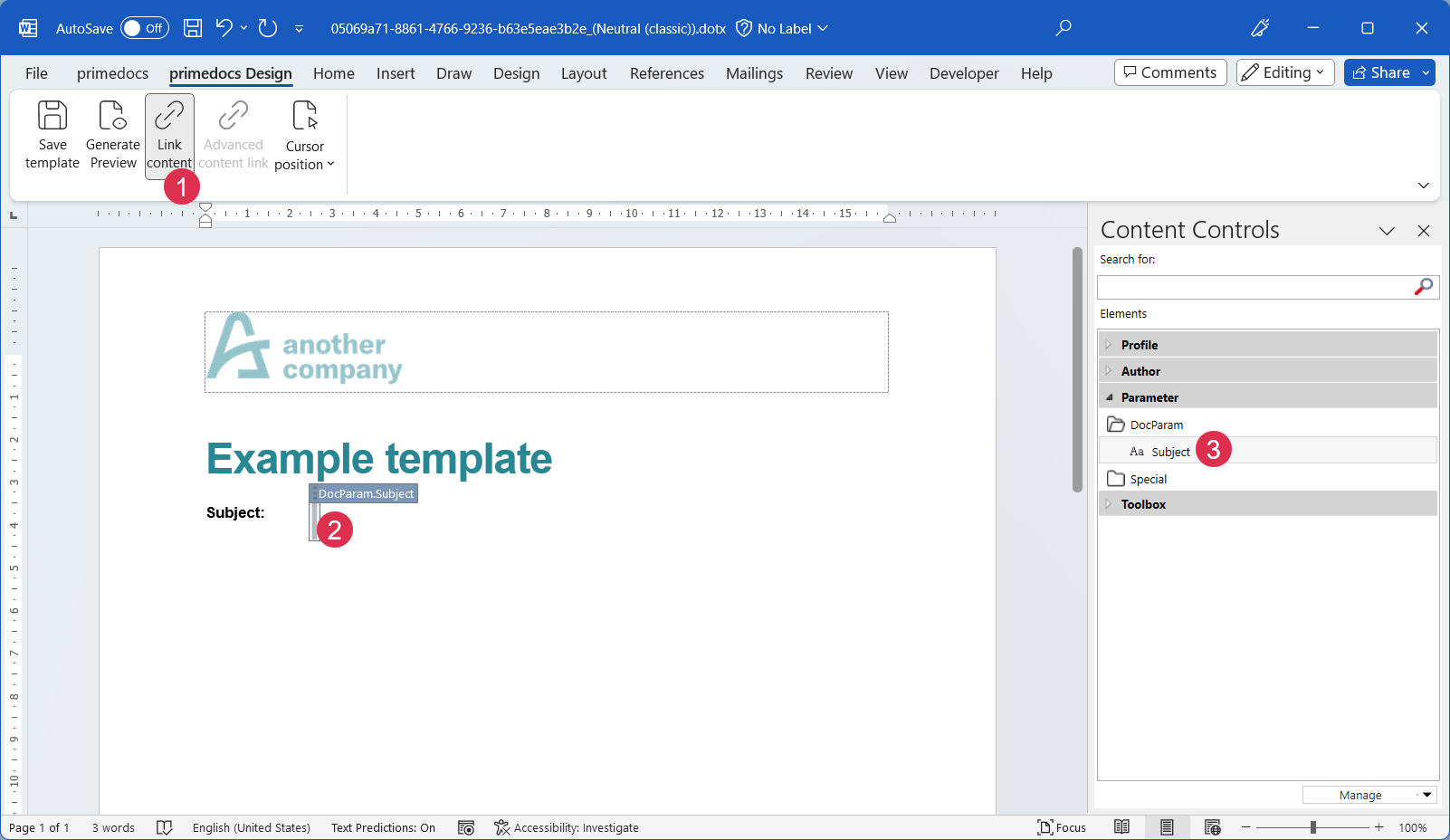
In Word, primedocs fields are inserted with "Plain Text Content Controls". The primedocs classic Word add-in must be used as follows:
- Click on “Link content”
- Place cursor to the right position in the document
- Search the right field in the Content Controls pane and paste it by double clicking.
Word-Felder
Word itself also offers fields, for example, the page number, the document name or the print date. These already existed before Word 2007 and can be inserted with Ctrl+F9 or via Insert → Quick Parts → Field.... There are scenarios where it is desired that these fields are updated.
In the following situations, the Word fields are automatically updated:
- When clicking on one of these buttons in the primedocs ribbon in the "Completion" group: Print, Send, Preview, Save PDF
The update also takes place when "Cancel" is selected on any subsequent dialog. - When opening the document, if the user-defined document property "OORefreshFieldsOnOpen" is of type Boolean (Yes or No) and true (Yes).
- When Saving the document, if the user-defined document property OORefreshFieldsOnSave is of type Boolean (Yes or No) and true (Yes).
The mentioned custom document properties can be set via the document function Metadata.
Outlook
The new, web-enabled Outlook version is excluded from this.
Content
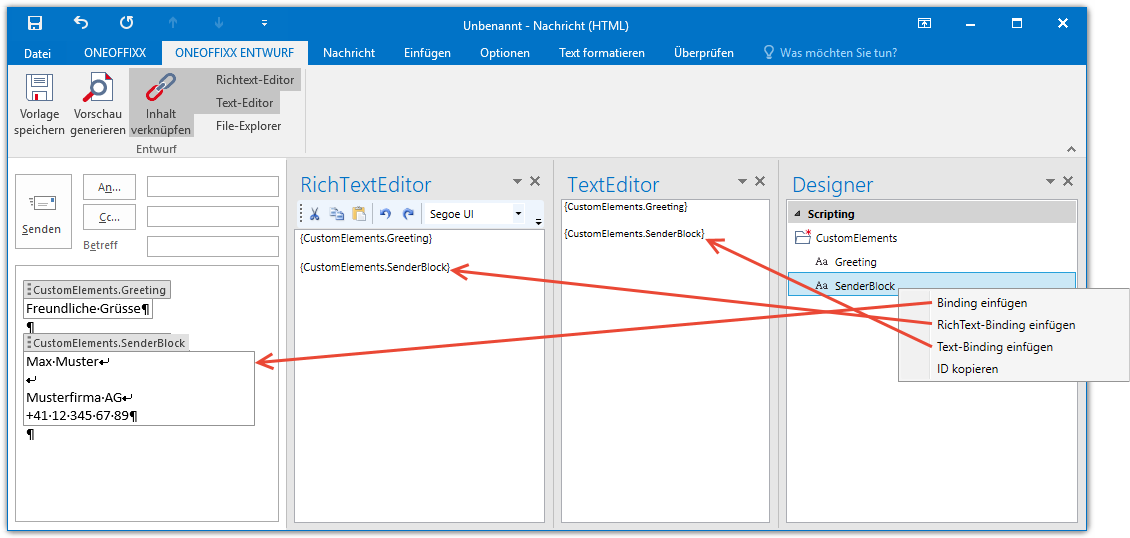
- HTML: with "Plain text content controls", analogously to Word.
- RichText: with RichText bindings;
{IdDesOneOffixxElements} - Text: with text bindings;
{IdDesOneOffixxElements}
These three types can be inserted via the primedocs Outlook add-in as follows:
To, Cc, Bcc and subject field
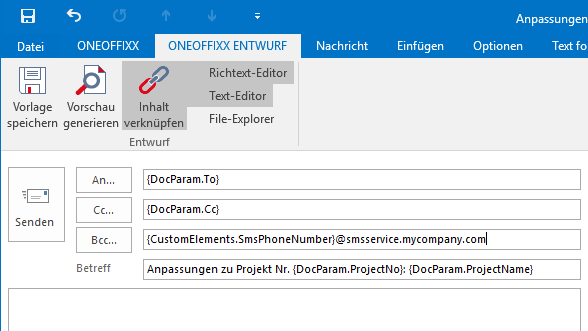
In e-mail templates the To, Cc, Bcc and subject fields are inserted with bindings: {primedocsElementId}. Here primedocs fields can also be composed of other text.
Examples:
{DocParam.Subject}becomesAnfrageNr.: {DocParam.ProjectNo}becomesNr.: 110475{CustomElements.SmsPhoneNumber}@smsservice.mycompany.combecomes41123456789@smsservice.mycompany.com