Access to OneOffixx fields
ℹ️ Info For testing
Numerous fields are available in OneOffixx. OneOffixx fields are text containers that have an ID. The content of these fields is determined during generation by the document functions and/or by a connect call. Some typical examples of OneOffixx fields:
| Id | Possible content | Document function |
|---|---|---|
DocParam.Subject | Can contain the subject entered by the user in the document parameter dialogue | DocumentParameter |
Profile.User.Email | May contain the email address of the person generating the document | ProfileData |
Contact.Recipient.Selected.Person.FirstName | Can contain the first name of the recipient selected in the recipient dialogue | RecipientAddresses |
CustomElements.SenderAddressBlock | Can contain the sender's address block created according to certain script rules | Skripte |
MyExampleApplication.ProjectNo | Can contain the project number from the Connect call of a specialised application | CustomInterfaceConnector |
These fields can be accessed from the document functions Scripts and Library for extended binding. They are stored in the generated document in the CustomXMLPart with the name OneOffixxDocumentPart.
Finally, it must be possible to reproduce the contents of the fields in the templates. The following shows how this content is transferred to the documents in various scenarios.
Word
OneOffixx fields with ‘text-only content controls’ are inserted in Word. To do this, the OneOffixx Word AddIn must be used as follows:
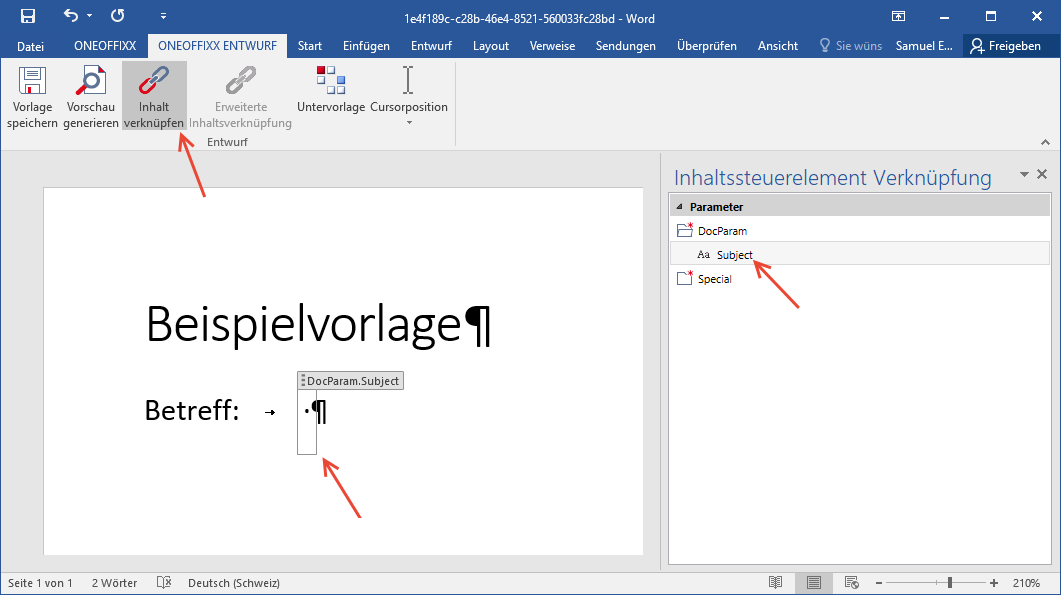
Word fields
Word itself also offers fields. These can be, for example, the page number, the document name or the print date. These already existed before Word 2007 and can be inserted with Ctrl+F9 or via Insert → Quick blocks → Field... can be inserted. There are scenarios in which you want these fields to be updated.
In the following situations, the Word fields are updated automatically:
- When clicking on one of these buttons in the OneOffixx ribbon in the ‘Completion’ group: print, send, preview, save PDF
The update also takes place if ‘Cancel’ is selected in any subsequent dialogue. - When opening the document, if the user-defined document property ‘OORefreshFieldsOnOpen’ is of type Boolean (Yes or No) and true (Yes)
- When saving the document, if the user-defined document property OORefreshFieldsOnSave is of type Boolean (Yes or No) and true (Yes)
The aforementioned custom document properties can be set via the Metadata document function.
Outlook
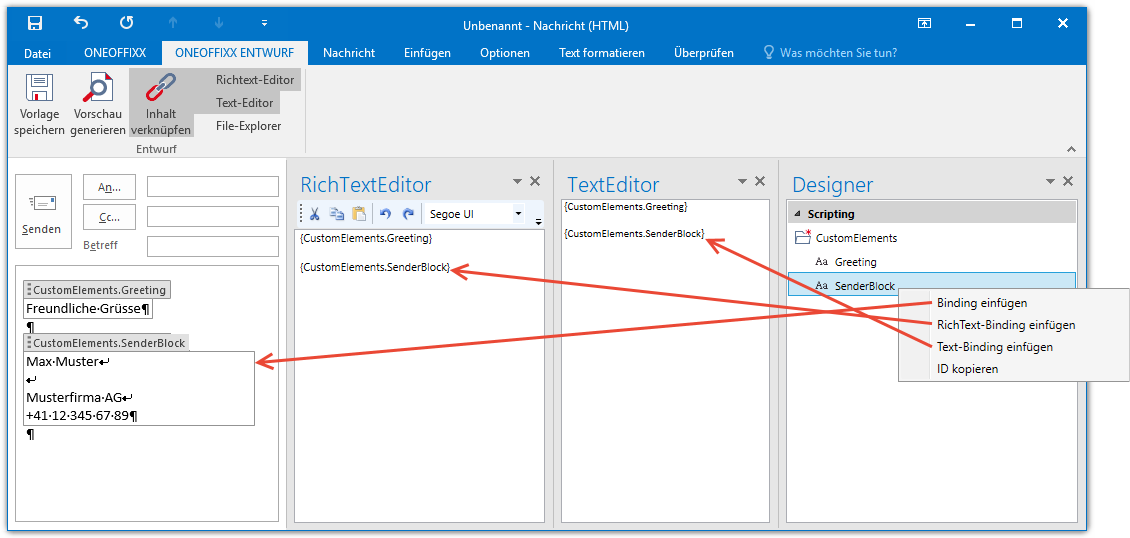
Content
- HTML: with ‘text-only content controls’, analogue Word
- RichText: with RichText bindings;
{IdDesOneOffixxElements} - Text: with text bindings;
{IdDesOneOffixxElements}
These three types can be inserted via the OneOffixx Outlook AddIn as follows:
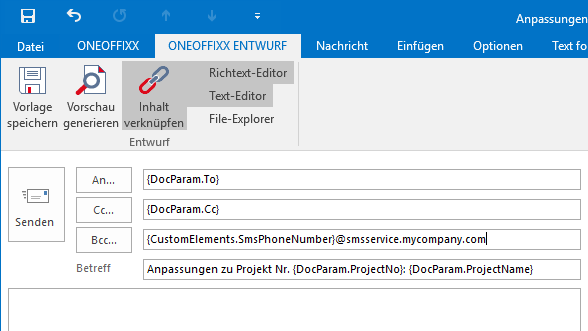
To, Cc, Bcc and subject field
inserted with bindings: {IdDesOneOffixxElements}. OneOffixx fields can also be combined with other text.
Examples:
{DocParam.Subject}becomes enquiry- No.:
{DocParam.ProjectNo}becomes No.: 110475 {CustomElements.SmsPhoneNumber}@smsservice.mycompany.combecomes41123456789@smsservice.mycompany.com