Export: Database or Package
ℹ️ Info Applies to: OnPrem customers; primedocs desktop, primedocs web, OneOffixx
Concerns: Administrators
Instructions (short)
- Open the Dashboard (requires the corresponding permissions)
- Select the desired export variant via the gear icon.
- The exported
oopxfile (package) orzipfile (database) is saved by your browser (often under "Downloads") - Next steps are, for example:
- Archive the file (as a backup) or
- Import the file into another database or
- Attach the file to the ticket via the primedocs Support Desk / OneOffixx Support Desk.
Instructions
- Open the Dashboard in your browser: Open the Dashboard
Only users who have been authorised in the corresponding file located on the application server have access. If you do not have access but require it, contact your internal administrator.
- Click on the gear icon and select the desired export:
- Package → export: Individual templates, snippets etc. can be selected and exported as an
oopxfile. - Database → export: The complete database is exported as a
zipordacpacfile.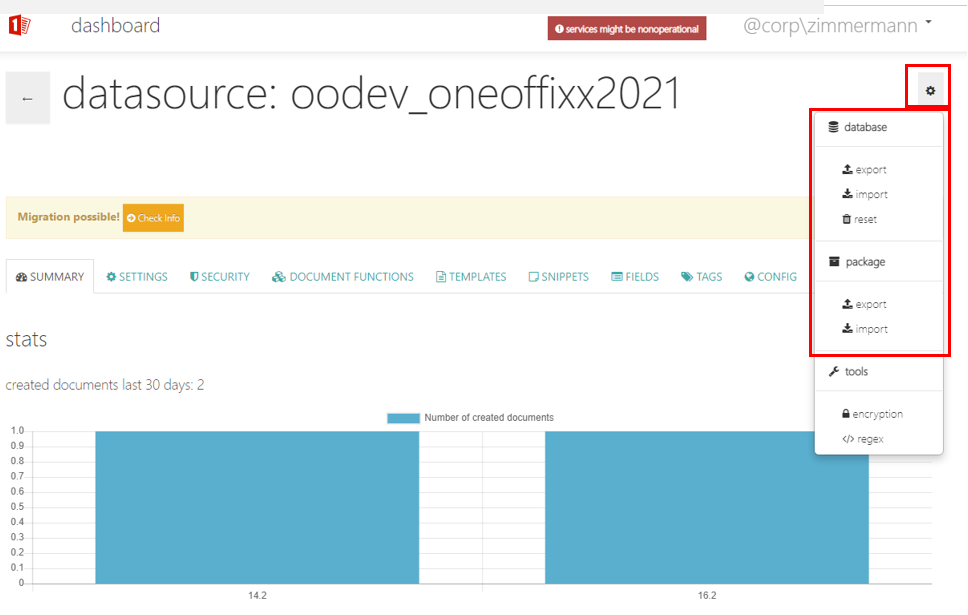
- Package → export: Individual templates, snippets etc. can be selected and exported as an
Package Export
- Click on the gear icon at the top right and select package → export.
- Navigation
- To get to the next step, click on the Next button or alternatively directly on the desired packaging step at the top of the overview (Templates > Snippets > […] > Organization Unit).
- The Export button is always available, i.e. an export is possible at every packaging step (it simply exports whatever is selected across all steps).
- Note the button with the wrench ✅ below the export button. Here you find options for selecting and deselecting elements at the respective packaging step.
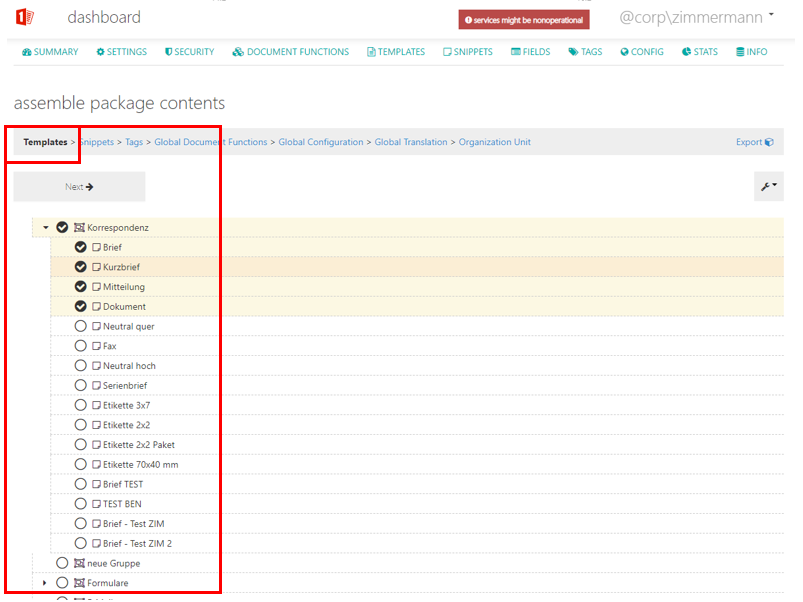
"Templates" step
Select the template(s) that are to be exported.
Snippets step
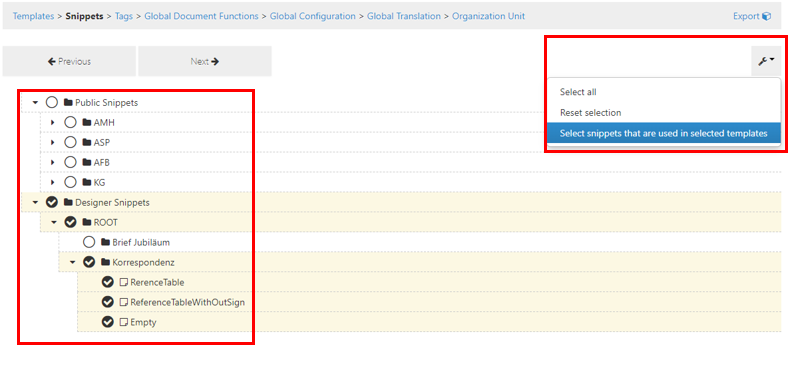
- 1st option: Manually select all snippets that you want to export.
- 2nd option:
- Go to the pincer button on the right and select "Select snippets that are used in selected templates". After a short wait, all snippets that are linked in the previously selected templates are then selected automatically.
- Check the selected snippets and make corrections if necessary.
Tags step
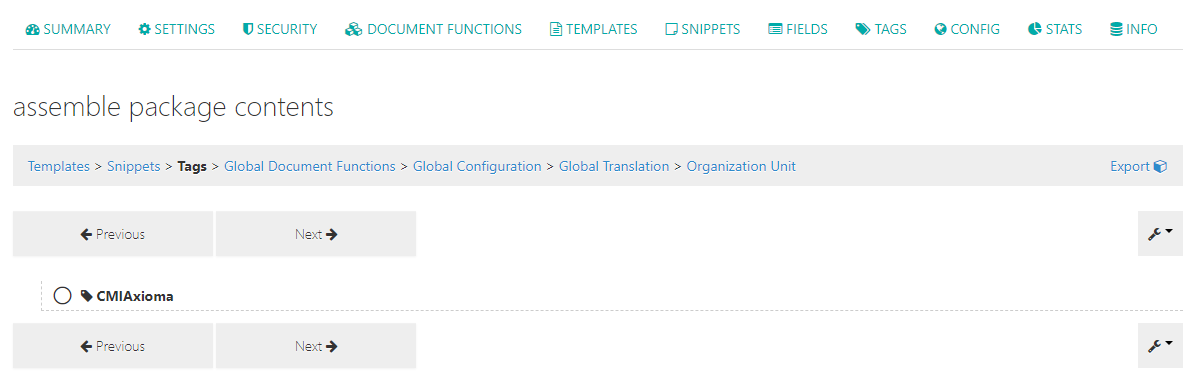
If new tags have been created, they can be selected here.
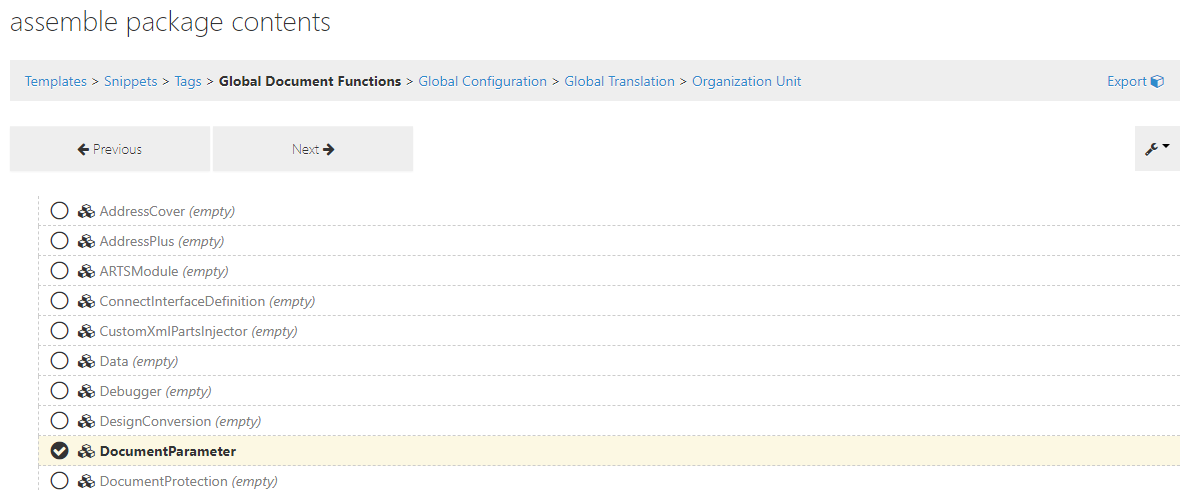
Global Document Functions step
If changes have been made to the globally stored document functions, select them here.
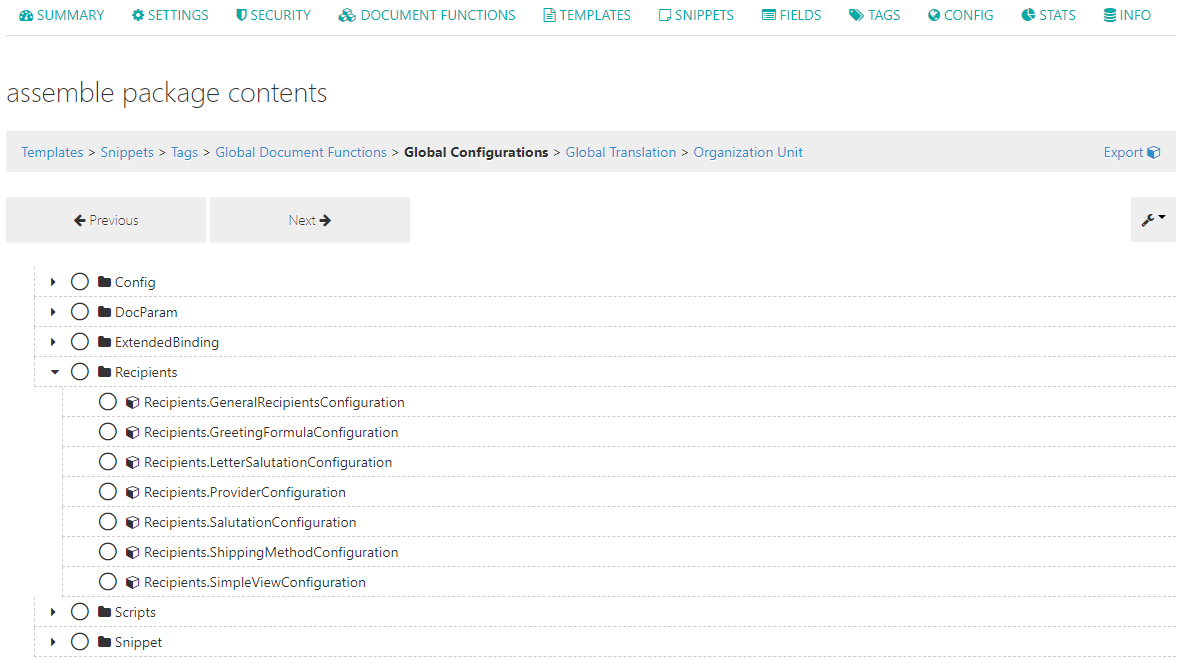
Global Configuration step
If changes have been made to the global configurations, select the corresponding entries here.
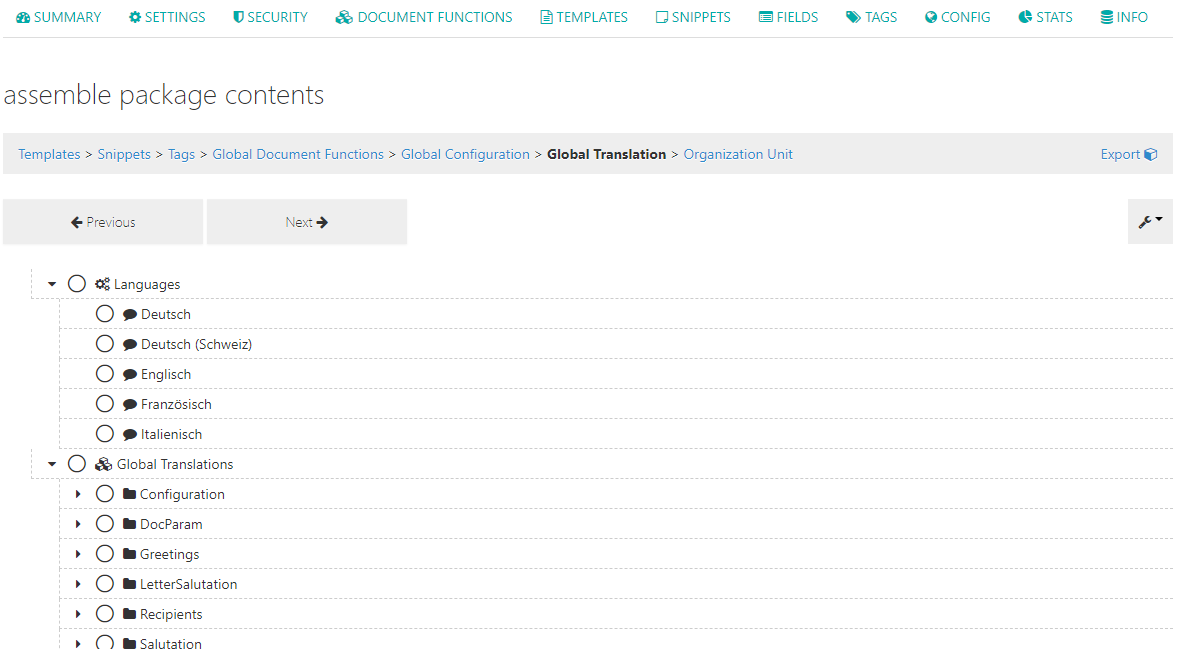
Global Translation step
If changes have been made to the global translations, select the corresponding entries here.
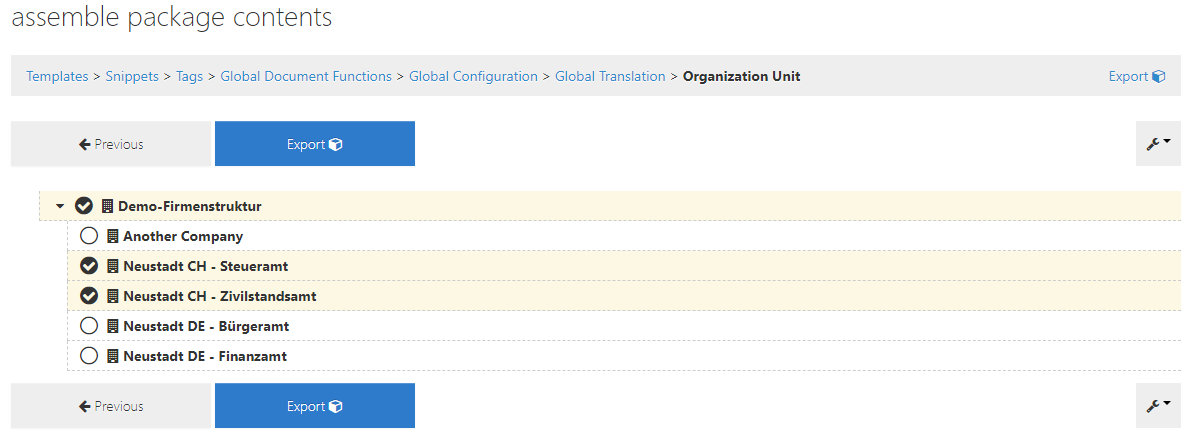
Organization Unit step
If changes have been made to the organisations and/or new departments have been created, select these here.
Completing the Package Export
- Click on Export.
- A pop-up window now appears. It shows what was selected where.
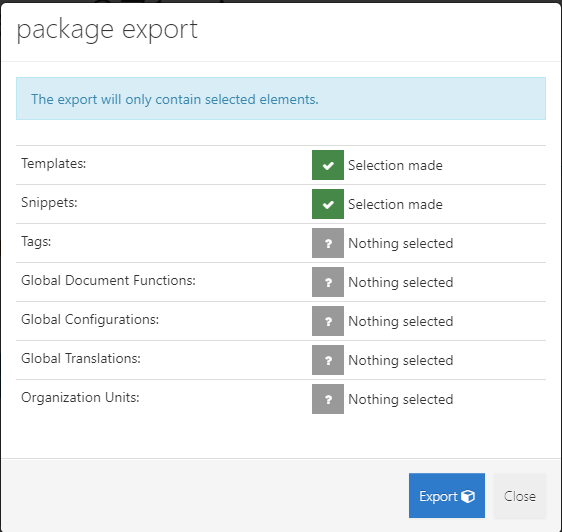
- When you are sure that everything necessary has been selected, click on "Export".
- After the export is complete, the following window appears:
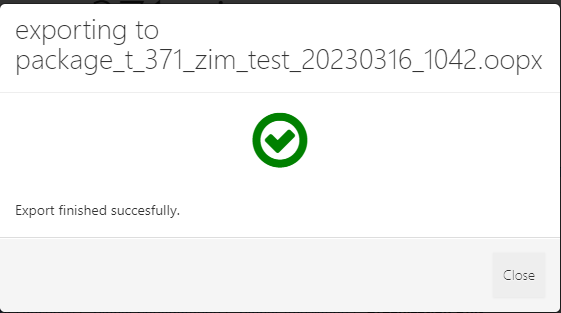
- The browser now downloads the file to your PC.
- You will then find the file in File Explorer where your browser stores it (usually under Downloads).

Database Export
We recommend database exports before server updates, larger changes to your template solution and simply for backup purposes.
- Click on the gear icon at the top right and select "database" → "export".
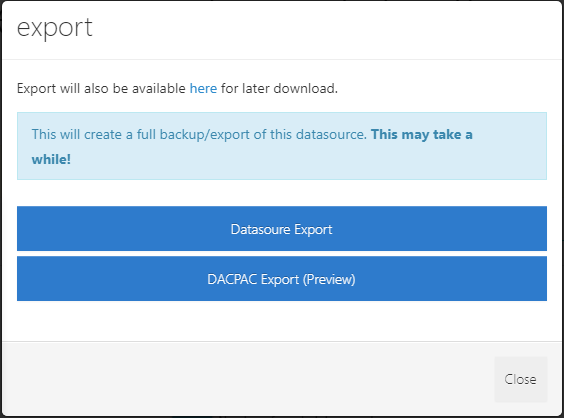
- Select which kind of database export you want to make:
- Datasource Export: This is the conventional database export. Files created from this export cannot be imported across versions.
- DACPAC Export: This export variant allows a cross-version import and is therefore more flexible. Select this variant if you want to make a backup or if you want to send the export to PrimeSoft Support.
- The
zipfile or thedacpacfile is downloaded by your browser. - You will then find the file in File Explorer where your browser stores it (usually under Downloads).
The "export" pop-up window is not closed automatically when the download is finished. Close it by clicking on Close.
You can find the instructions on how to carry out a database import or a package import here: Import: Database or Package