My own snippets are no longer available - what should I do?
Own snippets are snippets created by the user that are only visible to the creator.
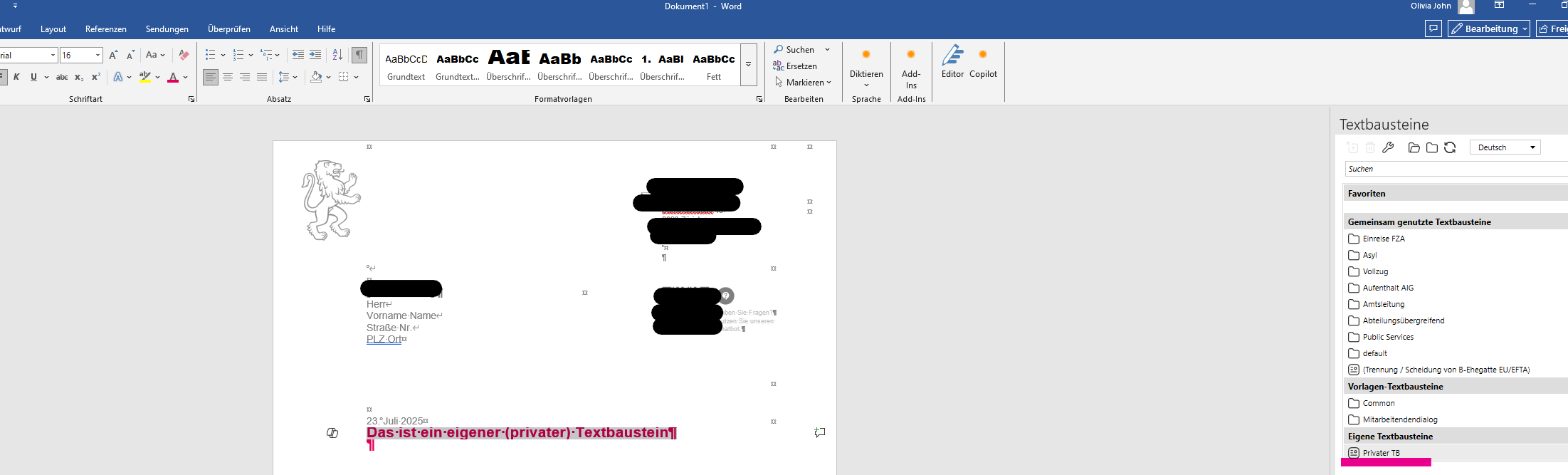
Own snippets are not stored in the dashboard and can be lost. Possible reasons are:
- The user was deleted / recreated.
- A migration from OneOffixx to primedocs took place
For this reason, personally created snippets must always be saved in a separate Word document. Before a migration, it makes sense to make users aware of this.
Rescuing snippets:
If this has not happened, there is the option of rescuing the snippets from a backup of an older database. The prerequisite is
- that the affected user exists in the database
- and that own snippets also existed before the backup.
To access the snippets, you have to take over the role of the affected user via a SID swap in the dashboard:
SID swap:
- First, restore the backup of the database
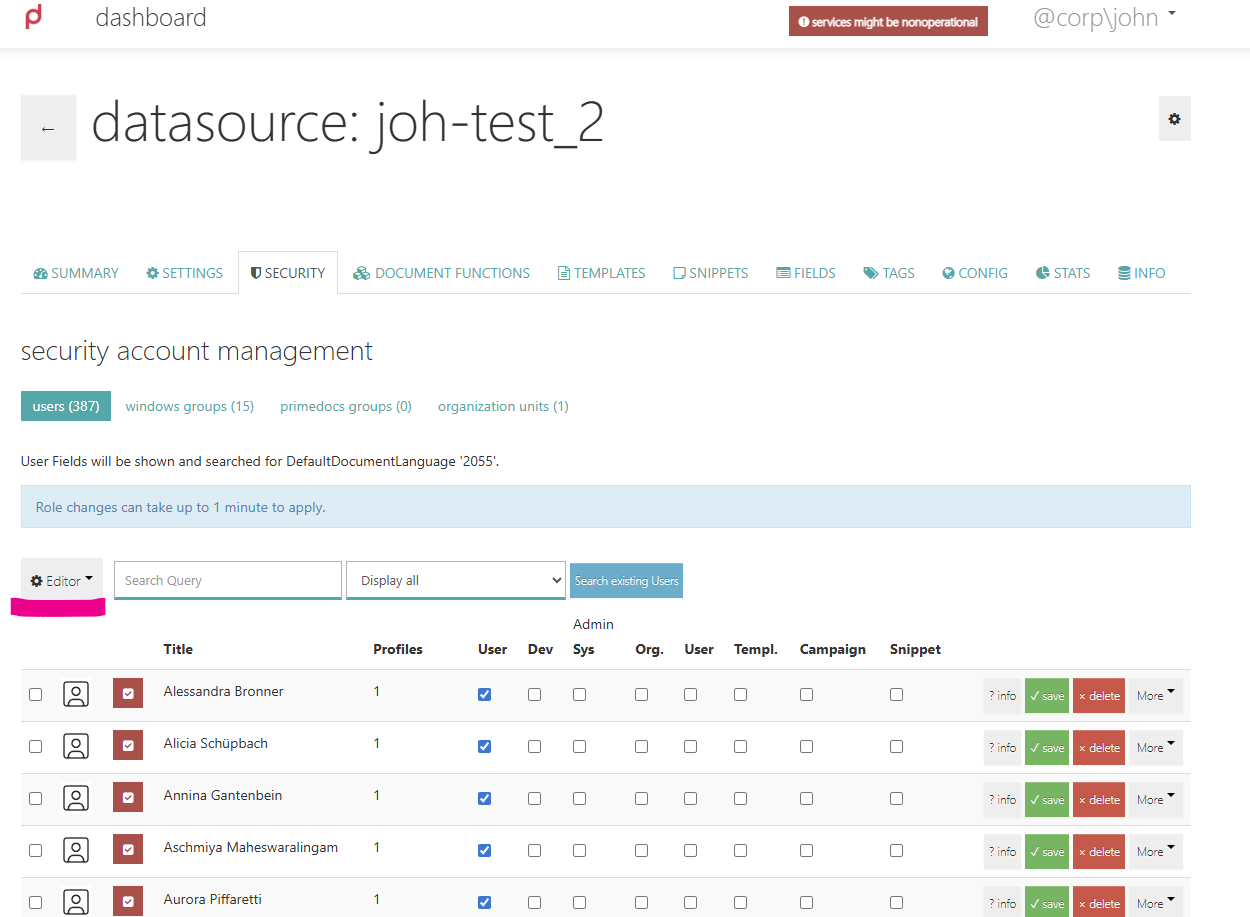
- Click under Security - Users - Editor (a dropdown opens)
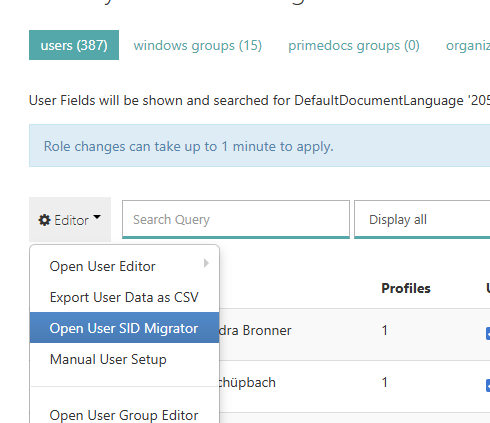
- The “Open User SID Migrator“ window opens.
Confirm User-Field “User.Alias“ and Matching Proberty “mail“ with the blue button “Find new Users SIDs for User-Field and matching Proberty“.
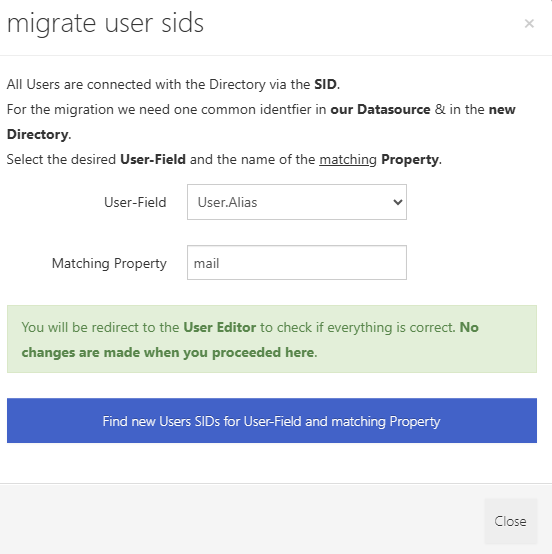
- The User Editor opens:
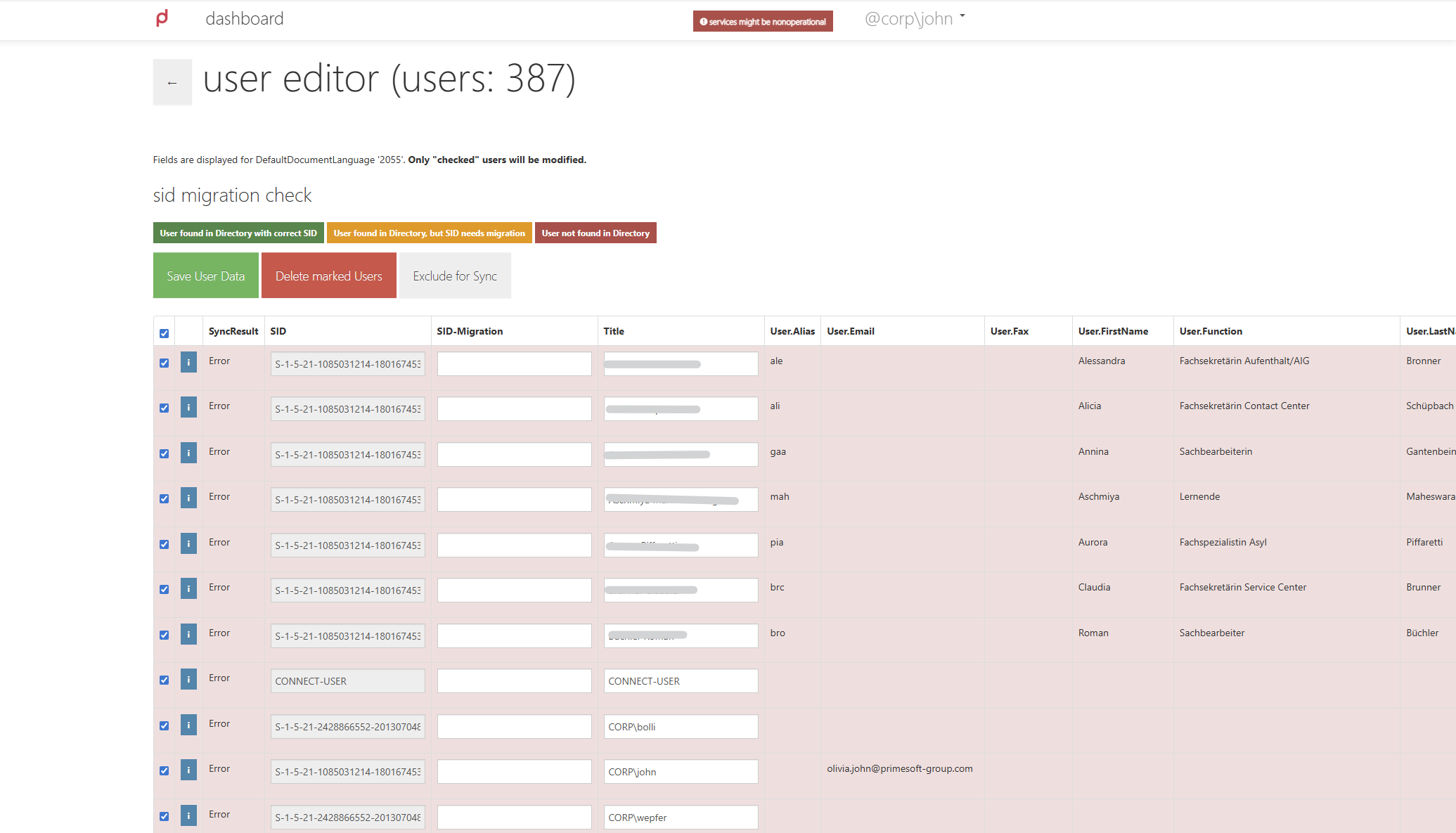
Swapping the SID:
So that you don't lose track, it is important to save your own SID and that of the affected user in an empty document → for example in a txt file. To do this, simply double-click into the SID field and copy out the SIDs using Ctrl + A. In this example, the SIDs of the user Corp\john and Dilan S. were copied out.
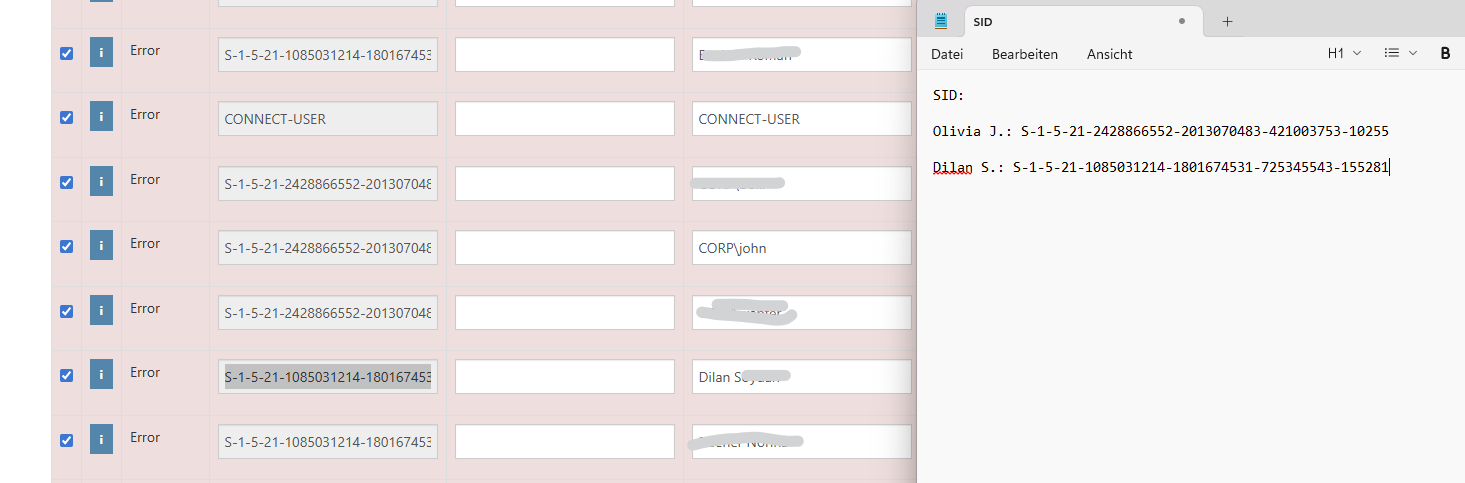
-
First, you have to click into the “SID-Migration” field and enter any number (or letters). Then the whole thing is saved.
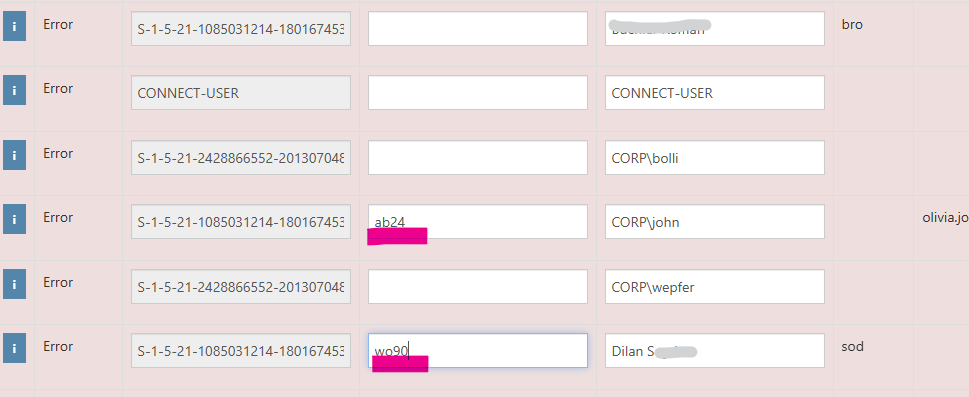
-
This makes the red background disappear and the fields become writable. Furthermore, the short fake SID was automatically transferred into the “SID” field.
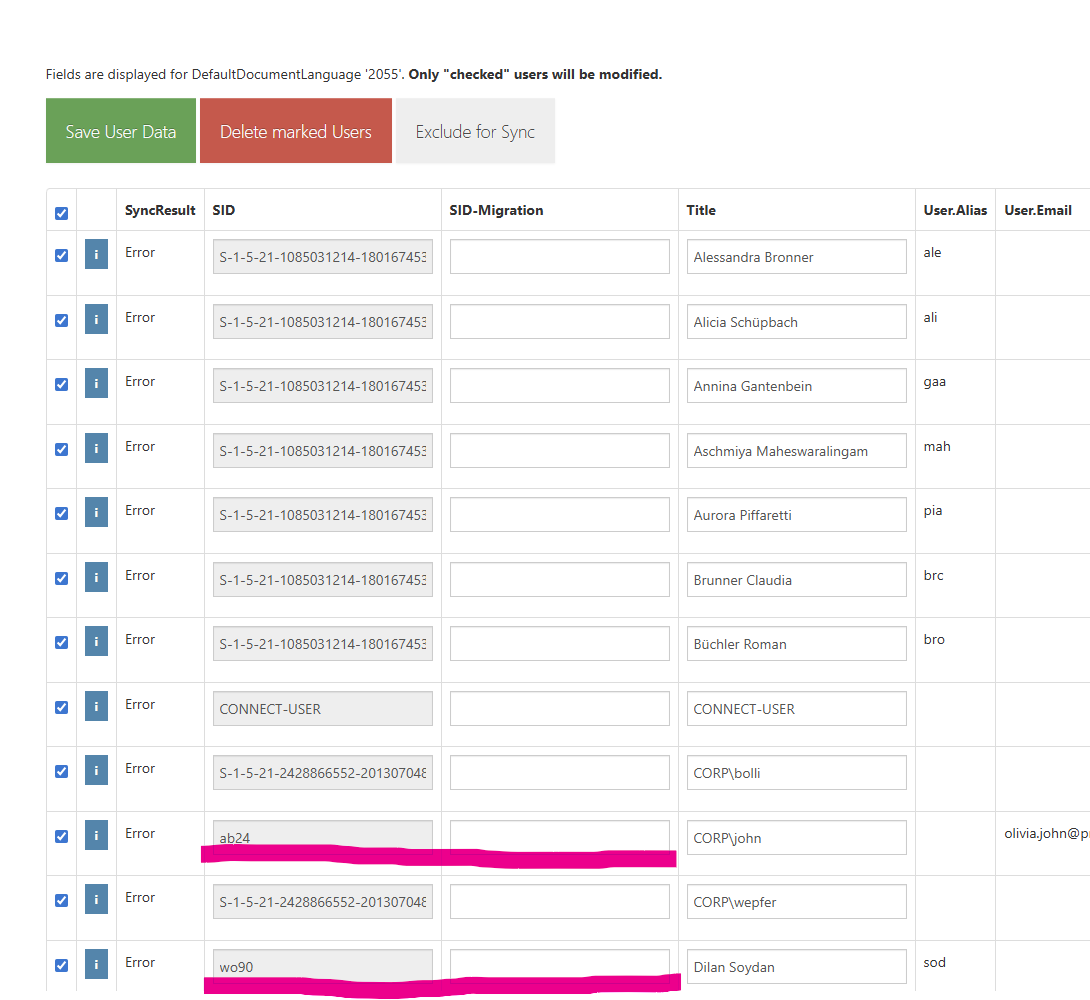
-
Now it is a matter of taking on the role of the affected user. To do this, copy the SID saved in the txt file. Corp\john receives the SID of Dilan S. and vice versa. Save via the green button “Save User Data“.
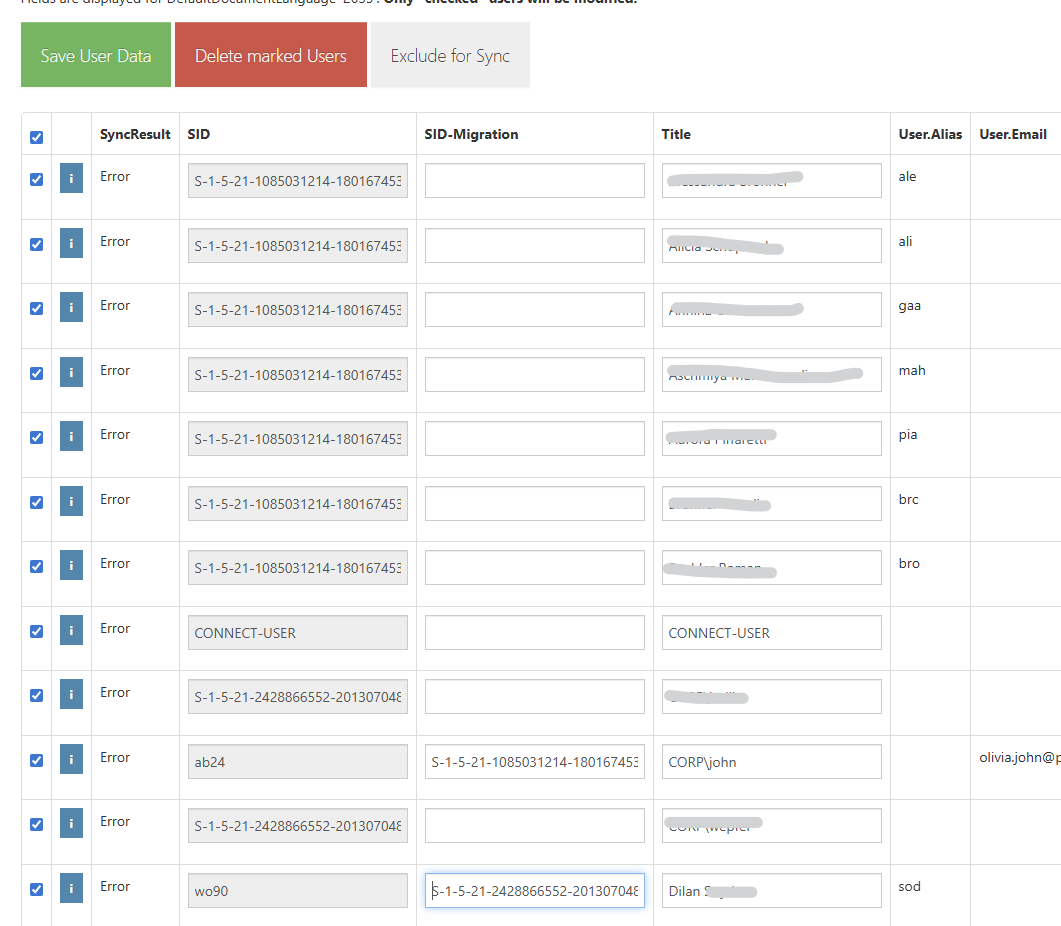 The SIDs have been swapped: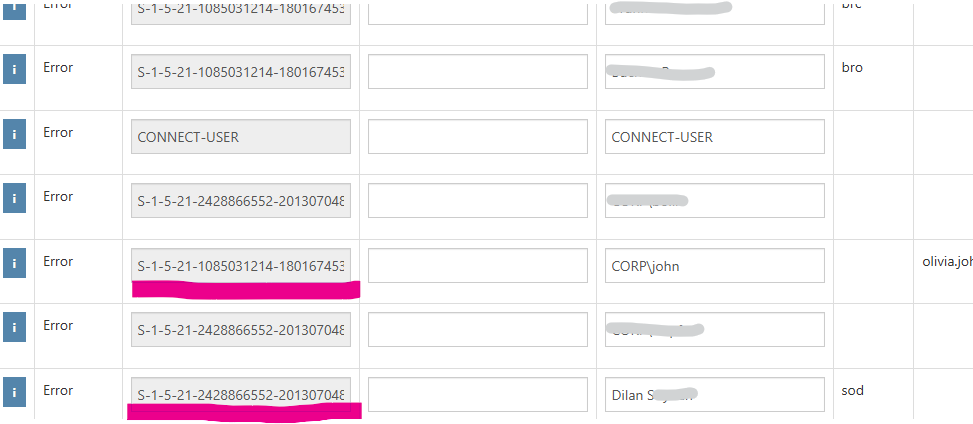
-
In the dashboard, the user Dilan S. is declared a Sys-Admin:
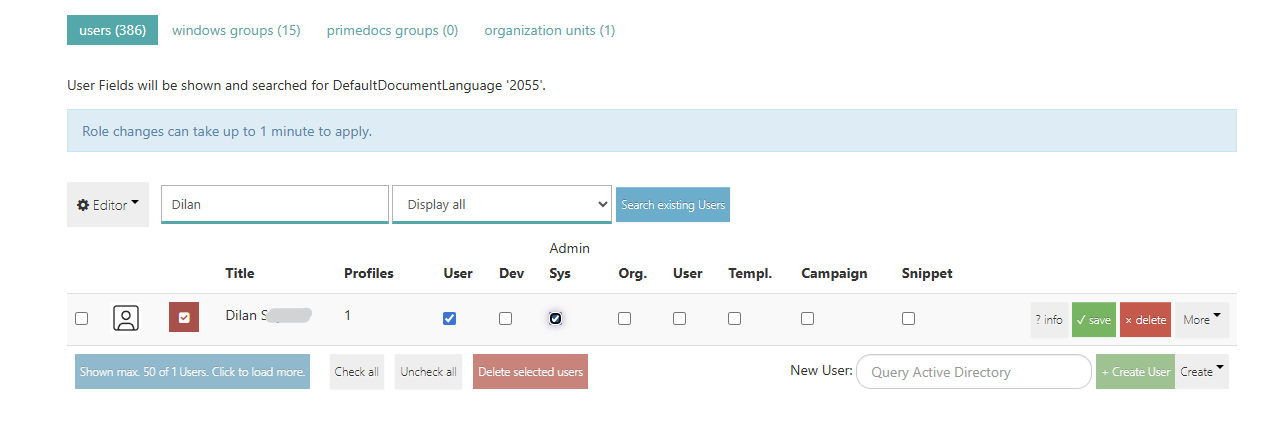
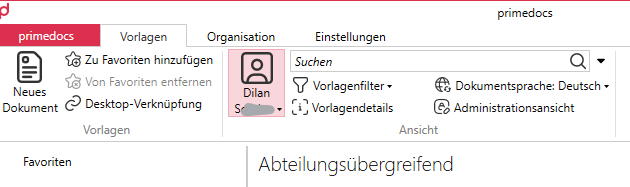
If you then open primedocs (for Classic templates) or OneOffixx, the user Corp\john has taken over the role of Dilan S. and can access their own snippets. Synchronise the data source again beforehand.