Template Permissions
Would you like to share your template with a user, a user group or an Org Unit? Read on here.
Concept
Click on the Permissions button. The Template permissions window opens.
The template permissions control which user or user group and which Org Unit can see a template.
Permissions are always applied to a single template, i.e. there are no template group permissions.
A permission consists of two factors: the user permission and the Org Unit permission. The user permission is controlled via the Groups or Users tab, the Org Unit permission via the Organization units tab.
For a user to see a template, both factors must be fulfilled:
- under Groups or Users, the user themselves (or a Windows group or primedocs group they belong to) must be authorized.
- under Organization units, the Org Unit to which the user's profile is assigned must be authorized.
Example: User A is authorized in the Groups or Users menu. Their profile belongs to Org Unit Y. The template is approved for Org Unit X but not for Y. → User A will not see the template. For them to see it, Org Unit Y must be authorized under Organization units.
"Groups or Users" Tab
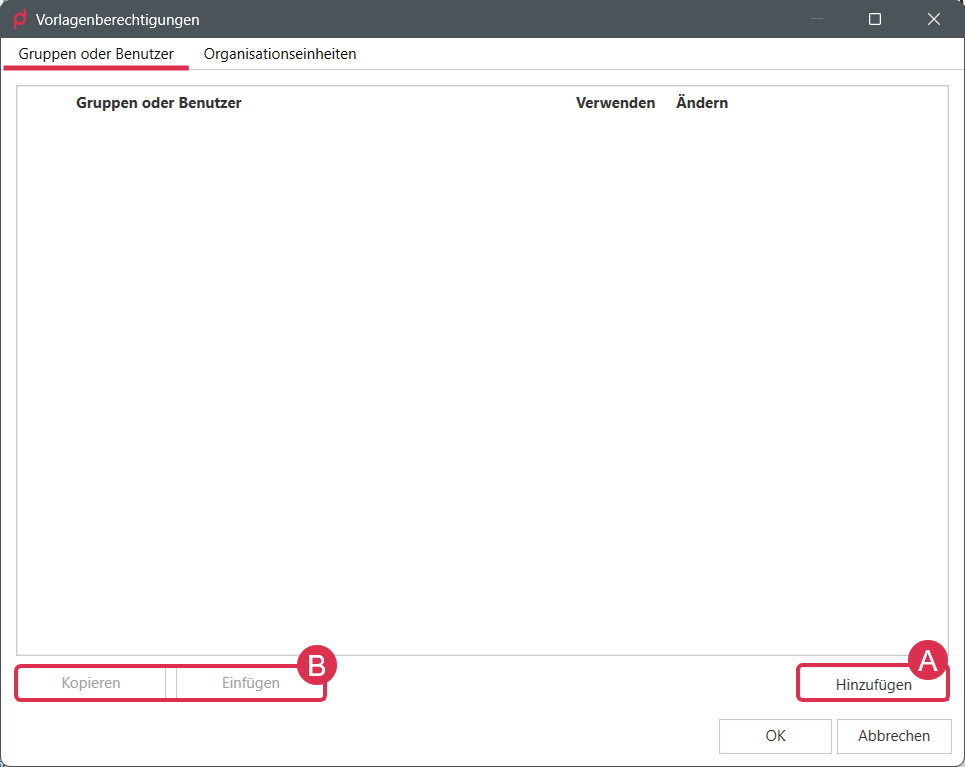
You set the user permissions in the Groups or Users menu.
You can Add these (A), or Copy them from another template and then Paste them here (B).
1A) Authorize a User for a Template via the "Add" Button
To authorize a user, click on Add (A) in the "Template permissions" window. The Users & groups window opens.
(1) You have the option of authorizing individual users or entire user groups.
(2) Search for the user or user group via the search field and click on Search or press the Enter key.
Authorize All Users
Do you simply want to authorize all users in general? Click on Authorize all users (3). This inserts the "Authenticated users" group. This is also the default setting for newly created templates.
1B) Authorize a User for a Template via the "Copy/Paste" Buttons
- Open the template editor of a template that already has the correct user permissions.
- Click on "Permissions".
- In the "Template permissions" window, click Copy.
- Open the template editor of the template in which you want to set permissions.
- Click on Paste.
2) Set Permissions
If you would like to authorize individual users/user groups rather than all users, first remove the "Authenticated user" group using the Remove button.
You now have the permission levels Use and Change to choose from:

- Use: Give the user/user group Use rights if they are allowed to see and use the template.
- Change: Give the user/user group Change rights if they are also a template administrator and are allowed to edit the template.
A user who is not a template administrator cannot edit a template, even if they have the rights to Change it.
Special combinations
- The combination where a user has Change rights but no Use rights is not possible.
- An entry with the combination of neither Use nor Change is deleted.
TIP
For newly created templates, the default setting is the Authenticated users group with Use and Change rights.
"Organization Units" Tab
The Org Unit permission is set via the "Organization units" tab.
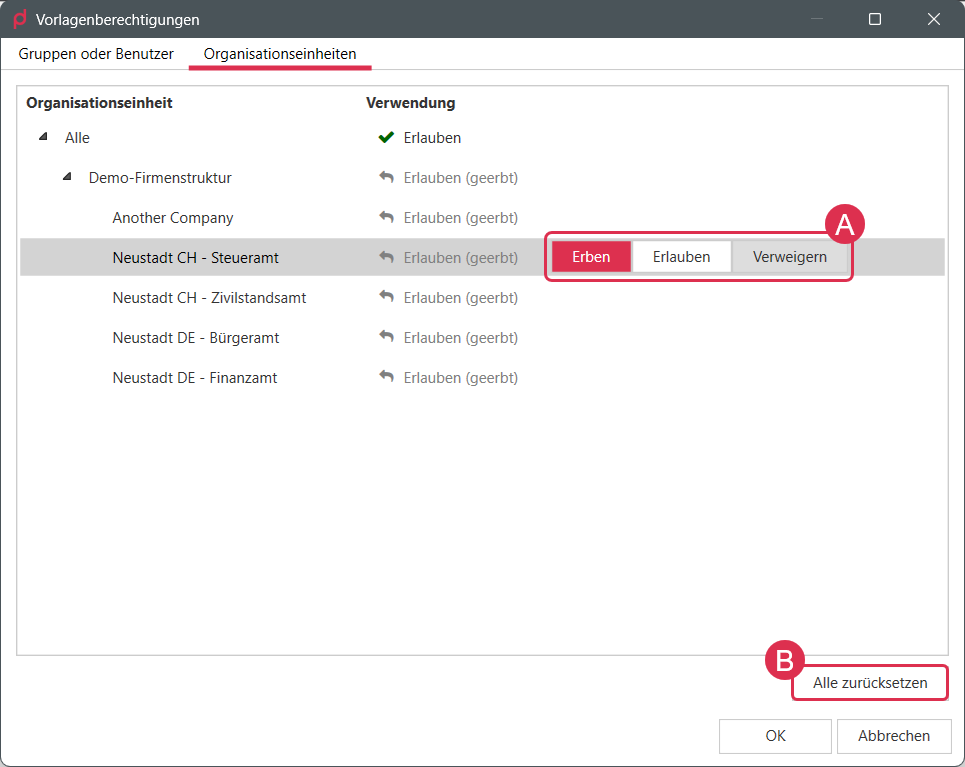
You have three options (A):
- Inherit: The Org Unit inherits the setting of the Org Unit above it, either Allow (inherited) or Deny (inherited).
- Allow: The Org Unit is explicitly allowed this template.
- Deny: The Org Unit is explicitly denied this template.
For newly created templates, the "All" entry is set to Allow and all Org Units inherit from this entry.
Once you have made the settings, confirm by clicking on "OK".