Entra ID Apps
“CUSTOMER.com” must be replaced with your own URL and is only an example of a domain.
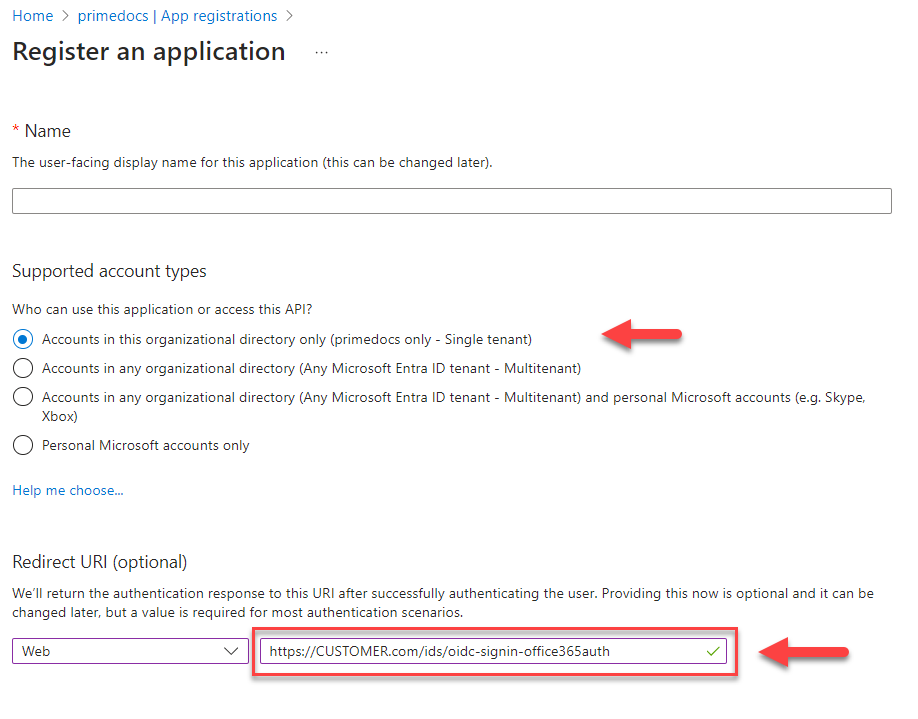
An application must be registered in the Entra ID (formerly: Azure AD). A "Single tenant" registration is usually sufficient, only if the installation is to be accessible for several Entra IDs, "Multitenant" must be activated.
ACHTUNG
Personal Microsoft accounts are not supported.
Entra ID App Creation
For the redirect URI, select "Web" as the platform and choose such a URL:
https://CUSTOMER.com/ids/oidc-signin-office365auth
“http://CUSTOMER.com” stands for the destination address at which primedocs will later be accessible.
Application (client) ID and Directory (tenant) ID
After creation, the Overview page of the app registration shows two GUIDs that later go into primedocs.config:
| Value on the "Overview" page | Use in primedocs.config |
|---|---|
| Application (client) ID | clientId in the office365Auth node |
| Directory (tenant) ID | {TENANTGUID} in the authority of both nodes, that is https://login.microsoftonline.com/{TENANTGUID} |
The Object ID on the same page is not needed. Which value goes where is shown in the table under primedocs.config › Values from the app registrations.
Entra ID App Authentication
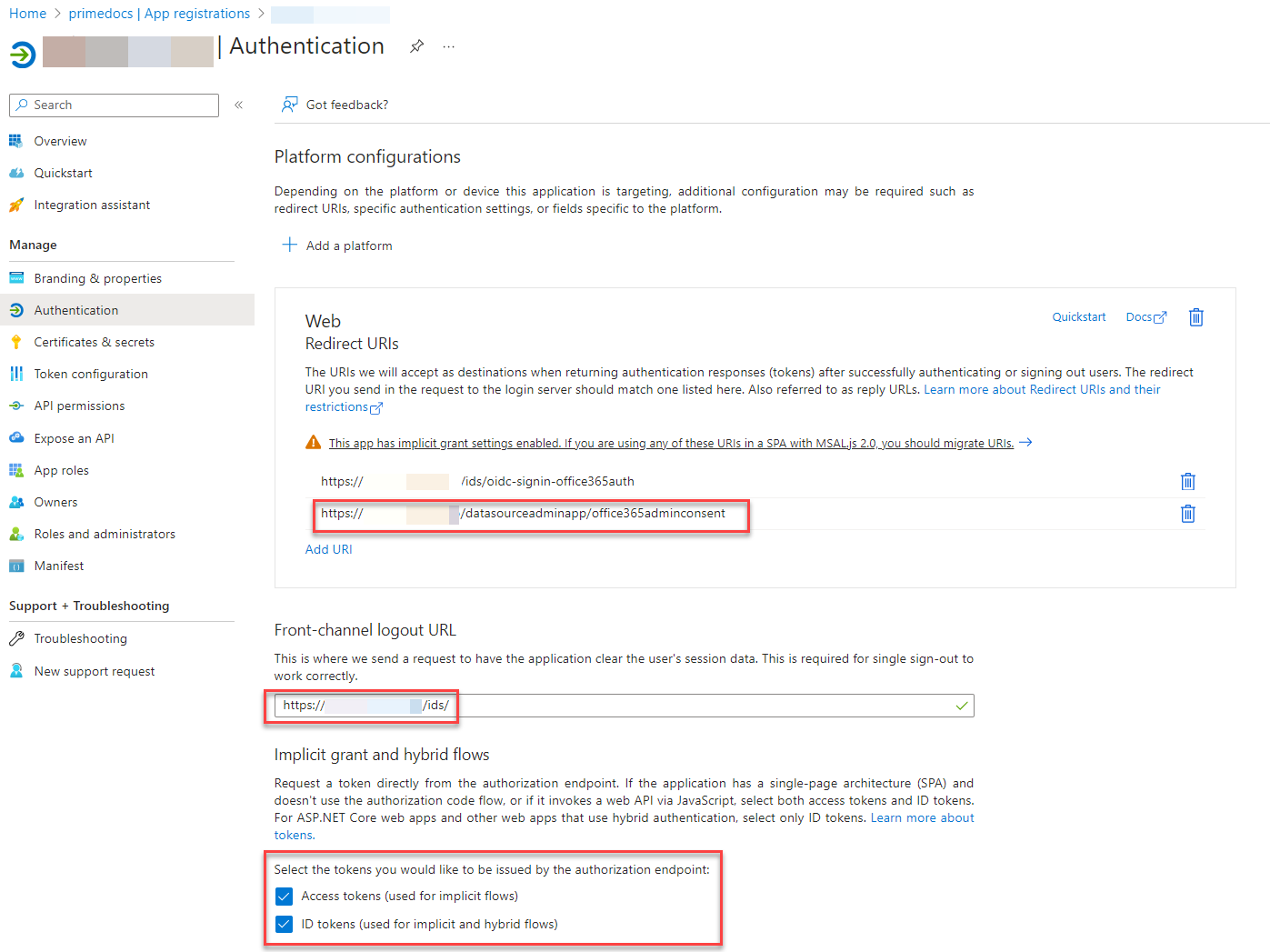
After creation, add the following configuration:
The following must be listed in Redirect URIs:
https://CUSTOMER.com/ids/oidc-signin-office365auth
https://CUSTOMER.com/datasourceadminapp/office365adminconsent
In Front-channel logout URL:
https://CUSTOMER.com/ids/
Activate in “Implicit grant and hybrid flows”:
- Access tokens
- ID tokens
Entra ID Certifications and secret
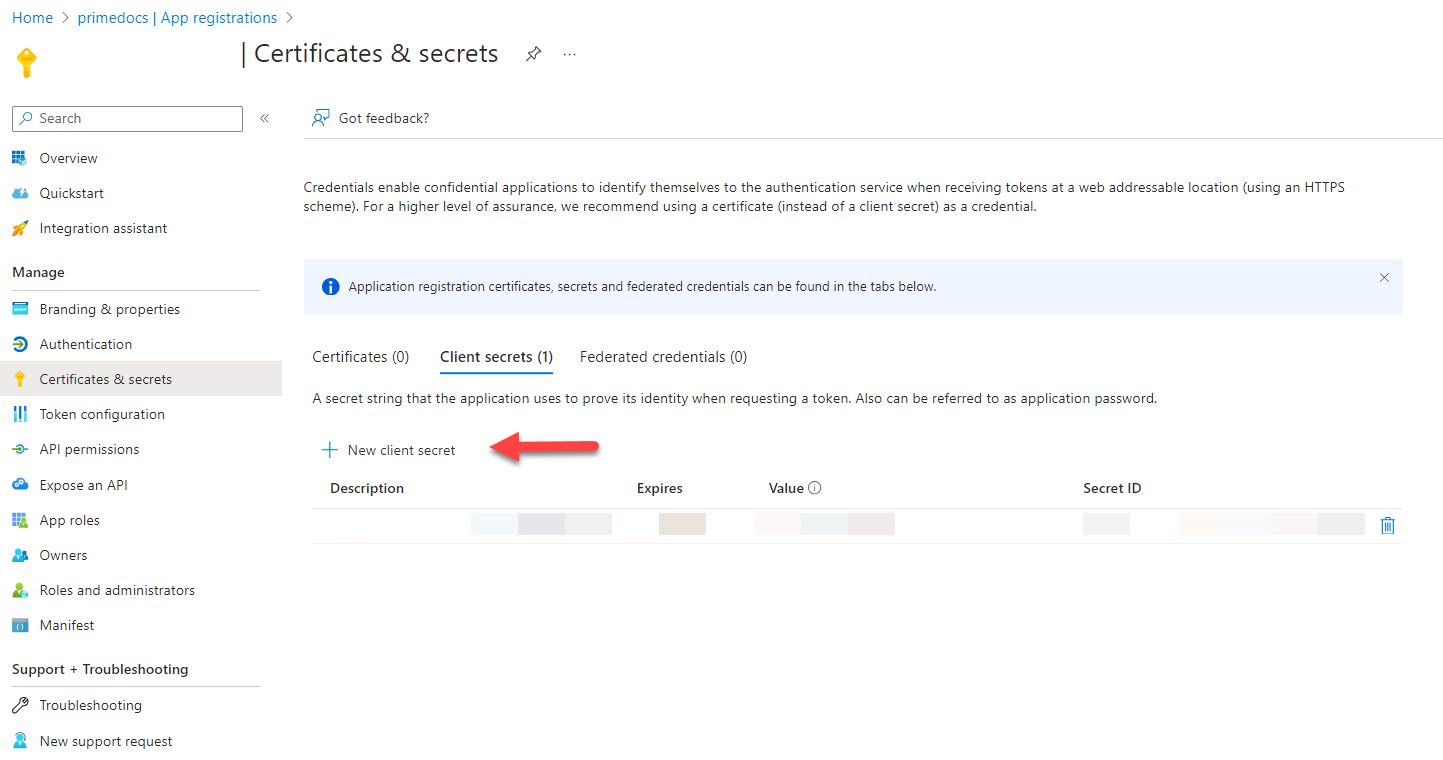
Then create a client secret under Certificates & secrets. Select a sufficient validity, as this secret will later be stored in primedocs.config and must be kept up to date.
After creating it, copy the content of the Value column and store it safely. This value goes into the office365Auth node as clientSecret. It is visible only right after creation, afterwards the page shows only the Secret ID, which is not used in primedocs.config. If the value is lost, create a new secret.
Entra ID API Permissions
Give the application the following "Delegated permissions" in "Microsoft Graph":
emailoffline_accessopenidprofileUser.Read
The following "Application permissions" are also required:
Directory.Read.All: This authorization allows primedocs to determine a user's group memberships. Templates, text modules, profiles etc. can be authorized to Entra ID groups in primedocs. This authorization is required to find out whether a user is in a specific group.User.Read.All:This authorization enables user synchronization via the Microsoft Graph.
If you cannot grant these "Application permissions", the SCIM interface can be used for user and group synchronization.
Grant "Consent" for this application.
Optional “Delegated permissions”:
Files.ReadWrite.All&Sites.ReadWrite.Alls required for integration in Microsoft SharePoint and Microsoft Teams (Use cases).
Additional configuration for this app registration
- Add-in SSO (silent SSO): For silent single sign-on in the Office/Teams add-ins, this registration additionally needs an SPA platform (
brk-multihub://<webapp-domain>), Expose an API (scopeaccess_as_user, Application ID URI at its defaultapi://<client-id>), and pre-authorised client applications. The full guide is at Single Sign-On (SSO) › App registration for add-in SSO. groupsclaim: If Datasources should only be visible to specific user groups (allowedForGroups), thegroupsclaim must additionally be configured on this registration. For details, see primedocs.config › Multitenancy mode.
Entra ID App DataSourceAdminApp creation
App Registration
The DataSourceAdminApp is not connected to the permissions and roles concept, but has been designed as an application to support initial configuration and operation.
In a classic OnPrem environment, for example, only the administrators would be authorized to access this application via Windows groups. In the Azure environment, we use another Entra App Registration to map this.
To do this, you register another application and enter the following as the redirect URI:
https://CUSTOMER.com/ids/oidc-signin-datasourceadmin
Activate under “Implicit grant and hybrid flows”:
- Access tokens
- ID tokens
Also define a client secret for this application.
The Application (client) ID of this second registration and the Value of its client secret go into the dataSourceAdminAppAuth node of primedocs.config as clientId and clientSecret. The Directory (tenant) ID is the same as for the first registration.
Then also grant "Consent" for this application in the API permissions.
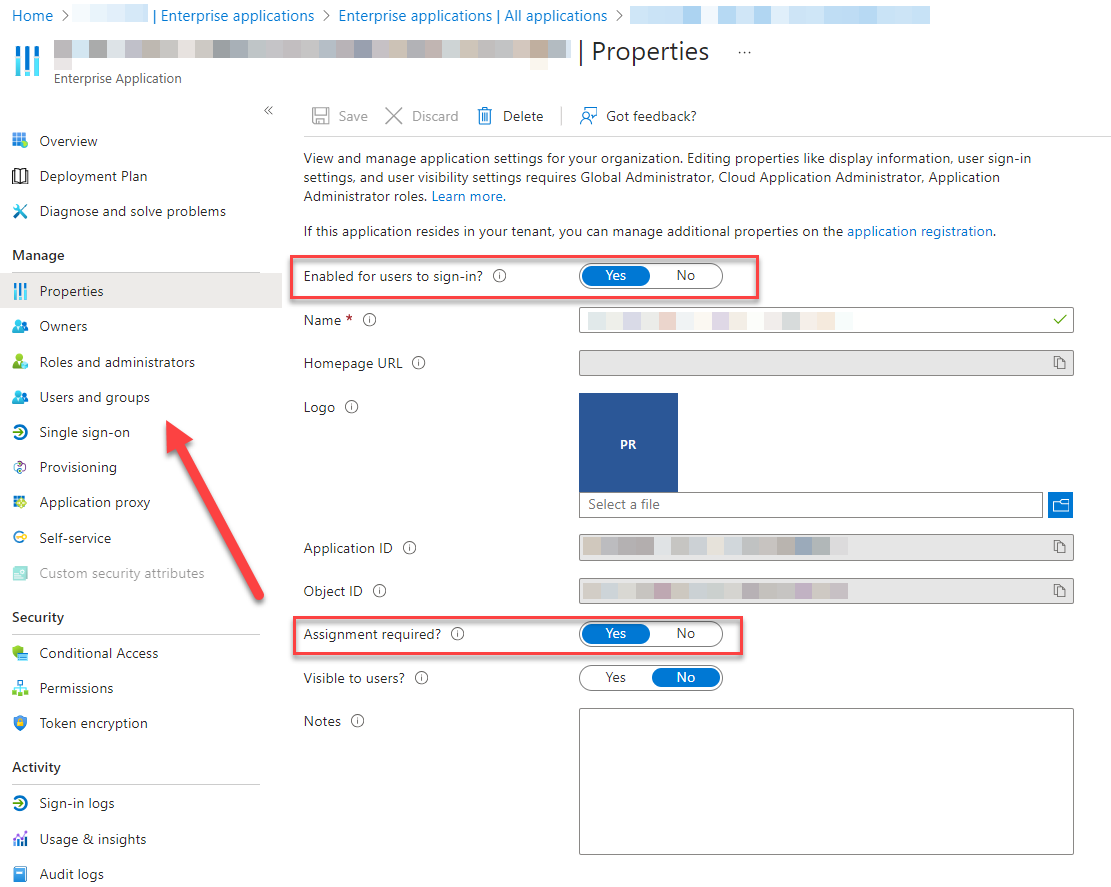
Enterprise Application: User Assignment
Access to the DataSourceAdminApp should be severely restricted. To do this, use the "User Assignments" option in the Enterprise Application.
Search for the app registration of the DataSourceAdminApp that you have just created and activate "Assignment required" and select the users who should have access (usually only technical persons and administrators who need to export/import packages to ensure operation).