Microsoft SharePoint App Installation
Overview
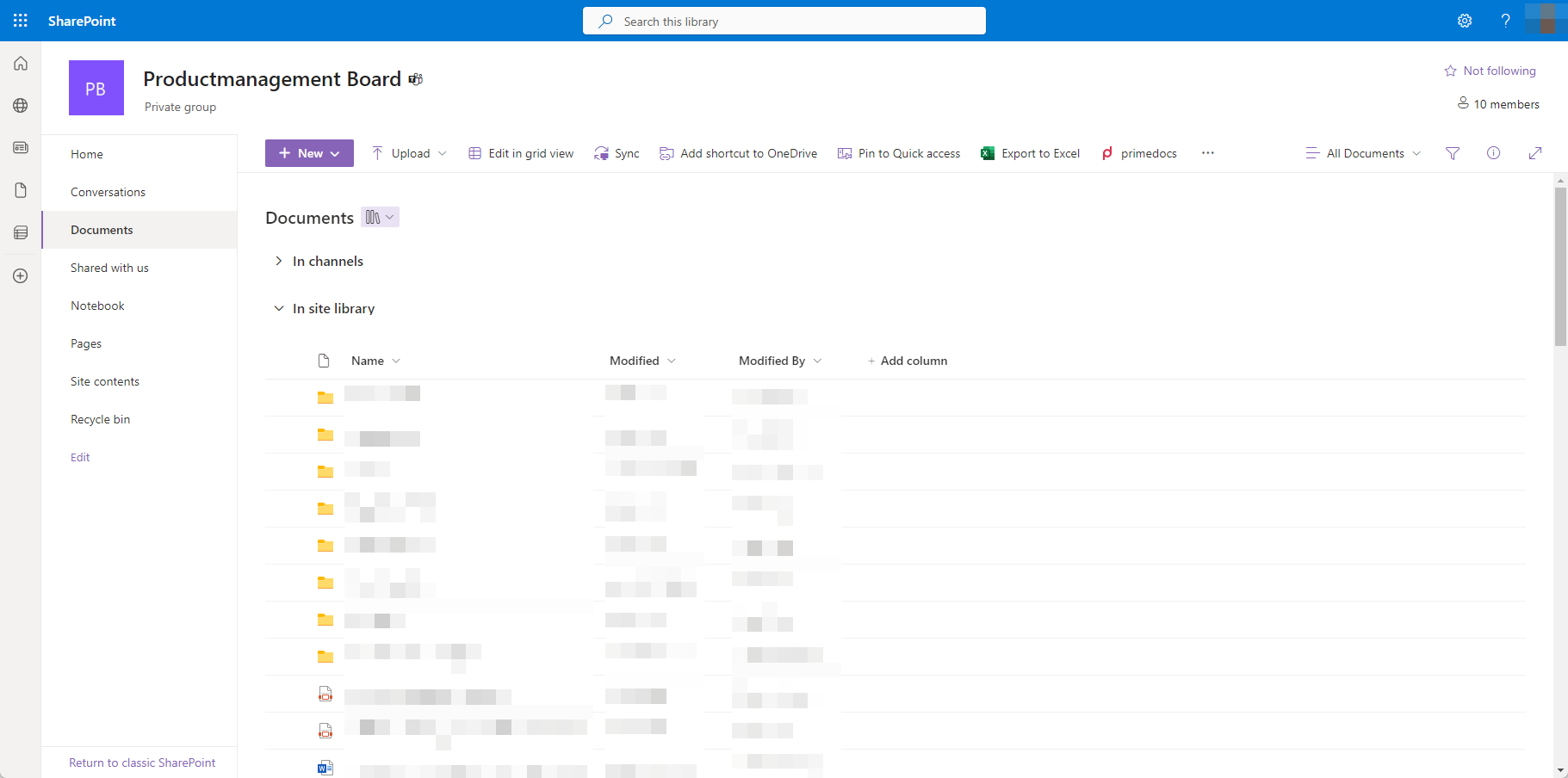
primedocs can be called directly from a SharePoint document library. The primedocs SharePoint app integrates itself into the toolbar:
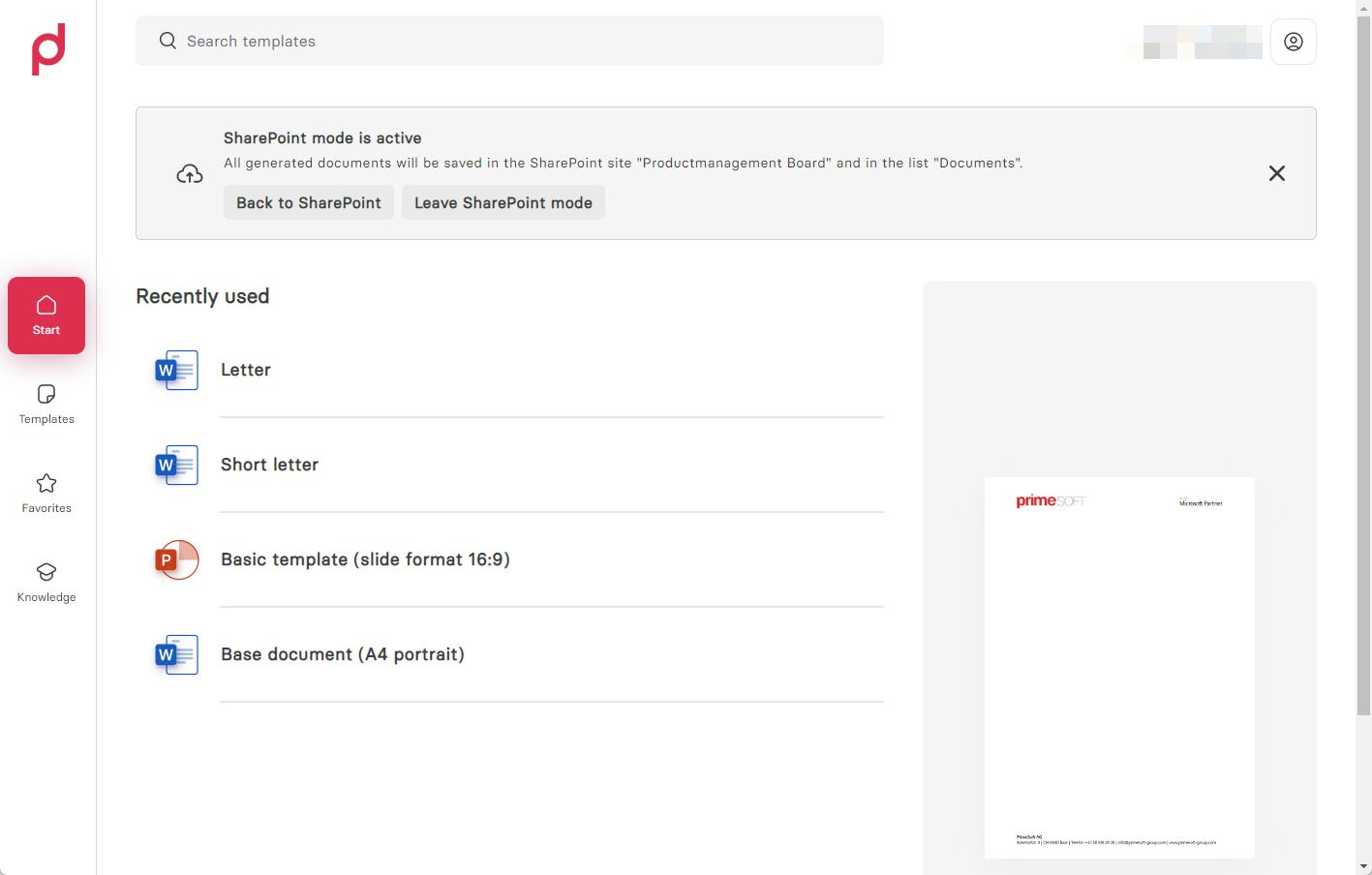
Via the toolbar button you will be redirected to the primedocs web application, which now stores all documents directly in the respective SharePoint list:
Installation
Requirements
- The SharePoint app only works with Office 365 / Entra Id (Alt: Azure Active Directory) logins, as generated files are stored in the user's name.
- The Entra ID App Registration needs the scopes
Sites.Read.All,Files.ReadWrite.Allas delegate permissions. - Only web-enabled templates are supported.
.sppkg Installation
A .sppkg is available for the installation, which can be added via the SharePoint Administration.
Configuration
Operating the primedocs SharePoint App requires a configuration in the root of the SharePoint site.
Create the SharePoint list
- In the root of the SharePoint site, create a list named
primedocsSettings. - Add a column named
Valueof type Single line of text to this list.
Add the configuration entry
- Create a new item in the list:
- Title:
TemplatePickerUrl - Value: URL to the primedocs web application in this format
https://{INSTANCE-NAME}/app/web/sharepoint
- Title:
This URL is used by the SharePoint App to redirect the user to the corresponding primedocs web application when the toolbar button is clicked.
Technical details
The installed SharePoint app adds additional parameters (saveLocationSharePointSiteId, saveLocationSharePointSiteName, saveLocationSharePointFolderPath, saveLocationSharePointListId, saveLocationSharePointListName, saveLocationSharePointUrl) to the configured URL when the button is triggered, so that primedocs can store the documents in the correct document library.