Opening the Dashboard
Applies to: OnPrem customers; primedocs Desktop, primedocs Web, OneOffixx
Concerns: Administrators
Do you want to open the Admin Dashboard in your web browser? Here is how you do it:
Instructions
- Open your primedocs Client
- Switch to the "primedocs" tab
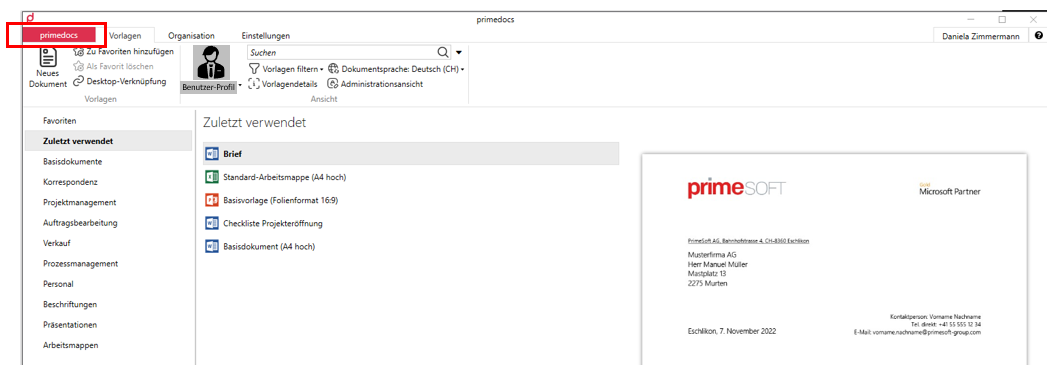
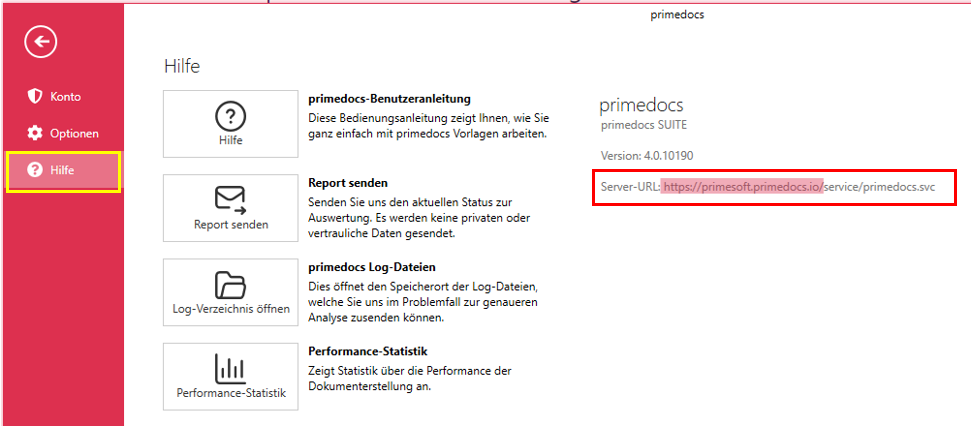
- Click Help.
- On the right-hand side you now find the URL that points to your application server, which the client connects to. Copy the address up to before "service", e.g. "https://primesoft.primedocs.io/"
- Paste the URL into the address bar of your browser and add the word "datasourceadminapp" (if your server version is earlier than version 4.1, the word "admin"). E.g. "https://primesoft.primedocs.io/datasourceadminapp"
Only users who have been authorised in the corresponding file located on the application server have access to this website. If you do not have access but require it, please contact your internal administrator.
TIP
Save the website as a bookmark in your browser.
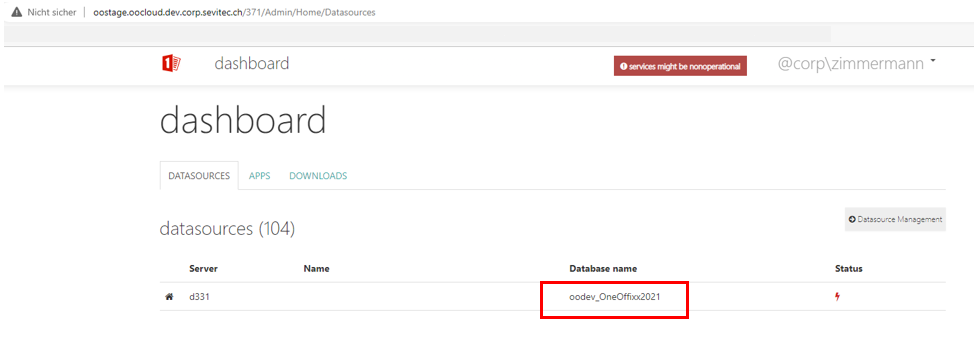
- Depending on what you want to do, you now reach the corresponding dashboard by clicking the desired database:
Areas in the Admin Dashboard
The Admin Dashboard is organised from left to right into the following areas:
| Area | Content |
|---|---|
| Summary | Statistics, capacity (Capacity) and the connection string of the data source. |
| Settings | Basic settings such as the synchronisation interval (SynchInterval) and the language settings. Usually set during the initial setup. |
| Security | Management of user permissions (Users), the targeted AD groups (Windows Groups) and the primedocs Groups. See Roles and Groups. |
| Document Functions | Here, individual document functions can be deactivated if needed. Rarely required. |
| Templates | List of all templates and template categories. Most important function: restoring deleted templates. See Deleted templates. |
| Snippets | List of all shared Snippets (not personal Snippets, as these are stored locally per user). Snippet Usage lists the Snippets that are automatically embedded in templates. |
| Fields | Definition of the profile fields in the User and Organisation areas: create, delete, rename fields. Also shows which user field is linked to which AD field. |
| Tags | Definition of colour markings for templates, which appear in the primedocs app to the right of the template name (e.g. for CMS-linked or legally special templates). |
| Config | Used during the initial setup. |
| Stats | Statistics on the use of primedocs — helpful for identifying training needs or for deliberately expanding the range of templates. |
Via the gear icon at the top right, you reach the import/export functions. Note the difference between Database Export/Import and Package Export/Import.
Managing deleted templates
In the Templates area, deleted templates are highlighted in yellow and can be restored:
- Click the green Edit button on the right.
- Select Undelete & set active.
Permanent deletion is irreversible. The options Hard delete: Remove from datasource completely, Remove 'deleted' Templates (in the main view) and Delete [category name] (when a category is expanded) remove templates completely and irreversibly from the data source.
When a template is deleted, already generated documents lose the primedocs functions, and third-party systems can no longer access the template.