Desktop: Organising log files
info
Applies to: primedocs Desktop, OneOffixx
Concerns: Administrators
When we receive support requests, we ask for the log files of the affected machine depending on the case. For each user, primedocs stores log files that can be analysed in the event of any malfunction, so that we can support you as quickly as possible.
Find out here how to obtain the log files:
Instructions
- Reproduce the malfunction relating to the error in the affected client before carrying out the further steps. This makes the time of occurrence unambiguous and significantly simplifies the analysis for us.
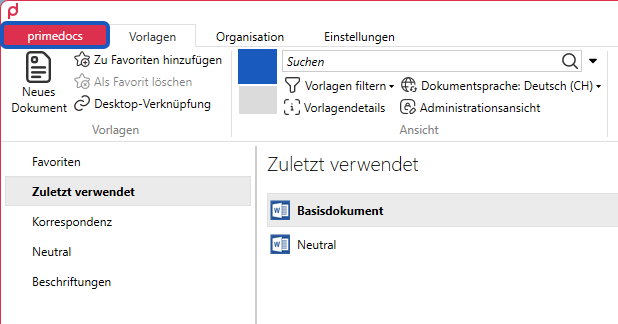
- In the primedocs client, click the primedocs tab (far left)
- Select the Help menu item
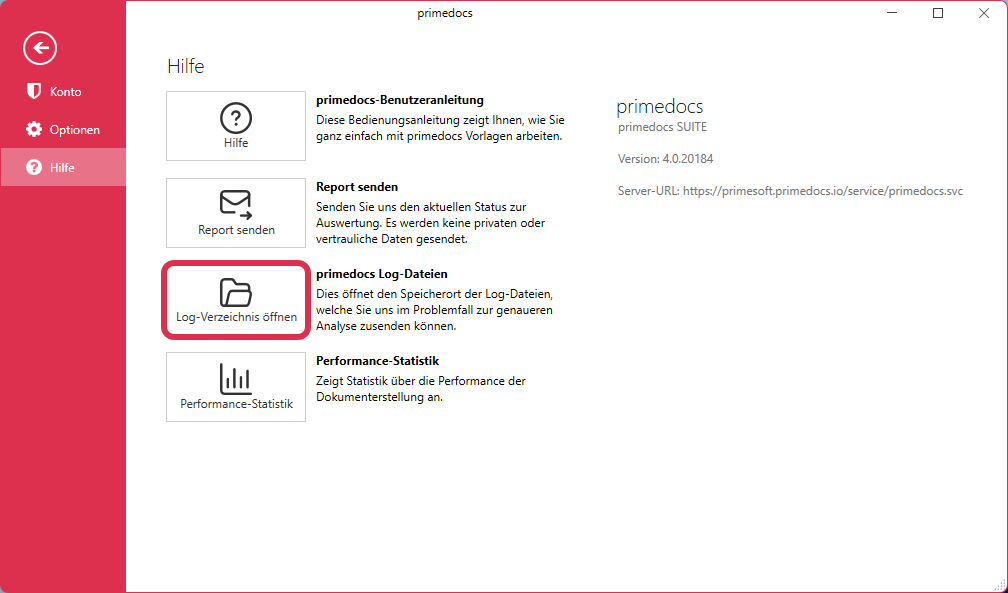
- Click the Open log directory button
- File Explorer opens. The log files of the last 7 days are located here. There is a log file for the client as well as for each add-in (available for Word, Excel, Outlook, PowerPoint).
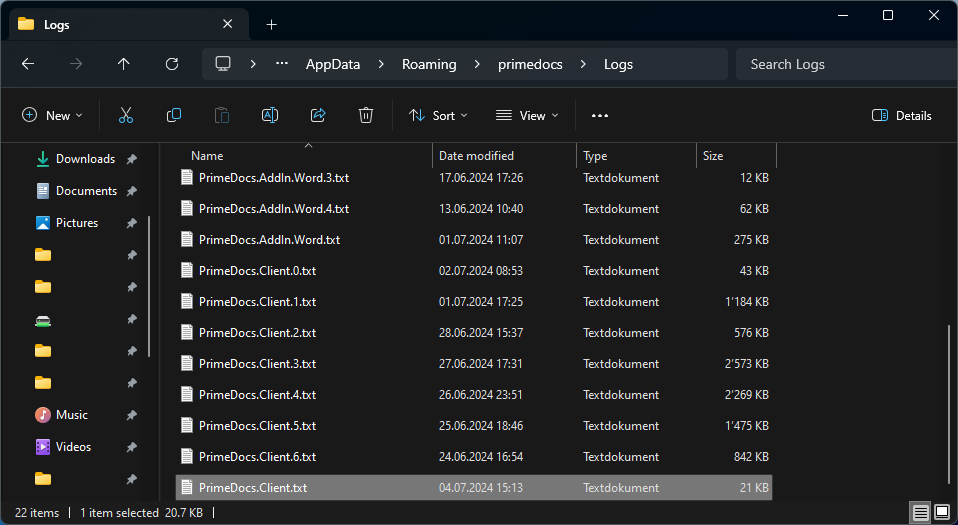
- Select the log files relevant to the analysis.
- ⚠️ We always need the log file from the day on which the malfunction occurred.
- ⚠️ For a proper analysis, we also need the exact time at which the malfunction occurred.
- If you do not know when the malfunction occurred, please clarify this with the relevant user.
- Attach the corresponding log files to the ticket, e.g. the file
PrimeDocs.Client.txt - Go to the primedocs Support Desk / OneOffixx Support Desk depending on which product you use.
- Open a new ticket or go to the existing ticket.
- In the text editor for adding a comment, click the image icon in the toolbar.
- Do not forget to tell us the exact time at which the problem occurred.