Import: Database or Package
Applies to: OnPrem customers; primedocs Desktop, primedocs Web, OneOffixx
Concerns: Administrators
Instructions (short)
- Open the Dashboard (requires the appropriate permissions)
- Upload the ZIP file via the Smuggler (Database/Package)
- Select a database on the Dashboard start page.
- Select the desired import variant via the gear icon.
- Synchronise the client.
Instructions
Open the Dashboard in your browser: Open the Dashboard
Only users who have been authorised in the corresponding file located on the application server have access. If you do not have access but require it, please contact your internal administrator.
Smuggler: Upload files
Before you can import the Package or the database into your database, the file must first be loaded onto the Dashboard:
- Click the user name at the top right and then click smuggler

- You can then upload the
zipfile (Database) oroopxfile (Package) by clicking Select files or by dragging the file into the field. The respective file is shown below. - Then click Upload All to upload the file(s)
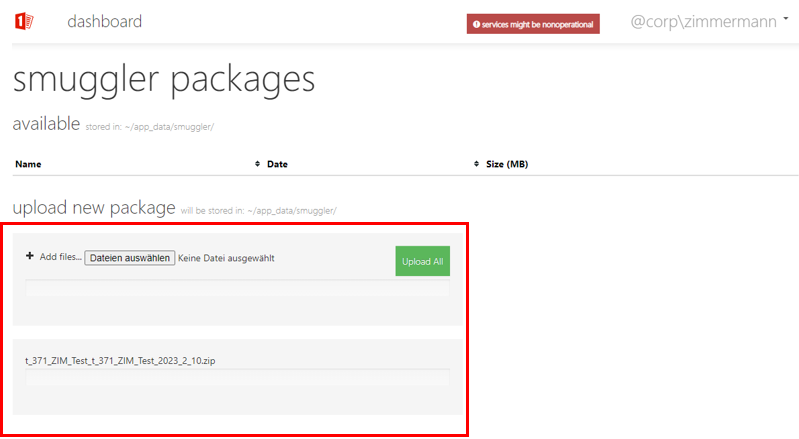
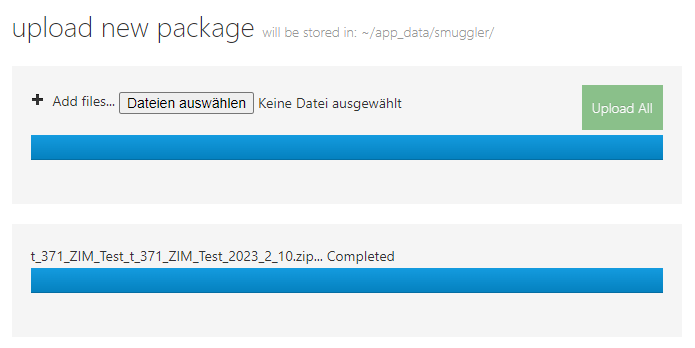
- The file is now uploaded and is available for the next steps.
Selecting the import variant
- Go back to the start page of your Dashboard and select the database into which you want to import something.
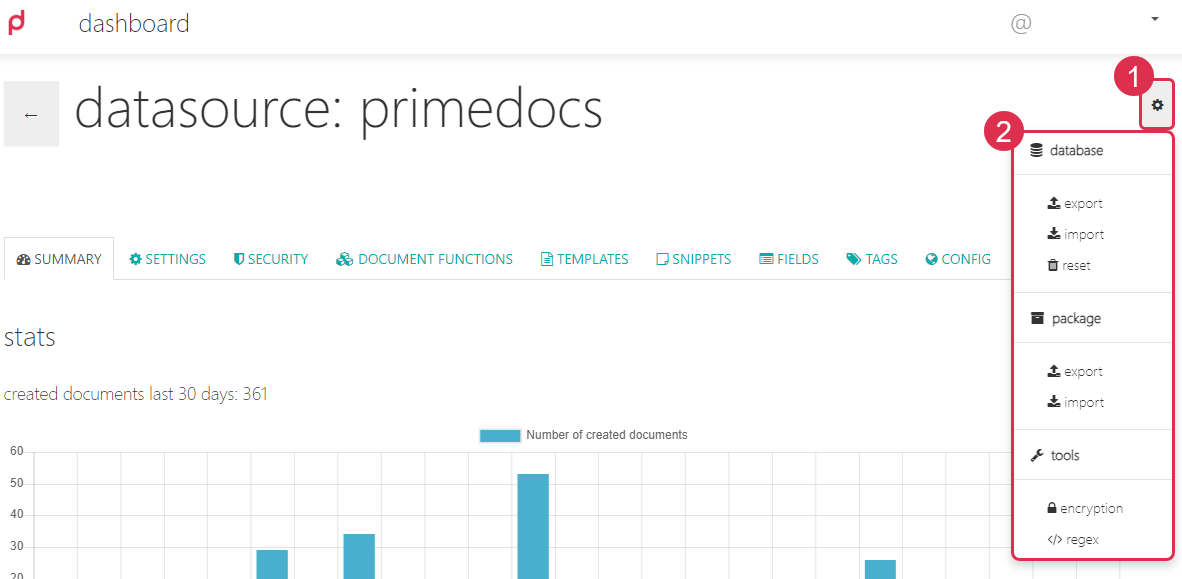
- Click the gear icon and select the desired import:
- Package Import: Import individual templates, Snippets, etc.: an
oopxfile is imported. - Database Import: Import an entire database: a
zipordacpacfile is imported.
- Package Import: Import individual templates, Snippets, etc.: an
Database Import: CAUTION, take care here! Only import databases when you are working on a test database and NEVER into a production database!
Package Import
- Click the gear icon at the top right and select package → import.
- Select the desired Package you want to import.
NOTE
If the desired file cannot be selected here, it was either forgotten to upload it (see the Upload files step), or it is the wrong file format (the selected file must be an oopx file).
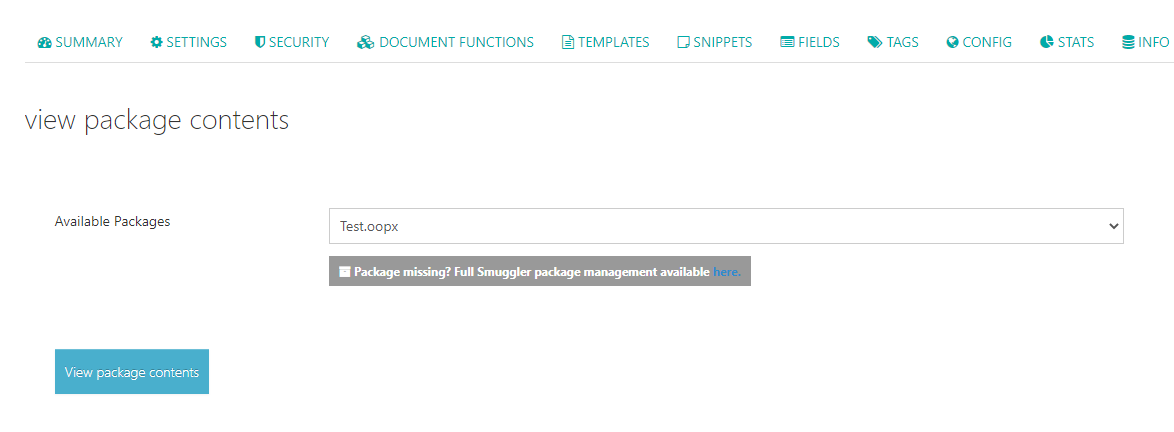
- Click View package contents and review the contents of the Package.
Navigation
- To proceed to the next step, click the Next button or, alternatively, click directly on the desired packaging step at the top of the overview (Templates > Snippets > […] > Organization Unit).
- Note the button with the wrench ✅ below the Export button. Here you find options for selecting and deselecting elements at the respective packaging step.
Reviewing the selected elements
- Go through each step and check the elements that were automatically selected:
- The import function detects which data in the package differs compared to your selected database — and selects it automatically.
- Data that has changed is selected and marked.
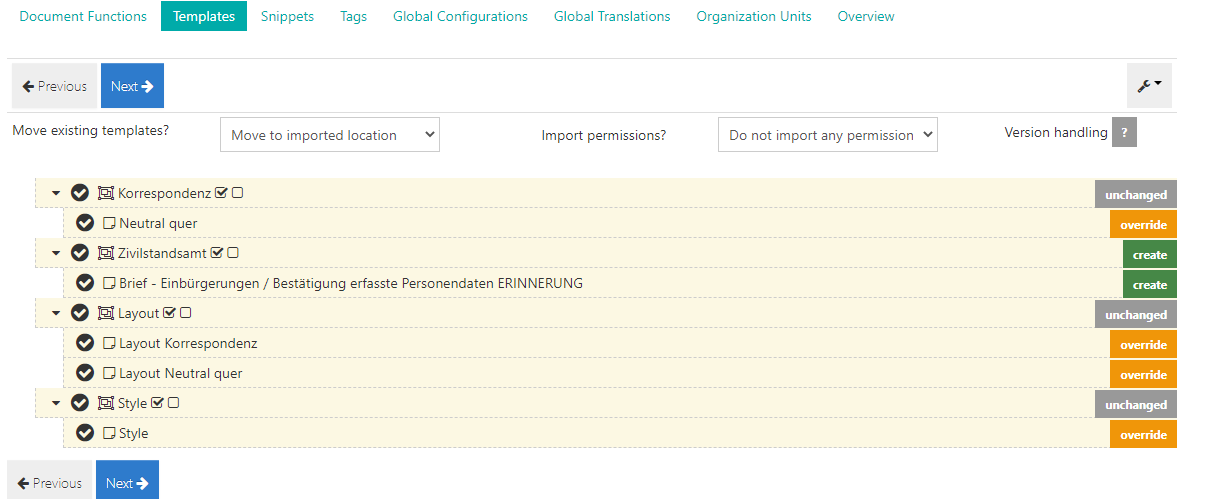
- unchanged = The element in the Package is unchanged or identical → the import ignores it.
- override = The element in the Package is different → the import overwrites the element.
- create = The element in the Package does not yet exist → the import creates a new one.
- Deselect the elements if you do not want to import them.
- You can read what has changed by hovering the mouse over the label of an entry:
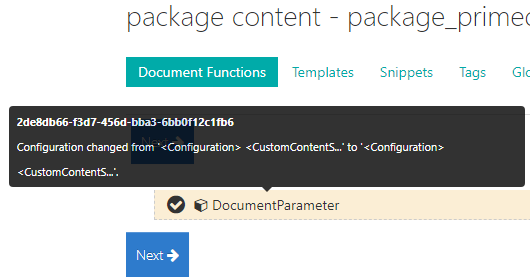
- Since the data marked with override or create is selected automatically, you only need to check whether you really want to import it.
Options during import
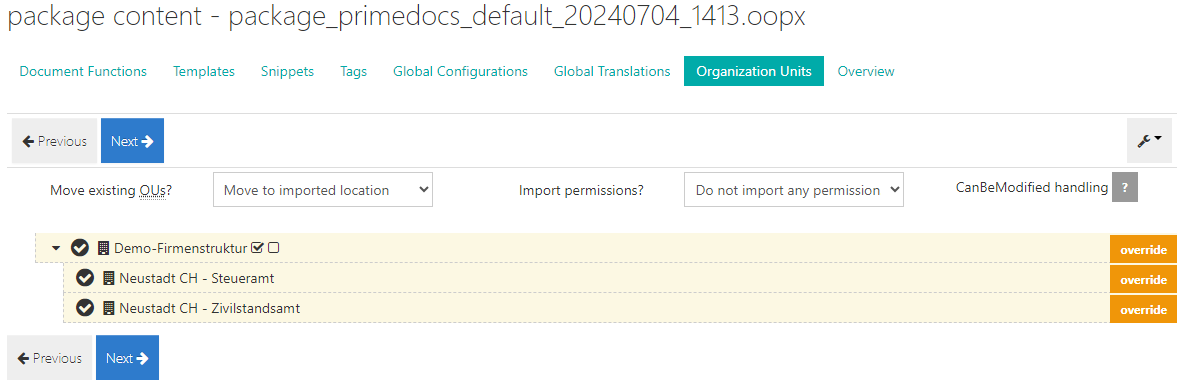
- These options are shown to you in the following steps: Templates, Snippets, Organization Units.
- Option: Move existing OUs? The element to be imported is moved to…
- "Move to imported location": where it was in the source database.
- *"*Keep at existing location": where it already is in the target database.
- Option: Import permissions?
- "Do not import any permission": No permissions are imported. Choose this option if you use different permission concepts for your databases or if the permissions in the target database must not be overwritten.
- "Import all permissions. Fails if any necessary security account is not present.":
- An attempt is made to import permissions.
- The import is aborted if there are users/user groups that are not found in the target database.
- "Import all permissions if possible. Permissions with missing security accounts are ignored.":
- An attempt is made to import the permissions.
- The import is carried out to completion, even if there are users/user groups that are not found in the target database. This means these users/user groups are simply ignored.
If you are unsure how to proceed with the Package Import, ask our Support.
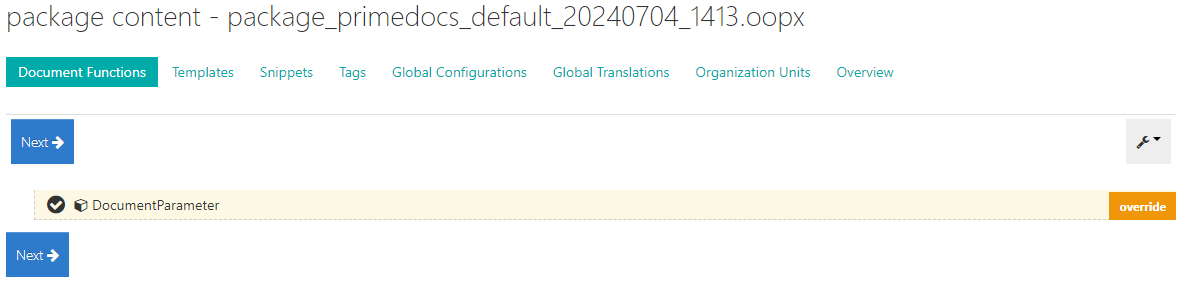
Step Document Functions
- Check whether you want to import the pre-selected global document functions.
Step Templates
- Check whether you want to import the pre-selected templates.
- Deselect the templates if you do not want to import them.
- Note the options during import.
Note that the template folder must always be selected if a template contained within it is to be imported.
Step Snippets
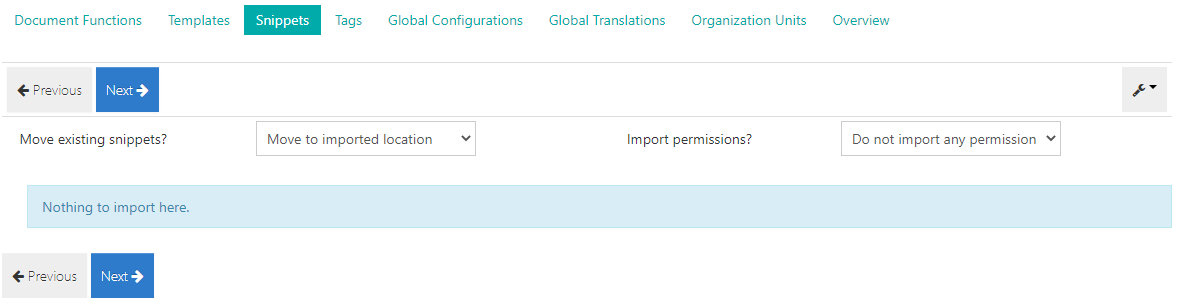
- Check whether you want to import the pre-selected Snippets.
- Deselect the Snippets if you do not want to import them.
- Note the options during import.
Note that the Snippet folder must always be selected if a Snippet contained within it is to be imported.
Step Tags
Check whether you want to import the pre-selected tags and deselect them if you do not want to import them.
Step Global Configurations
Check whether you want to import the pre-selected global configurations and deselect them if you do not want to import them.
Only entire global entries can be imported.
Step Global Translation
Check whether you want to import the pre-selected global translations and deselect them if you do not want to import them.
Step Organization Unit
- Check whether you want to import the pre-selected organisational units and deselect them if you do not want to import them.
- Note the options during import.
Note that the higher-level organisational units must always be selected as well if a sub-organisational unit is to be imported.
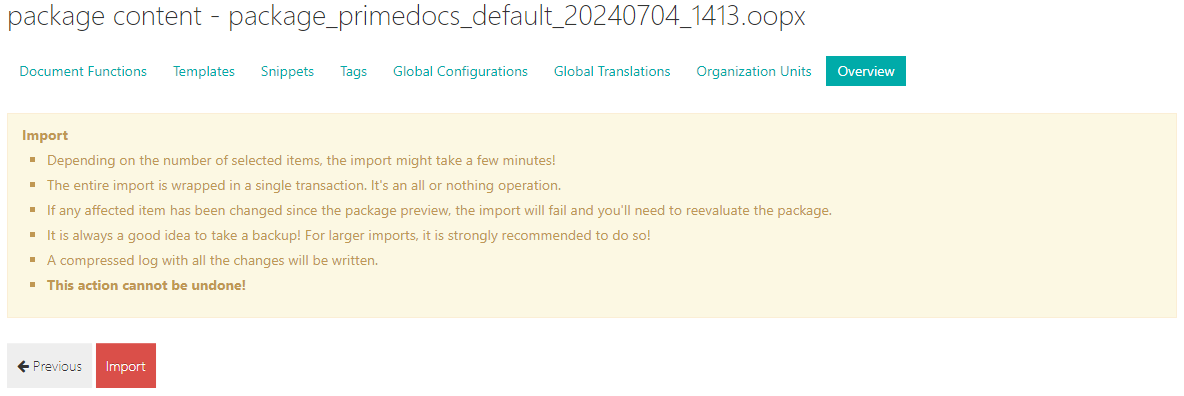
Step Overview
Here it is pointed out once more that, during the import, all data you have selected is overwritten and that this action cannot be undone.
TIP
If you are unsure whether you want to import something or not, it is better to quickly create a Package Export of the relevant elements as a backup before importing!
If you agree, click Import.
After the import is complete, the following message appears:
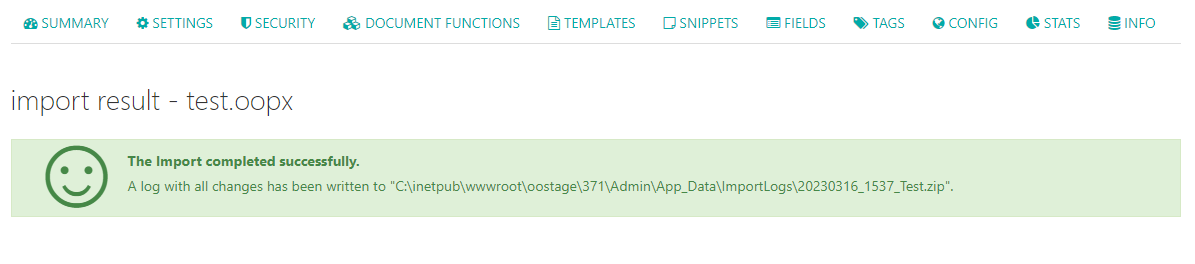
It now makes sense to test the imported elements. To do this, primedocs desktop must first download the data from the database. To do so, synchronise the client: Desktop: Synchronise the client, so that you can see the new data in primedocs desktop.
Database Import
- Click the gear icon at the top right and select database → import.
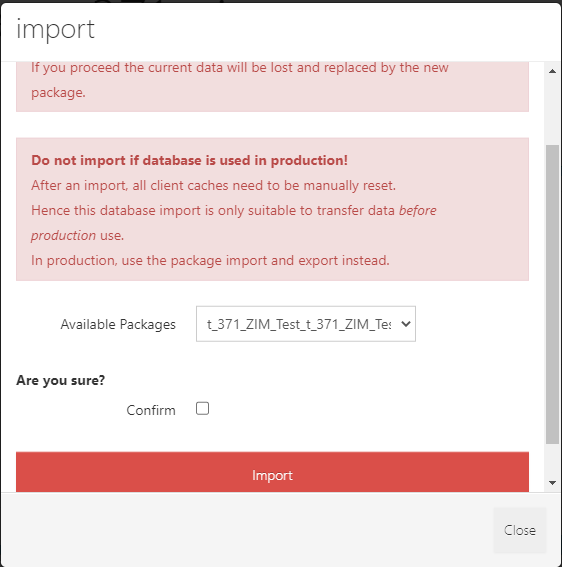
- Select the database you want to import and confirm with Confirm.
- Clicking Import imports the database.
CAUTION
READ the note in the pop-up window carefully:
Are you on the correct database? Do you really want to import this database here?
Only import database exports into test databases and NEVER into production databases!
NOTE
If the desired file cannot be selected here, it was either forgotten to upload the file (see the previous step), or it is the wrong file format (e.g. if you uploaded a Package instead of the database).
You can find the instructions for how to export a database or perform a package export here: Export: Database or Package