Add-Ins
primedocs is fully integrated into Microsoft Office. You will find a primedocs tab in Word, Outlook, PowerPoint and Excel. The add-ins for the individual Office applications are explained below.
Word Add-In
Word ribbon
As soon as you have generated a document, you will see the following ribbon in Word:

Here you will find the most important commands for editing the current document.
IMPORTANT Please note that the automatically filled fields (all fields in the header and footer) should only be changed via the properties dialog. This ensures that your changes are not overwritten the next time you open the document.
primedocs group
Click on the primedocs button to return to the template overview in the primedocs app at any time.
Document group
Properties: Click on the Properties button to return to the Properties dialog and make adjustments again.
Profile: You can change your profile via the primedocs tab. If several profiles are available to you, you can change your selection at any time by clicking on the Profile button.
Language: The button for the document language is located directly below the profile selection button. If you change the document language, the spell check language of the entire document is switched.
Content group
Snippets
Snippets are blocks of content (text, tables, images, etc.) that you can save and reuse in any other document without having to copy and paste them.
There are basically two types of snippets: "Shared" and "Custom" snippets.
Custom snippets: Every user can create their own snippets. They belong to you and only you.
Shared snippets: Shared snippets are created centrally and are accessible to everyone or to specific user groups.
Create snippets: Select a text and drag it to the right-hand area, e.g. under "Custom snippets". A window opens in which the name of the snippet is specified. Correct the document language if necessary and click OK.
Insert snippets: Click with the mouse at the point where the snippet is to be inserted. Then double-click on the desired snippet in the snippets panel, or drag and drop it to the desired position.
Snippets in different languages: You can overlay different language versions of the same snippet. primedocs then automatically inserts the snippet in the correct document language.
Format group
Fill colour / Line colour / Text colour: Three buttons for colour management according to the design (CI/CD) of your organizational unit.
General Word formatting: The standard text formatting section for fonts, indents, text alignment, etc. Use "Standard" to reset the formatting of the current paragraph.
Completion group
Print: Opens the Word print dialog (same as Ctrl+P).
Send: Opens an e-mail in which the currently opened Word document is already inserted as an attachment.
Spelling: Triggers a spell check run.
Outlook Add-In
Outlook main window
You will see the following in the main Outlook window:
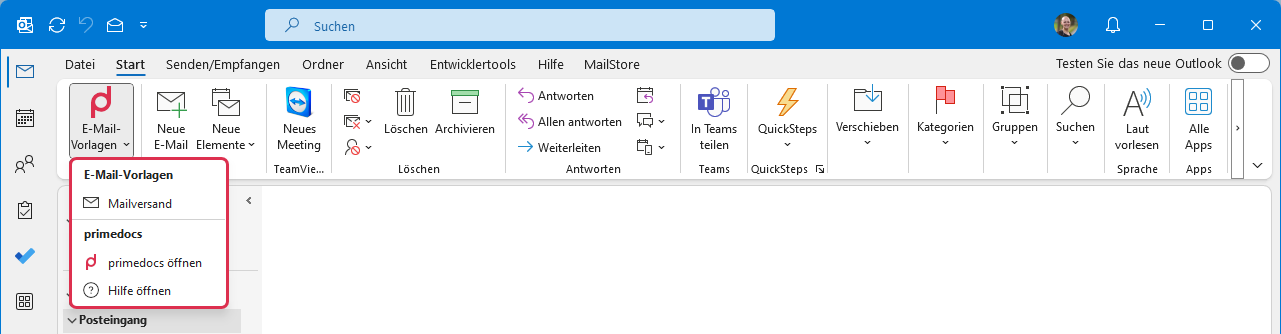
Email Templates button: The only indicator for primedocs is the "Email templates" button with the primedocs signet. When you click this button, email templates are available for selection.
New e-mail message
If a new message is opened, the primedocs Outlook add-in comes into play:
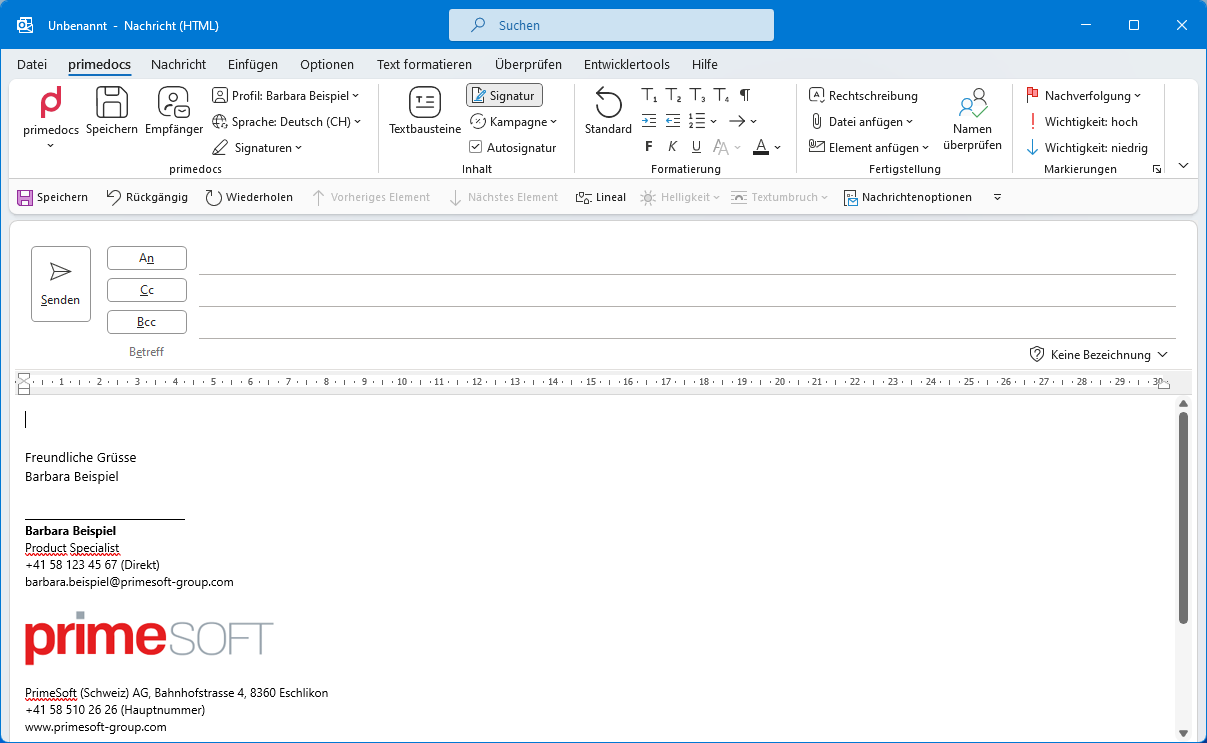
primedocs / Save / Recipient / Profile / Language: The first part of the ribbon is identical to the add-in in Word, PowerPoint and Excel.
Signatures: The "Signatures" drop-down button is only available in Outlook. Here you can select which email signature you would like to use.
Content group
Snippets: Brings up the same sidebar as in Word with the same snippets.
Signature: The "Signature" button is an On/Off switch with which you can display or hide the signature.
Campaign: Here you can select a campaign banner to be inserted into the signature of your message.
Auto signature: When activated, the recipients of your email are checked. If only internal addresses are involved, the system automatically switches to the internal signature. As soon as an external e-mail address is recognised, the system automatically switches to the external signature.
Completion group
Spelling: Performs a spell check.
Attach File: Opens a drop-down menu of recently opened files.
Attach Item: Similar to "Attach file", but also includes business cards and other items.
Check Names: Outlook tries to match names with known email addresses. Keyboard shortcut: Ctrl+K.
Tags group
Follow Up: Flag an email for follow-up.
High / low Importance: Mark the email accordingly.
PowerPoint Add-In
Ribbon
If you create a PowerPoint presentation using primedocs, you will see this ribbon:

primedocs / Properties / Profile / Language: These buttons correspond exactly to those in Word.
Data
Slides: Choose a slide layout and add a new slide to your presentation. Each slide layout has a slide preview beside it.
Images: Access your organisation's image library and insert images directly into your presentation.
Layout
Check slide: Resets a slide back to the design specified in the slide layout. This helps with slides that have lost their alignment or contain the wrong fonts, colours, etc.
Change Layout: Switches the current slide to a different slide layout.
Format
Colour management: Colours for fills, lines and text — selectable separately, the same tools as in Word.
Text formatting: Standard PowerPoint text formatting buttons, reproduced here so that you do not have to switch ribbons constantly.
Charts
Insert Chart: Choose a chart type. primedocs controls colours more strictly than PowerPoint.
Change type: Changes the chart type of the selected chart.
Colour sequence: Changes the colour sequence in the selected chart, within CI guidelines.
Reset: Resets the entire chart to the default values.
If you open a presentation that was not created with primedocs, many buttons are greyed out. With the "Design conversion" button, you can automatically create a new presentation in your design and transfer the slide content.
Excel Add-In
Ribbon

The Add-In ribbons for Microsoft Office are deliberately kept similar. Excel retains the primedocs, save, properties, profile selection and language buttons.
Apply theme: Applies a specific design (colours, fonts) to the workbook.
Sheet: Adds a new worksheet to the workbook with the correct colour and font theme.
Colour selections: Fill, line and text colours, like in Word and PowerPoint.
General text formatting: Text formatting tools corresponding to the text formatting in Excel.
Chart tools
Insert chart: Choose a chart type to insert.
Change type: Switches the selected chart to a different chart type.
Colour sequence: Changes the colour sequence, provided your CI allows different colour sequences.
Reset: Resets the design of the selected chart back to its default colours, fonts, and other design settings.