primedocs.config
The primedocs.config file is the central configurational file for the serverside primedocs applicaitons.
It is in the installation directory (per default in C:\inetpub\wwwroot\primedocs\primedocs.config).
Features can be activated and deactivated via the primedocs.config.
Note that an incorrect configuration can lead to errors and that certain features are relevant in terms of licensing! Please contact our support for this.
Followingly please find some examples:
Default installation
The GUIDs, passwords, secrets, URLs and ConnectionStrings should not be copied from the example below. During installation, the GUIDs, passwords and secrets are automatically created randomly.
The standard OnPrem installation relies on Windows Authentication.
<primedocs operationDbConnectionString="Data Source=your-sql-server.yourcorp.local;Initial Catalog=primedocs_Prod_Operation;User ID=primedocsuser;Password=password_here;MultipleActiveResultSets=True"
           databaseLoggingEnabled="false">
  <datasources>
    <add id="9e769582-b411-43fa-b8f6-d15ea3d83dde" isPrimary="true" dbConnectionString="Data Source=your-sql-server.yourcorp.local;Initial Catalog=primedocs_Prod;User ID=primedocsuser;Password=password_here;MultipleActiveResultSets=True;Encrypt=False" name="primedocs" />
  </datasources>
  <clients>
    <!-- Windows Client OIDC Settings -->
    <add id="710be047-475a-4991-90b3-351ea93d6908" oidcClientId="DefaultClient" oidcClientSecret="G754ePPG0SBC" userAuthType="FromLogin" />
    <!-- WebApi to invoke the Connect (DCS) -->
    <add id="84234199-5448-4d73-8182-b5623e51e99c" basicAuth="CONNECT-USER:izieAoETHS04" mappedToPrimarySid="CONNECT-USER" />
  </clients>
  <apps>
    <add id="e185dddd-2cb4-43e2-a6fe-cf4272dd3401" name="Service" url="https://your-url.local/service/" logFilePath="Service\" type="Service" />
    <add id="9ef34d3a-13b5-4f06-b437-b300474beb6d" name="IdentityServer" url="https://your-url.local/ids/" logFilePath="IdS\" type="IdentityServer" />
    <add id="c74a324d-7c36-4d2f-b422-f2fdad41f81e" name="HealthMonitor" url="https://your-url.local/healthmonitor/" type="HealthMonitor" />
    <add id="f7199131-de81-4d40-a254-39e7db9660f0" name="DataSourceAdminApp" url="https://your-url.local/datasourceadminapp/" logFilePath="DataSourceAdminApp\" type="DataSourceAdminApp" />
    <add id="279b5480-27e5-4a09-bf9f-4c10d1770c76" name="App" url="https://your-url.local/app/" logFilePath="App\" type="App" />
    <add id="f25dc7b9-d989-4d03-89ff-3ee17bf7d020" name="JobHost" logFilePath="JobHost\" type="JobHost" />
    <add id="1cdca9fc-780b-477e-af20-29be64bf8dae" name="Connect" url="https://your-url.local/connect/" logFilePath="Connect\" type="Connect" />
    <add id="1d28ed6f-74d4-4942-b254-b287db6e1cf9" name="AddressService" url="https://your-url.local/addressservice/" logFilePath="AddressService\" type="AddressService" />
    <add id="a7ee7e49-b0eb-472c-aecb-cc0ca5257342" name="WebApi" url="https://your-url.local/webapi/" logFilePath="WebApi\" type="WebApi" />
    <add id="822a4c62-ed2d-4165-9bb1-eb979632c0aa" name="AdminApp" url="https://your-url.local/adminapp/" logFilePath="AdminApp\" type="AdminApp" />
  </apps>
  <identity signingCertFilePath="cert.pfx"
            signingCertPassword="kWFgDhRAMgKk"
            introspectionSecret="1Ubp4Efp6H3G">
    <providers>
      <winAuth authority="https://your-url.local/IdSWindowsAuth"
               clientId="winauth" clientSecret="winauth-L2VDmPzm7PbK" />
    </providers>
  </identity>
  <service streamBufferSizeInBytes="81920">
    <syncBehavior maxConcurrentClients="30" initialAverageSyncTimeInSeconds="10" timeoutInSeconds="120" />
  </service>
  <healthMonitor basicAuth="user:YHBAe5oAwsi2" clientSecret="healthmonitor-s5iZRGCWZ7ZE" intervalInSeconds="600"/>
</primedocs>
Default installation with Entra ID
If you would like to log in using your Entra ID (formerly Azure Active Directory) instead of Windows authentication, follow the steps at Entra ID Apps.
The clientId/clientSecret for the "user application" and the clientId/clientSecret for access to the DataSourceAdminApp (Dashboard) must be stored in primedocs.config:
<primedocs operationDbConnectionString="Data Source=your-sql-server.yourcorp.local;Initial Catalog=primedocs_Prod_Operation;User ID=primedocsuser;Password=password_here;MultipleActiveResultSets=True"
           databaseLoggingEnabled="false">
  <datasources>
    <add id="9e769582-b411-43fa-b8f6-d15ea3d83dde" isPrimary="true" dbConnectionString="Data Source=your-sql-server.yourcorp.local;Initial Catalog=primedocs_Prod;User ID=primedocsuser;Password=password_here;MultipleActiveResultSets=True;Encrypt=False" name="primedocs"
         allowedForTenant="{TENANTGUID}"
    />
  </datasources>
  <clients>
    <!-- Windows Client OIDC Settings -->
    <add id="710be047-475a-4991-90b3-351ea93d6908" oidcClientId="DefaultClient" oidcClientSecret="G754ePPG0SBC" userAuthType="FromLogin" />
    <!-- WebApi to invoke the Connect (DCS) -->
    <add id="84234199-5448-4d73-8182-b5623e51e99c" basicAuth="CONNECT-USER:izieAoETHS04" mappedToPrimarySid="CONNECT-USER" />
  </clients>
  <apps>
    <add id="e185dddd-2cb4-43e2-a6fe-cf4272dd3401" name="Service" url="https://your-url.local/service/" logFilePath="Service\" type="Service" />
    <add id="9ef34d3a-13b5-4f06-b437-b300474beb6d" name="IdentityServer" url="https://your-url.local/ids/" logFilePath="IdS\" type="IdentityServer" />
    <add id="c74a324d-7c36-4d2f-b422-f2fdad41f81e" name="HealthMonitor" url="https://your-url.local/healthmonitor/" type="HealthMonitor" />
    <add id="f7199131-de81-4d40-a254-39e7db9660f0" name="DataSourceAdminApp" url="https://your-url.local/datasourceadminapp/" logFilePath="DataSourceAdminApp\" type="DataSourceAdminApp" />
    <add id="279b5480-27e5-4a09-bf9f-4c10d1770c76" name="App" url="https://your-url.local/app/" logFilePath="App\" type="App" />
    <add id="f25dc7b9-d989-4d03-89ff-3ee17bf7d020" name="JobHost" logFilePath="JobHost\" type="JobHost" />
    <add id="1cdca9fc-780b-477e-af20-29be64bf8dae" name="Connect" url="https://your-url.local/connect/" logFilePath="Connect\" type="Connect" />
    <add id="1d28ed6f-74d4-4942-b254-b287db6e1cf9" name="AddressService" url="https://your-url.local/addressservice/" logFilePath="AddressService\" type="AddressService" />
    <add id="a7ee7e49-b0eb-472c-aecb-cc0ca5257342" name="WebApi" url="https://your-url.local/webapi/" logFilePath="WebApi\" type="WebApi" />
    <add id="822a4c62-ed2d-4165-9bb1-eb979632c0aa" name="AdminApp" url="https://your-url.local/adminapp/" logFilePath="AdminApp\" type="AdminApp" />
  </apps>
  <identity signingCertFilePath="cert.pfx"
    signingCertPassword="kWFgDhRAMgKk"
    introspectionSecret="1Ubp4Efp6H3G">
    <providers>
      <office365Auth authority="
https://login.microsoftonline.com/{TENANTGUID}"
        clientId="{CLIENTID}"
        clientSecret="{CLIENTSECRET}"
        microsoftAppDelegateScopes="email openid profile User.Read offline_access" />
      <!-- AzureAD App for authentication instead of hardcoded admins -->
      <dataSourceAdminAppAuth clientId="{CLIENTID-DATASOURCEADMINAPP}"
        clientSecret="{CLIENTSECRET-DATASOURCEADMINAPP}"
        authority="
https://login.microsoftonline.com/{TENANTGUID}"
        microsoftAppDelegateScopes="email openid profile offline_access" />
    </providers>
  </identity>
  <service streamBufferSizeInBytes="81920">
    <syncBehavior maxConcurrentClients="30" initialAverageSyncTimeInSeconds="10" timeoutInSeconds="120" />
  </service>
  <healthMonitor basicAuth="user:YHBAe5oAwsi2" clientSecret="healthmonitor-s5iZRGCWZ7ZE" intervalInSeconds="600"/>
</primedocs>
ℹ️ Info Note that you must replace the
{TENANTGUID}with the id from Entra ID.
Entra Id - Authority: Tenant vs. Common-Endpoint
Via the configuration <office365Auth authority="https://login.microsoftonline.com/{TENANTGUID}" ... /> the primedocs instance points to the Entra Id tenant. All users and groups in this Entra ID tenant can then be used, including guest users.
In principle, the primedocs instance can also be set to a “multitenancy” mode, in which case the configuration points to the common endpoint https://login.microsoftonline.com/common/v2.0/. In this case, the Entra ID Apps app registration must also be registered for multitenancy.
This configuration can be used by “platform operators” to make several mandates usable via one primedocs instance.
SCIM
To configure the instance for SCIM at least one SCIM tenant must be defined in the configuration:
<primedocs>
  ...
  <identity ...>
    ...
    <scimTenants enableLogging="true" deactivedUserRetentionHours="48">
      <add name="demo"
           isActive="true"
           useUserNameAsJoiningProperty="false"
           useCustomAttributes="true"
           token="xxx"  />
    </scimTenants>
  </identity>
</primedocs>
- In case of synchronization problems, each SCIM request from Entra ID can be logged in the operation database using the
enableLogging="true"switch. - Optional
deactivedUserRetentionHours: The process for permanently deleting users with the statusactive=falseis started by default 48 hours after deactivation. The value must be a number and specifies the number of hours that a deactivated user remains in the database before being deleted the next time the JobHost is called. This function cannot be completely deactivated. - You can define as many scimTenants as you like, but each one requires the following attributes:
name: The name is listed in the SCIM endpoint URL. This makes it possible, for example, for an instance to accept different SCIM requests, allowing for better separation of test and production data.isActive: ScimTenants can be disabled, which will result in requests being rejected.useUserNameAsJoiningProperty: This switch can be used to validate the SCIM interface, e.g., against Microsoft's SCIM Validator. By default, the SCIM Validator does not useexternalId, which is otherwise always used as a “key.”useCustomAttributes: If this switch is set to true, 16 freely definable fields (customAttribute01…16) can be used for data transmission.token: Used for authentication.
In order for a DataSource to access SCIM data, the principalConnectorScimTenantName attribute must be set to the name of the corresponding scimTenant:
<primedocs>
  <datasources>
    <add ... principalConnectorScimTenantName="demo" />
  </datasources>
</primedocs>
Without-IdS Option
<primedocs>
  <datasources>
    <add id="26735c39-3d6e-44c6-b701-f5ab6cc429fd" isPrimary="true" dbConnectionString="Data Source=your-sql-server.yourcorp.local;Initial Catalog=primedocs_Prod;User ID=primedocsuser;Password=password_here;MultipleActiveResultSets=True;Encrypt=False" name="primedocs" />
  </datasources>
  <apps>
    <add id="7e132bcb-b088-4cb2-b717-30174884b8f4" name="Service" url="https://your-url.local/service/" logFilePath="Service\" type="Service" />
    <add id="60e0654e-9e62-4df2-8b24-4d00f2677cfa" name="HealthMonitor" url="https://your-url.local/healthmonitor/" type="HealthMonitor" />
    <add id="80e85dff-e533-42df-b8f3-930598d9b955" name="JobHost" logFilePath="JobHost\" type="JobHost" />
    <add id="f7199131-de81-4d40-a254-39e7db9660f0" name="DataSourceAdminApp" url="https://your-url.local/datasourceadminapp/" logFilePath="DataSourceAdminApp\" type="DataSourceAdminApp" />
    <add id="c5667157-6cce-4da6-93ce-464b68947349" name="Connect" url="https://your-url.local/connect/" logFilePath="Connect\" type="Connect" />
    <add id="7ee9d094-e728-4e36-91ea-8fb64aa6b765" name="AddressService" url="https://your-url.local/addressservice/" logFilePath="AddressService\" type="AddressService" />
  </apps>
  <service streamBufferSizeInBytes="81920">
    <syncBehavior maxConcurrentClients="30" initialAverageSyncTimeInSeconds="10" timeoutInSeconds="120" />
  </service>
  <healthMonitor basicAuth="user:iPvKHKDmvlwP" clientSecret="healthmonitor-k9VBA5TXke9P" intervalInSeconds="600"/>
</primedocs>
Data sources (“datasources”)
All primedocs data is stored in the “data sources” (datasources). In most cases, a primedocs instance contains a data source that is marked as isPrimary.
It is possible to store several data sources, so that, for example, productive and test systems can be stored on one instance or that there are different data sources for different departments.
Example of multiple data sources for production and test systems with Windows authentication:
  <datasources>
    <add id="26735c39-3d6e-44c6-b701-f5ab6cc429fd" isPrimary="true" dbConnectionString="Data Source=your-sql-server.yourcorp.local;Initial Catalog=primedocs_Prod;User ID=primedocsuser;Password=password_here;MultipleActiveResultSets=True;Encrypt=False"
         name="primedocs - Prod" />
    <add id="9ce36252-0e25-4f40-a760-cd70dcfe124a" isPrimary="false" dbConnectionString="Data Source=your-sql-server.yourcorp.local;Initial Catalog=primedocs_Test;User ID=primedocsuser;Password=password_here;MultipleActiveResultSets=True;Encrypt=False"
         name="primedocs - Test" />
  </datasources>
Please note that for authentication via Entra Id, the datasources must always have the attribute allowedForTenant="{TENANTGUID}" and the {TENANTGUID} must correspond to the Entra Id Tenant Id.
“Multitenancy”-Mode
By default, all databases are visible to every user of the primedocs instance. However, if you only want to share databases with certain user groups, you can control this using the allowedForGroups="..." attribute.
Here it is important that no data source is configured with isPrimary="true". The “primary data source” is then the first data source that comes into question for the user.
The allowedForGroups attribute can be used to specify comma-separated (x,y) group SIDs or Entra ID group IDs. A * can also be added as a wildcard.
Example with Windows Authentication:
Everyone sees the production data source, but only users in the group with the SID S-1-5-21-2445566778-2513070483-412345678-11111 and S-1-5-21-2445566778-2513070483-412345678-22222 see the test data source
  <datasources>
    <add id="26735c39-3d6e-44c6-b701-f5ab6cc429fd" dbConnectionString="Data Source=your-sql-server.yourcorp.local;Initial Catalog=primedocs_Prod;User ID=primedocsuser;Password=password_here;MultipleActiveResultSets=True;Encrypt=False"
         allowedForGroups="*"
         name="primedocs - Prod" />
    <add id="9ce36252-0e25-4f40-a760-cd70dcfe124a" dbConnectionString="Data Source=your-sql-server.yourcorp.local;Initial Catalog=primedocs_Test;User ID=primedocsuser;Password=password_here;MultipleActiveResultSets=True;Encrypt=False"
         allowedForGroups="S-1-5-21-2445566778-2513070483-412345678-11111,S-1-5-21-2445566778-2513070483-412345678-22222"
         name="primedocs - Test" />
  </datasources>
Example with Entra ID:
Similar scenario, but allowedForTenant must be specified and the group IDs correspond to the object IDs from the Entra Id.
  <datasources>
    <add id="26735c39-3d6e-44c6-b701-f5ab6cc429fd" dbConnectionString="Data Source=your-sql-server.yourcorp.local;Initial Catalog=primedocs_Prod;User ID=primedocsuser;Password=password_here;MultipleActiveResultSets=True;Encrypt=False"
         allowedForTenant="c86d1b74-6646-4efa-b2ce-60f4e21bf740"
         allowedForGroups="*"
         name="primedocs - Prod" />
    <add id="9ce36252-0e25-4f40-a760-cd70dcfe124a" dbConnectionString="Data Source=your-sql-server.yourcorp.local;Initial Catalog=primedocs_Test;User ID=primedocsuser;Password=password_here;MultipleActiveResultSets=True;Encrypt=False"
         allowedForTenant="c86d1b74-6646-4efa-b2ce-60f4e21bf740"
         allowedForGroups="c1d880da-2e18-4e7e-b764-2346653a4a2e,970d75da-a393-4ad4-a19c-2ce14793bace"
         name="primedocs - Test" />
  </datasources>
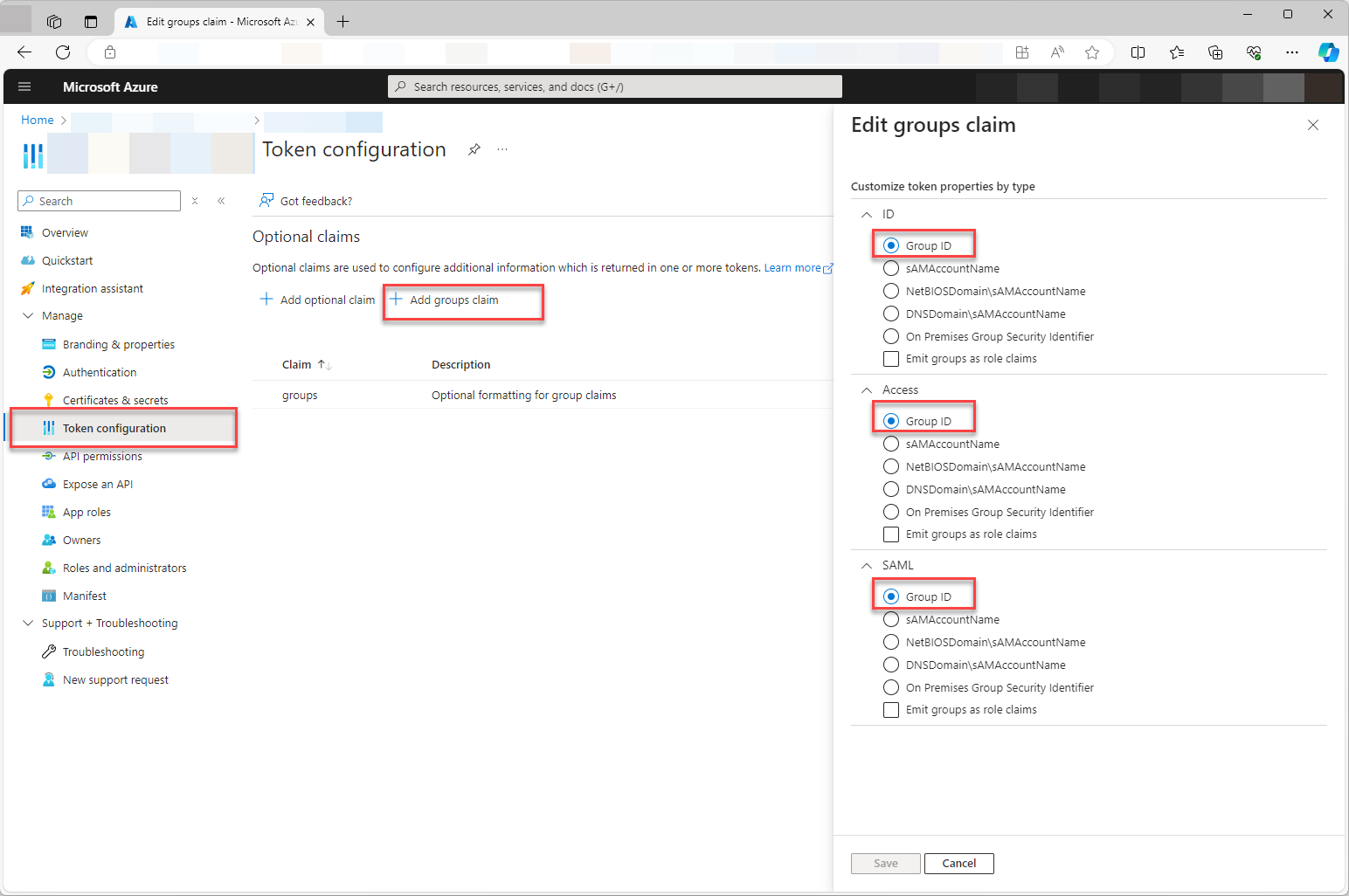
For this configuration, the groups-claim must also be configured in Entra ID Apps
Data Protection
primedocs supports several options for storing and securing ASP.NET Coredata protection keys. These are controlled in the primedocs.config:
| Parameter | Description |
|---|---|
aspNetCoreDataProtectionDirectory | Directory in which the data protection keys are stored. Default: Directory of primedocs.config |
aspNetCoreDataProtectionDirectoryUseDPAPI | Enables protection of keys with DPAPI (Windows Data Protection API). Only useful if keys are located in the file system. |
aspNetCoreDataProtectionAzureBlobStorage | URI to an Azure Blob Storage container where the keys are stored. |
aspNetCoreDataProtectionAzureBlobStorageFromEnvironment | Expects the Azure Blob Storage URI via an environment variable (PRIMEDOCS_CONFIG). |
aspNetCoreDataProtectionAzureKeyVaultUri | Optional: URI to an Azure KeyVault. If set, the keys are additionally protected in the KeyVault. |
Note:
- Only one storage option may be configured at a time:
aspNetCoreDataProtectionDirectory(Filesystem),- or
aspNetCoreDataProtectionAzureBlobStorage(Blob Storage),- or
aspNetCoreDataProtectionAzureBlobStorageFromEnvironment(Blob Storage via environment variable).- If no special storage is configured, the keys are stored in the same directory as
primedocs.configby default..- Recommended for on-premises: Filesystem with DPAPI.
- Recommended for cloud: Azure Blob Storage + KeyVault.
Certificate of Authenticity
The cert.pfx specified in primedocs.config is used to sign authentication tokens and has no connection to TLS/SSL certificates.
By default, a cert.pfx is generated during installation. To ensure that tokens remain valid after a new installation, this certificate must be retained or loaded via the certificate store.
Supported configuration parameters in primedocs.config:
| Parameter | Description |
|---|---|
signingCertFilePath | Relative or absolute path to the certificate file (.pfx). Relative: relative to primedocs.config. |
signingCertPassword | Password for decrypting the .pfx-file. |
signingCertThumbprint | Thumbprint of a certificate installed in the Windows certificate store (LocalMachine\My). |
signingCertSubject | Alternative to thumbprint: Loading the certificate using the subject name. |
Note:
Only one option is ever needed.:
- Thumbprint → loads certificate from the Windows certificate store
- Subject → alternative search in the certificate store
- FilePath + Password → loads .pfx file from the file system
The certificate is generated with these parameters:
function randomString([int]$length) {
    $characters = "abcdefghiklmnoprstuvwxyzABCDEFGHKLMNOPRSTUVWXYZ0123456789".ToCharArray()
    For ($loop = 1; $loop -le $length; $loop++) {
        $randomString += ($characters | Get-Random)
    }
    return $randomString
}

$certPath = "C:\Temp\cert.pfx"
$certificatePassword = randomString(12)
$certificatePasswordSecureString  = ConvertTo-SecureString -String $certificatePassword -Force -AsPlainText
$certificateDefaultName = "PrimeDocsIdSCert"

$HT = @{
    Subject="CN=$certificateDefaultName";
    KeyLength = 2048;
    HashAlgorithm = 'SHA256';
    KeyUsage = 'DigitalSignature';
    KeyExportPolicy = 'Exportable';
    KeySpec = 'Signature';
    NotAfter = (Get-Date).AddYears(10) ;
    TextExtension = '2.5.29.37={text}1.3.6.1.5.5.7.3.3';
    CertStoreLocation='cert:\localmachine\my';
}
$certificate = New-SelfSignedCertificate @HT

$certificatePath = 'cert:\localMachine\my\' + $certificate.thumbprint

Export-PfxCertificate -cert $certificatePath -FilePath $certPath -Password $certificatePasswordSecureString

Get-ChildItem Cert:\LocalMachine\My | Where-Object { $_.Subject -match $certificateDefaultName } | Remove-Item

Write-Host "Created certificate file with password '$certificatePassword' created as $certPath"
Logging
primedocs uses NLog for logging. By default, all server applications log to the installation folder and generate a serverApp.oolog file (up to a maximum of 7, one per day).
It is also possible to log to the “Operation database” (operationDbConnectionString). This setting is required for this:
<primedocs operationDbConnectionString="..."
           databaseLoggingEnabled="true">
           ...
Warnings and errors are then written to the database and can be analysed using the Health Monitor.
Attention: This only works if the NLog.config files have not been manipulated.
In principle, however, it is not a problem if you adapt the NLog.config file to your own requirements.
Admin API
Via the Admin API third-party systems can access primedocs' APIs. This requires the following registration in the primedocs.config:
<primedocs>
...
  <clients>
    <add id="[GUID]" oidcClientId="CustomApiClient" oidcClientSecret="CustomClient_Secret_123" userAuthType="FromConfigAdminApi" />
  </clients>
...
</primedocs>
Connect API
Third-party systems can use primedocs document generation on the server side via Connect API This requires the following registration in primedocs.config:
<primedocs>
...
  <clients>
    <add id="[GUID]" oidcClientId="CustomConnectClient" oidcClientSecret="CustomClient_Secret_123" userAuthType="FromConfigConnectApi" />
  </clients>
...
</primedocs>
Teams / Office / Outlook Integration
The integration in Teams as well as the support of the new Office.js-based AddIns in Office (Word/PowerPoint/Excel) and Outlook must be activated via primedocs.config.
Any GUID can be used as the id.
<primedocs>
...
  <teams id="[GUID]" namePrefix="" />
  <officeAddin id="[GUID]" namePrefix="" />
  <outlookAddin id="[GUID]" namePrefix="" />
</primedocs>
The namePrefix can be used if there are several environments. The AddIns are then named in the form {namePrefix} primedocs.
The manifest for the deployment can then be obtained via these URLs:
| Product | Manifest URL | Installation Guide |
|---|---|---|
| Teams | https://your-url.local/app/api/manifest/teams | Microsoft Teams App Installation |
| Office | https://your-url.local/app/api/manifest/officeaddin | Office AddIn Installation |
| Outlook | https://your-url.local/app/api/manifest/outlookaddin | Outlook (New) AddIn Installation |
The manifest can then be distributed via Teams or Office Administration.
Health Monitor
The optional periodic monitoring of the primedocs services and configuration via the Health Monitor must be enabled in the configuration:
<primedocs>
...
  <healthMonitor
    basicAuth="user:password"
    clientSecret="MySecretValue"
    intervalInSeconds="600">
    <errorRatePolicy
      errorsPerHourThreshold="10"
      statusBelowThreshold="Warning"
      statusAboveThreshold="Error" />
  </healthMonitor>
</primedocs>
| Attribute | Description |
|---|---|
basicAuth | Credentials to query details via the Health Monitor API (username:password). |
clientSecret | Client secret for OAuth 2.0 authentication at the IdentityServer (Client ID: healthmonitor, Grant Type: client_credentials). Needed so that the Health Monitor can query the internal primedocs APIs. Can also be used by third-party tools to obtain an access token. |
intervalInSeconds | Check interval in seconds. Default: 600. |
The optional element errorRatePolicy can be used to control how application errors from the logging database are evaluated. Without this element, errors are only reported as warnings.
| Attribute | Description |
|---|---|
errorsPerHourThreshold | Error threshold per hour. |
statusBelowThreshold | Status below the threshold. Allowed: Warning, Error. Default: Warning. |
statusAboveThreshold | Status above the threshold. Allowed: Warning, Error. Default: Error. |
primedocs AI (Preview)
The following configuration must be stored in primedocs.config for primedocs AI:
<primedocs>
...
  <openAi endpoint="https://....openai.azure.com/"
          key="..."
          modelDeploymentName="..." />
</primedocs>
In addition, predefined prompts can be stored in the DataSourceAdminApp:
<Prompts>
		<Prompt title="Translate to EN"  icon="fi-gb" >Translate this given text to English</Prompt>
		<Prompt title="Translate to FR"  icon="fi-fr">Translate this given text to French</Prompt>
		...
</Prompts>
This is needed for Global Translations