Server Installation: Azure
Here you will find the system requirements and step-by-step instructions for installing the primedocs server components on Azure.
For an installation on a "normal" OnPrem Windows environment, go to this page: Server Installation.
This page relates to the on-premises variant, hosted on Azure.
For the "Software as a Service" variant, no server installations by the customer are required.
Azure Platform as a Service
For hosting primedocs on Azure, we recommend using the "Platform as a Service", or "PaaS", approach, i.e. hosting on Azure's platform services and not hosting virtual machines on Azure yourself.
Although this is possible in principle, it is not recommended, as many of the advantages of Azure are lost and higher costs are incurred.
Services
The following services are required to install primedocs:
- Storage Account
- Key Vault
- App Service mit Windows
- Azure SQL
- Entra ID App Registration
- Entra ID App Registration für die DataSourceAdminApp
It is recommended to bundle the services in a Resource Group, but this is optional.
Installation sequence
Set up the components in this order — later steps require the previous ones:
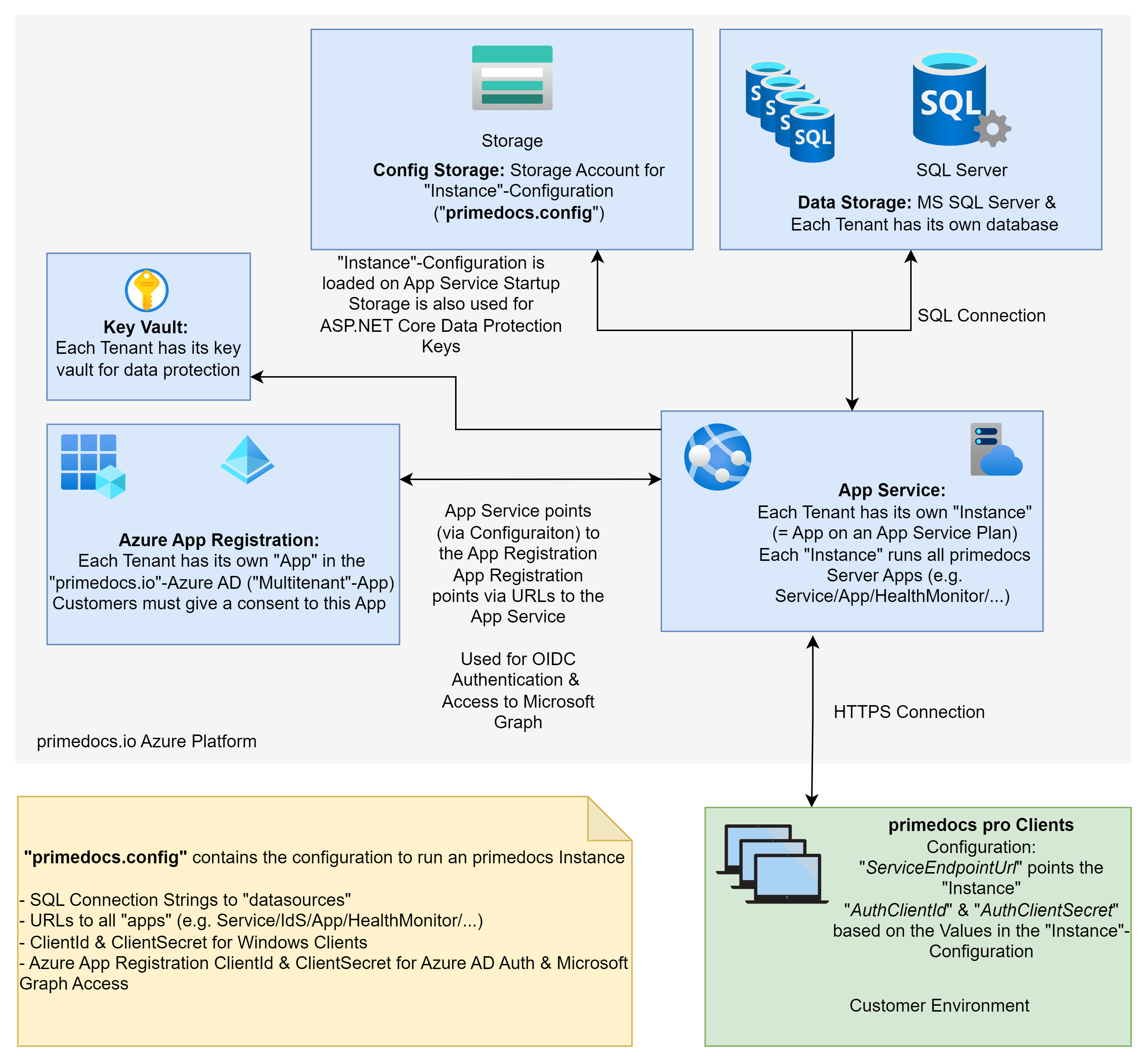
primedocs.io Architecture
Our "Software as a Service" variant (SaaS) runs with the same components as the PaaS variant, but with a slightly different configuration, as our application is configured for multi-tenant operation.
Scaling
When primedocs Desktop is used on the Windows client, the application service is only responsible for synchronisation. Therefore, with the PaaS variant, the load is mainly on the SQL service.
We recommend the DTU model for SQL Server in the Standard tier. In principle, you can start with the lowest DTU level and scale up gradually in the event of service problems.
For load peaks on the App Service, we recommend Scale Up instead of Scale Out, as primedocs holds certain data in memory and is not designed for this purpose.