Login and first start
How you launch primedocs depends on how it is deployed in your organisation. In most cases, you start the primedocs Desktop application; alternatively, you use primedocs Web in the browser or the Office Web Add-In.
Starting primedocs
You start the desktop application like any other program:
- Desktop icon: double-click the primedocs icon, or
- Start menu: type "primedocs" and select it.
Login
primedocs uses your Windows login credentials. A separate login is usually not required.
If a login is required after all, your web browser opens automatically. Enter your username and password there — you are then redirected to primedocs automatically.
On first login, your user account is created automatically based on your Active Directory or Entra ID identity. If you cannot sign in, contact your administrator.
Setup wizard
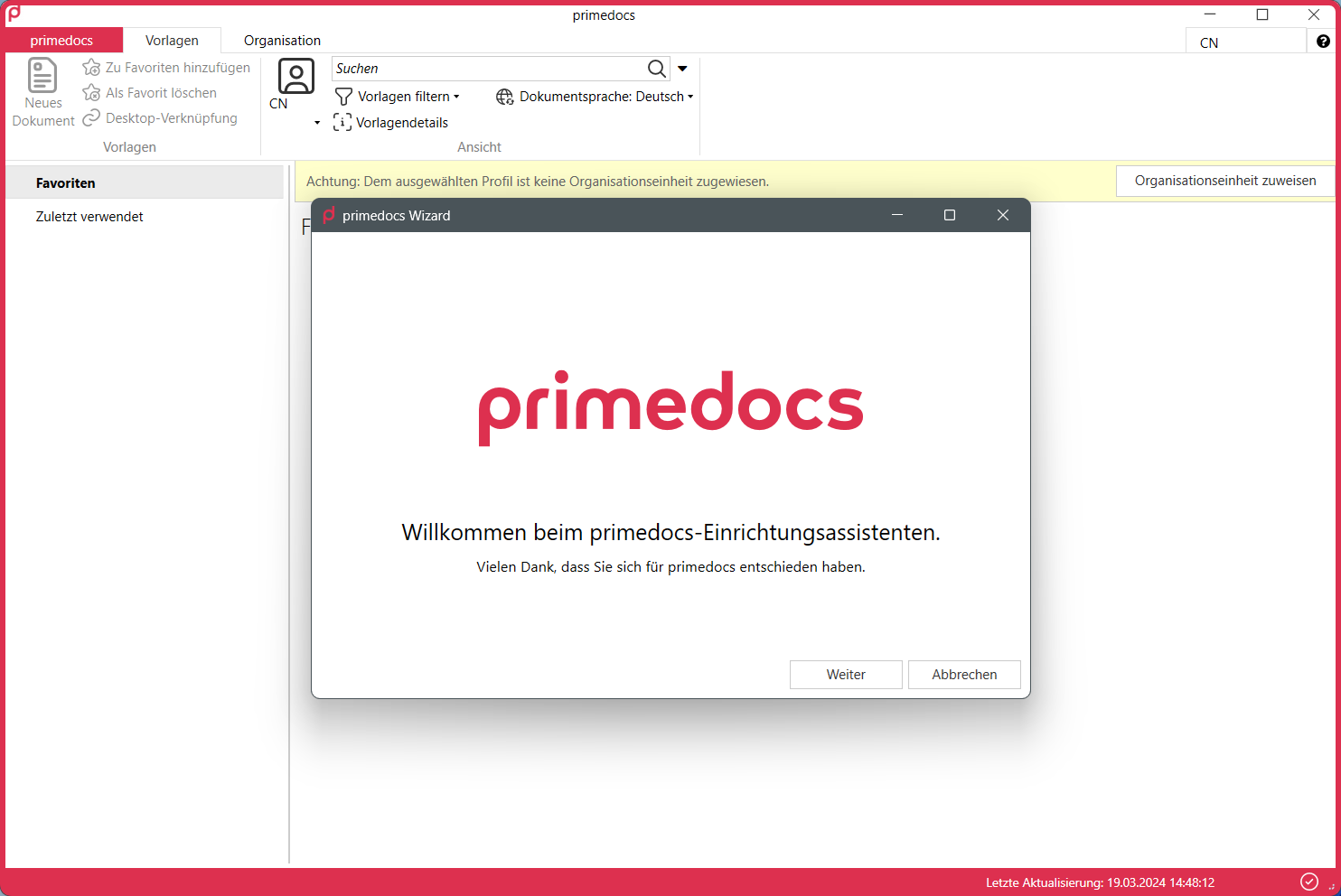
On first start, the setup wizard appears. Click Next.
In the next dialog, select the organisational unit you belong to (your branch or department) and confirm with Finish.
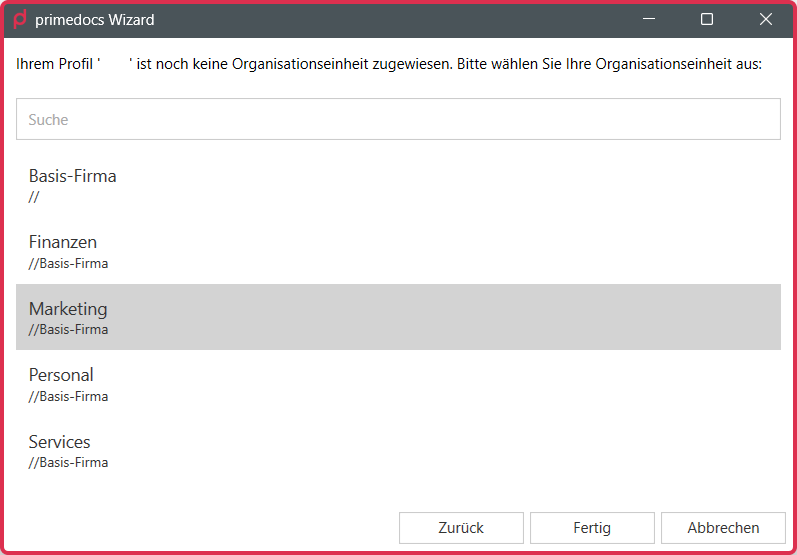
If no organisational unit is shown, contact your in-house support. They can grant the corresponding access.
Checking user data
After completing the wizard, switch to the Organisation tab and open the User category in the area on the left. Check your personal details here and complete them if necessary. Confirm the check with All OK in the yellow info bar.
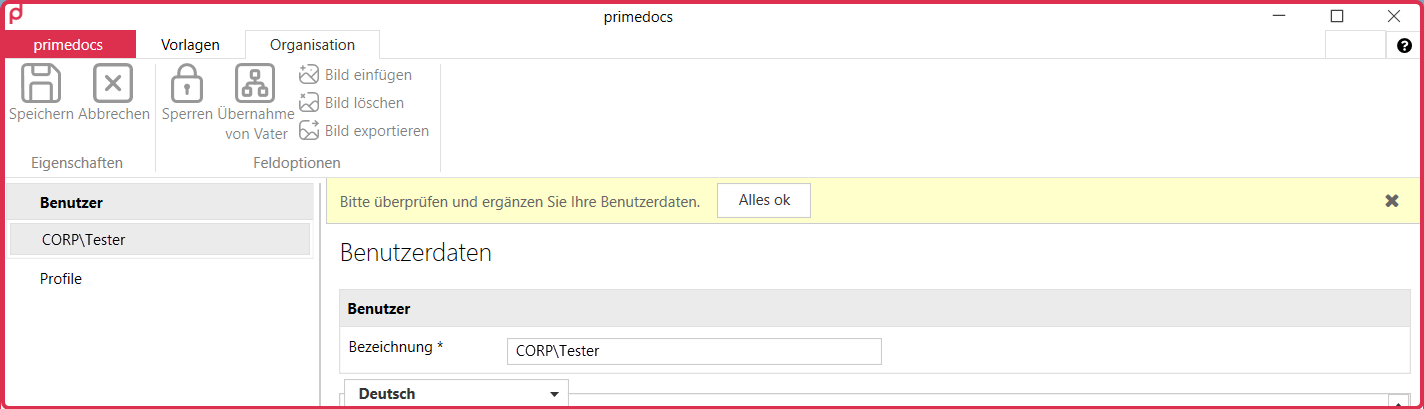
Fields in the User area are linked to Active Directory and are synchronised automatically. If data is incorrect, contact your internal IT support so that the data is corrected in the source system. You cannot overwrite these fields directly here.
You can then set up your user profile and create your first document.